Introduction
Salesforce and Constant Contact are powerful tools for managing customer relationships and executing marketing campaigns. However, integrating these platforms can significantly enhance your email marketing efficiency.
Cazoomi’s SyncApps is a solution designed to bridge the gap between Salesforce and Constant Contact, enabling seamless data synchronization. This guide will explore how you can set up and optimize this integration for your business needs.

What is Cazoomi?
SyncApps by Cazoomi helps you manage your data and get valuable insights from it on a single dashboard.We achieve all that by bidirectionally integrating all the solutions that matter to your business.
Why Integrating Salesforce with Constant Contact Matters?
Integrating Salesforce with Constant Contact allows you to create more effective, targeted email campaigns. By syncing data between the two platforms, you ensure that your marketing campaigns are powered by up-to-date customer information.
Boosting Email Campaigns with CRM Data
With integration, Salesforce’s CRM data can be used to personalize your email campaigns in Constant Contact. This means sending more relevant content to your contacts, increasing open rates, and improving overall engagement.
Seamless Data Synchronization for Marketing Automation
Syncing data between Salesforce and Constant Contact ensures that both systems are always in sync. This eliminates the need for manual data entry, reduces errors, and allows you to automate your workflows.
What Does Syncapps by Cazoomi do?
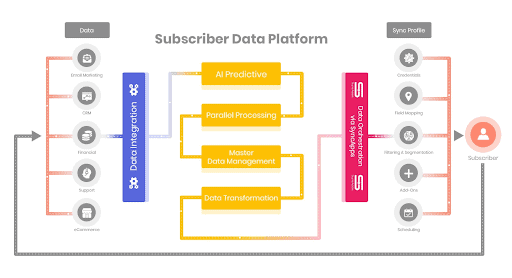
Help you increase your ROI by making it easy for you to access, analyze, and share your data. The SyncApps by Cazoomi subscribers spend less time on manual activities and more on strategic thinking. From eCommerce to CRM, marketing, support, financial and more, our integrations can bring all of your departments together and get them to operate seamlessly.
- Affordable Integration Solutions
- Industry-Specific Integrations
- No-Code Plug-and-Play Platform — Ideal for Small, Medium, and Large Enterprises
- Resources Hub
Set up Salesforce Integration with Constant Contact

Make bidirectional data integration simple. All your business data is synced between key software, without hours of data entry or tracking down your colleagues. There is a Total of 6 Steps that need to be followed.
Step 1: Find your Software and Register your credentials:-
- Select the Software you use to get started and name the profile. ‘
- Add a description for you to remember the Sync Profile that you created.
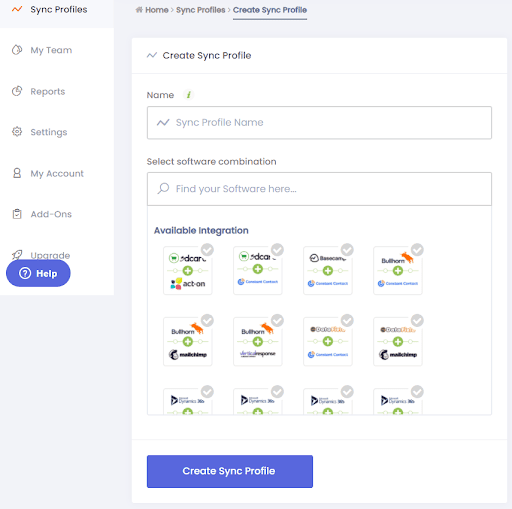
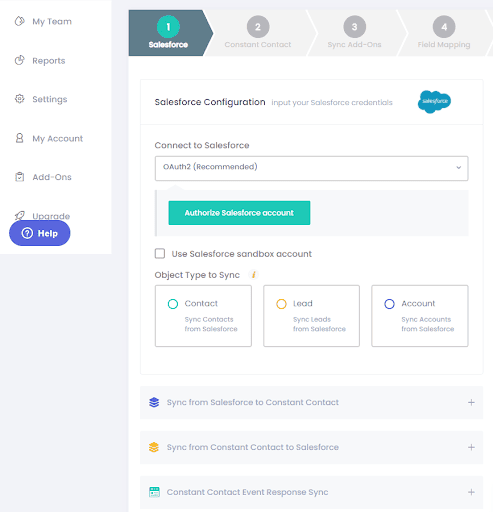
- Login to Your salesforce and select the appropriate Object Type to Sync
- Salesforce to Constant Contact or Constant Contact’s Campaign or other powerful option from Constant to salesforce.
- Just click and select the appropriate option for Great Results.
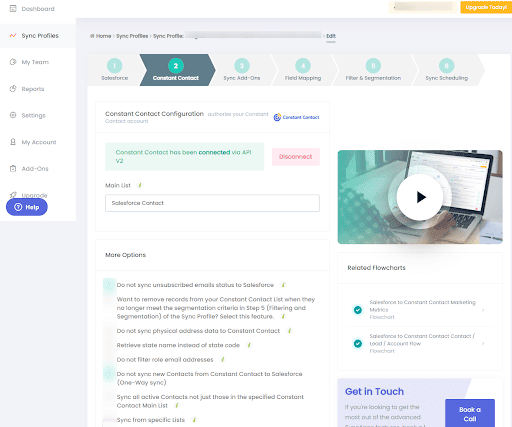
Step 2: Add your marketing Automation:-
- Log in to your Constant Contact Account
- Select the appropriate option as per your need
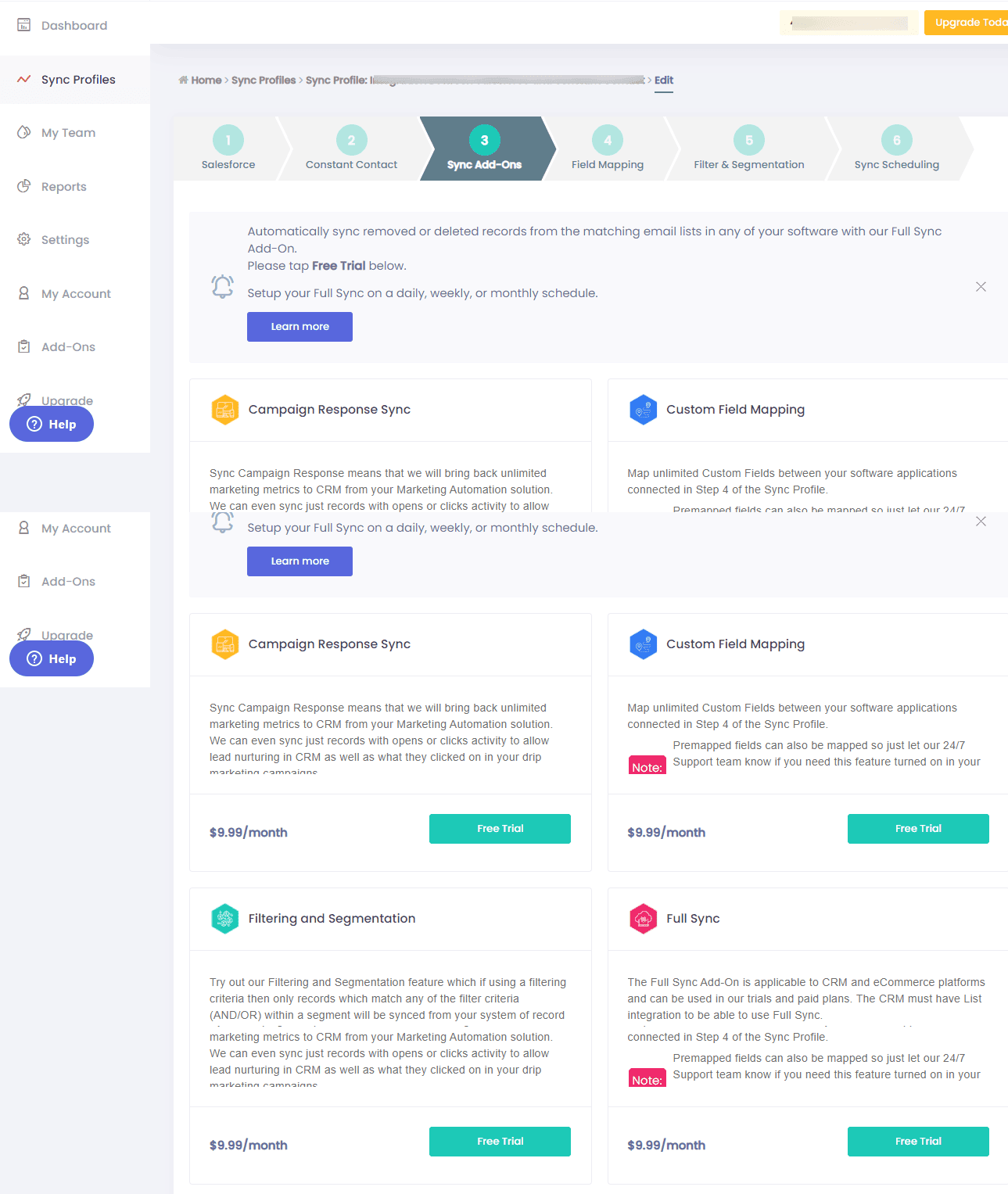
Step 3: Add-Ons:-
- The Add-Ons screen allows you to select those you want and more for each software you connect.
- Press the Add-Ons you would like to configure and Press Next.
Step 4: Custom Field Mapping:-
- Additional field mapping is optional. Basic Contact fields such as Email Address, Name, Title, Address, and Company Name are already pre-mapped for you.
- You can also enable static text mapping capability to sync backfields from landing pages to your software.
- Field mapping from your chosen software 1 & software 2 allows you to update existing records or new records with ease.
- Be sure that after adding new field mapping to press Reset Sync Process from your Sync Profile page so all your data will be re-synced with the new field mappings.

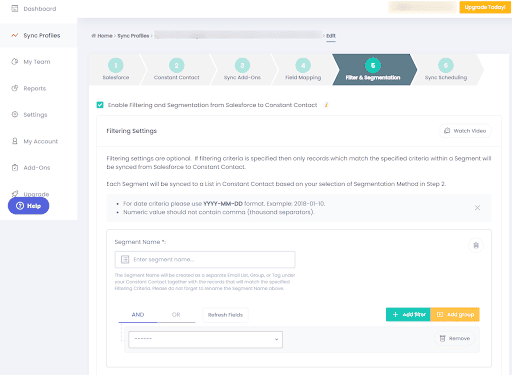
Step 5: Filter & Segmentation:-
- Filtering takes your records, filters based on the specified criteria, and syncs the records into your Constant Contact.
- Segmentation syncs records from each defined segment into separate Lists, Groups, or Tags.
Step 6: Sync Now:-
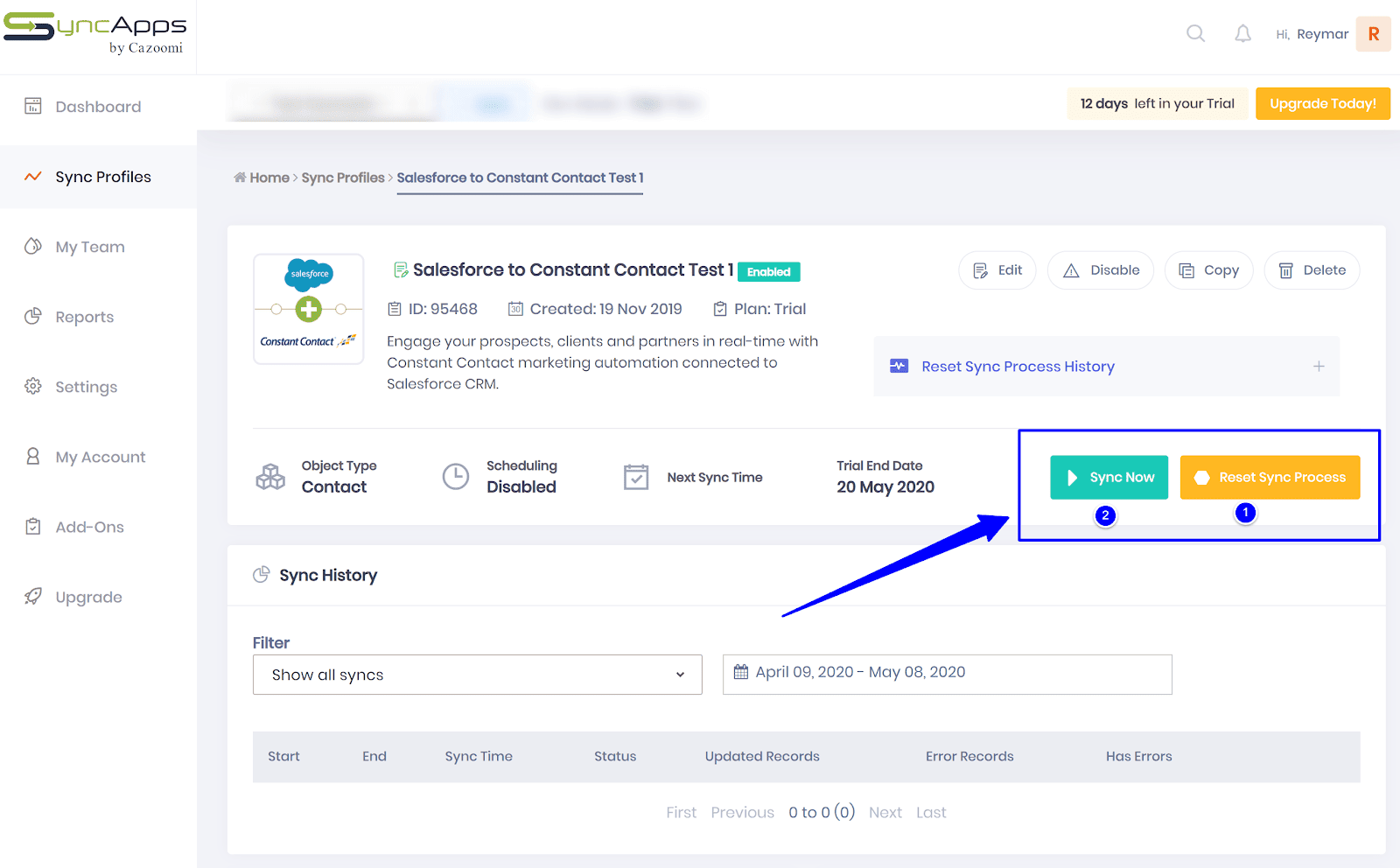
- The “Sync Now” button allows SyncApps to integrate your customized integration.
- Please note that if you’re currently/manually editing your Sync Profile, you will have to click the “Reset Sync Process” button before you click the “Sync Now” button.
- This is so SyncApps will be able to save your customization, and deliver integration according to your preferred customization.
Future-Proofing Your Salesforce Integration for Long-Term Success
To ensure the longevity of your integration, consider scaling and maintaining your setup as your business evolves.
Scaling Your Integration as Your Business Grows
As your contact lists and CRM data grow, Cazoomi can scale with your business. Regularly review your sync settings and workflows to ensure they align with your current needs.
Maintaining Sync Accuracy Over Time
Ensure that your data syncs accurately by periodically reviewing and cleaning up your CRM data. This will help avoid syncing issues and maintain the effectiveness of your email marketing campaigns.
Summary
Integrating Salesforce with Constant Contact through Cazoomi SyncApps offers a streamlined, efficient way to manage customer data and email campaigns. With this integration, you can automate workflows, improve personalization, and ensure real-time data synchronization. As your business grows, Cazoomi will help you scale, making it a valuable tool for long-term success.