Introduction:
Every CRM journey starts with data, but importing that data into HubSpot often proves more difficult than expected. Operations managers, data analysts, and CRM admins frequently encounter the same headaches: mismatched properties, broken fields, duplicated records, and countless hours spent cleaning up errors that could have been avoided. These seemingly small issues can quickly escalate into large-scale problems that slow down onboarding, disrupt workflows, and undermine confidence in your CRM system.
According to a 2023 survey, 57% of CRM data issues in mid-sized organisations can be traced back to flawed import processes. These mistakes aren’t just technical—they’re expensive. Poor data imports can delay go-live timelines, compromise reporting accuracy, and corrupt sales or marketing automation. In some cases, the damage can be so severe that it shakes internal trust in the entire system, making adoption and long-term usage significantly more difficult.
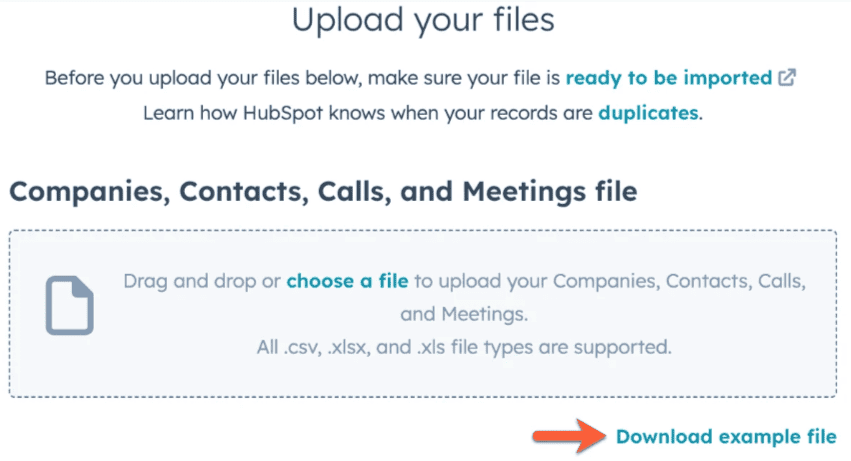
That’s why mastering HubSpot’s Data Import tool is critical. More than just a one-time upload, effective data importing is foundational to your CRM’s reliability and scalability. When done right, HubSpot’s import process supports the migration of thousands (or even millions) of records with preserved relationships, clean property mappings, and automation readiness. This guide dives into everything from data cleansing and association keys to lifecycle stages and common pitfalls, equipping you with the structure, strategy, and step-by-step approach needed to ensure your import is not only functional but high-performing.
Types of Data You Can Import into HubSpot:
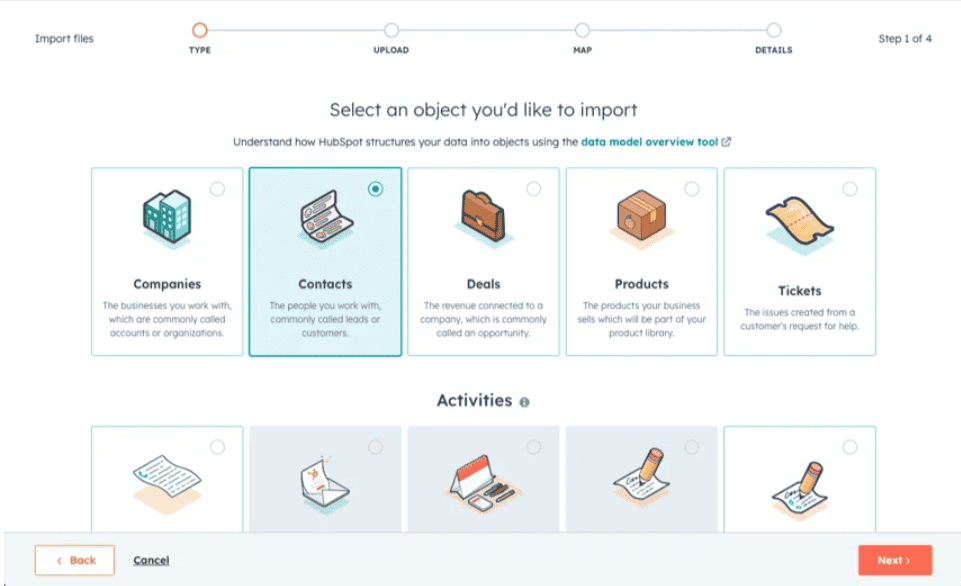
HubSpot Data Import refers to the structured process of ingesting external data into your HubSpot CRM. It supports various objects—contacts, companies, deals, tickets, products, custom objects—and allows mapping, deduplication, and formatting via native UI or API endpoints.
1. Core CRM Objects: Contacts, Companies, Deals, and Tickets:
HubSpot’s CRM is built around key data structures known as objects. These include Contacts, Companies, Deals, Tickets, and even Custom Objects you define to fit your business. Each object holds a set of records filled with specific properties, which represent details like email, phone number, lifecycle stage, or ticket status.
Importing these objects correctly ensures your CRM reflects your business processes and becomes a powerful tool for managing relationships, tracking sales pipelines, and delivering support.
2. Connecting Records Through Associations:
Associations define the relationships between objects—for example, linking a contact to the company they work for, or connecting deals to specific contacts. You can create these associations by:
- Including company data in your contact import file
- Importing two separate files and matching them through a shared field (e.g., company domain or email)
- Adding labels to describe the relationship (like “decision-maker” or “billing contact”)
Associations help your team gain complete visibility across records, leading to more personalised communication and better decision-making.
3. Activities and Engagement History:
Activities are records of your team’s interactions, such as calls, emails, meetings, tasks, and notes. These can also be imported and linked to the right contacts, companies, or deals.
Bringing in activity data gives you a historical view of engagement, improves tracking for sales and marketing efforts, and supports better coaching and performance analysis across your teams.
Why Importing Data into HubSpot is Essential?
Importing data into HubSpot is a foundational step for any business aiming to streamline operations and elevate marketing and sales performance. With HubSpot’s powerful tools, your data becomes organised, actionable, and primed to support business growth from day one. Here’s why importing data into HubSpot matters:
1. Centralise All Your Business Information:
Importing data into HubSpot does more than just add contact records—it brings your entire ecosystem together. Whether you’re managing companies, deals, tickets, or custom objects, importing ensures that every aspect of your business is reflected in your CRM. This unified view enhances team collaboration and provides deeper insights into customer relationships, helping your teams work more strategically.
2. Simplify and Improve Data Management:
Managing spreadsheets can be time-consuming, especially when unnoticed errors disrupt your workflows post-import. HubSpot’s import tool helps eliminate that pain. It intelligently maps your data to the correct fields and flags errors before they reach your CRM. This ensures a clean, accurate dataset that’s ready for immediate use, reducing manual cleanup and saving valuable time.
3. Put Your Data to Work Instantly:
Once your data is in HubSpot, it’s ready to drive action. Use AI tools to enrich missing fields, fix formatting issues, and maintain data integrity. Build custom dashboards, set up automated workflows, and create personalised views tailored to each team’s needs. With clean, organised data in place, your team can focus on growth initiatives rather than troubleshooting data issues, accelerating productivity and results.
Troubleshooting HubSpot Data Import Errors: A Simple Guide:
Importing data into HubSpot doesn’t have to be overwhelming. With thoughtful preparation and an understanding of potential pitfalls, you can streamline the process and quickly start leveraging your CRM. Still, it’s common to encounter a few bumps along the way. Here’s how to efficiently resolve typical data import issues and ensure your migration goes smoothly.
1. Resolve Formatting Issues:
Ensure your spreadsheet adheres to HubSpot’s formatting guidelines. This means checking for missing fields, inconsistent data formats (such as date styles), or special characters that might interfere with processing. Properly structured data is key to a successful and error-free import.
2. Fix Field Mapping Mistakes:
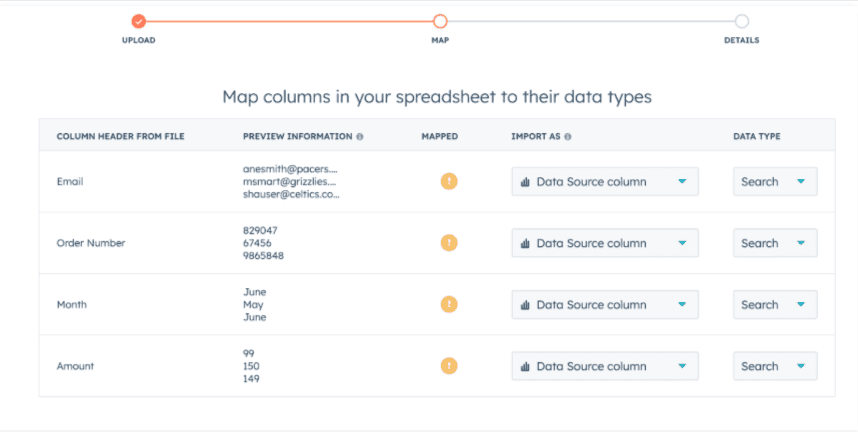
Double-check how your columns map to HubSpot’s properties. Make sure that each field is aligned with the appropriate HubSpot property and that any custom fields are set up in advance. Accurate mapping ensures your records appear in the correct places, maintaining data integrity.
3. Clean and Validate Data:
Before importing, audit your data for duplicates, incomplete entries, or inconsistencies. Tidying up your records beforehand helps ensure your marketing, sales, and service teams work with accurate and actionable information.
4. Investigate Import Warnings or Failures:
If HubSpot flags any errors during the import process, review the summary report for details. These messages will help you pinpoint what went wrong—whether it’s a formatting issue, a missing identifier, or a property mismatch. Addressing these warnings promptly avoids larger issues later.
Once your import is complete, your clean data can drive automation, personalisation, and reporting across your teams. If problems arise after the import, HubSpot’s knowledge base and support team offer helpful tools to get you back on track.
By following these troubleshooting steps and preparing your data properly, you’ll ensure a smooth and successful import, laying the foundation for effective campaigns, pipeline management, and customer engagement.
Real-World Use Cases:
1: SaaS Firm Streamlines Sales Data Import:
- Industry: Software-as-a-Service
- Challenge: 120,000 contact records in a legacy MySQL database, each linked to a unique company and up to 5 deals.
- Solution: Used Python to query data, format JSON payloads, and import via crm/v3/imports API. Linked contacts to companies using the domain and hubspot_owner_id.
- Result: 98.5% accuracy rate on imports, and the sales team launched follow-ups within 2 hours post-migration.
2: Nonprofit Cleans Up Donation Data:
- Industry: Nonprofit
- Challenge: Legacy donor records stored in inconsistent Excel sheets over 5 years.
- Solution: Used Power Query to clean data and mapped donation amounts to a custom “Lifetime Giving” property.
- Result: Enabled personalised donor outreach campaigns and increased recurring donations by 18%.
Key Benefits of a Clean HubSpot Data Import :
1. Automation Readiness:
A clean data import ensures that all records have the correct properties and formats, enabling HubSpot’s workflows and automation to function smoothly. This prevents errors or missed triggers in email campaigns, task assignments, and lead-nurturing sequences. Proper data sets the stage for reliable, hands-free processes that save time and increase efficiency.
2. Accurate Reporting:
Importing clean, well-structured data allows your dashboards and reports to reflect true business performance. Accurate data leads to trustworthy insights on sales trends, marketing ROI, and customer behaviour. This clarity helps leadership make informed decisions and plan effective strategies without second-guessing numbers.
3. Seamless Association Handling:
Correctly importing data with proper associations between contacts, companies, deals, and tickets means your CRM reflects real-world relationships. This connected data structure helps teams see the full context of customer interactions, streamlines follow-ups, and improves collaboration across departments.
4. Compliance & Audit Trail:
Maintaining clean data ensures you meet regulatory requirements like GDPR and CCPA by tracking where data came from and how it’s used. A clean import makes it easier to maintain audit trails and respond to data access or deletion requests, reducing legal risks and building customer trust.
5. Reduced Duplicate Entries:
A thorough import process with unique identifiers and proper mapping prevents duplicate records. Fewer duplicates mean less confusion, cleaner communication, and reduced database bloat. This improves CRM performance and helps sales and marketing teams work efficiently with a single source of truth.
6. Faster User Adoption:
When users see clean, accurate, and well-organised data, they trust the CRM and are more likely to use it consistently. A clutter-free, easy-to-navigate system reduces frustration and training time, accelerating adoption across your team and maximising your HubSpot investment.
Best Practice & What to Do Before Uploading Data:
Before you hit the “Import” button in HubSpot, a critical phase must be completed to ensure your data journey is smooth, accurate, and free of costly errors. Pre-import preparation is the foundation of a clean data import process—skip or rush this, and you’ll likely face duplicates, misaligned fields, and broken workflows.
1. Data Audit and Cleanup:
Start by thoroughly auditing your data sources. Whether pulling from Salesforce, spreadsheets, or legacy databases, perform the following:
- Identify Incomplete or Null Fields: Empty emails, missing phone numbers, or absent company names can cause records to fail validation or reduce CRM usability. Remove or fill in these gaps where possible.
- Standardise Formats: Dates should follow the YYYY-MM-DD format, phone numbers must include country codes, and emails should be lowercase without extra spaces.
- Remove Duplicates: Use Excel’s “Remove Duplicates” feature or dedicated tools like OpenRefine. Pay particular attention to your deduplication keys—usually email for contacts and domain name for companies.
- Validate Data Accuracy: Spot-check a sample for invalid entries like fake emails, outdated phone numbers, or wrong job titles.
2. Define Your Primary and Association Keys:
HubSpot uses primary keys to identify unique records during import and association keys to link records across objects.
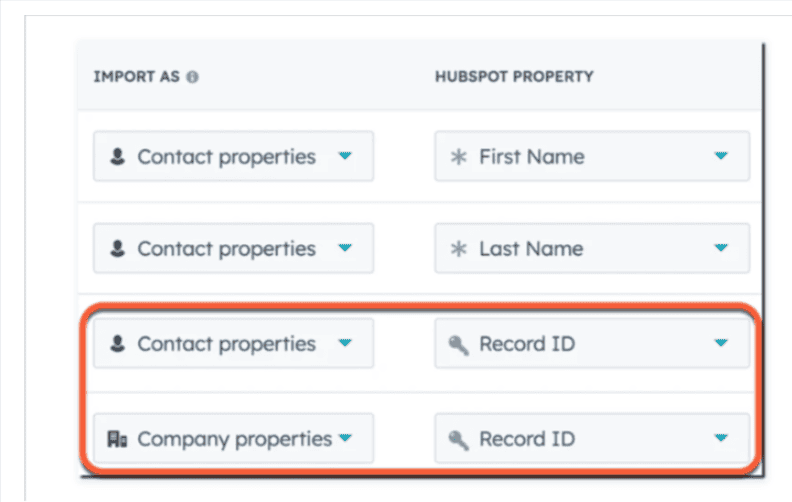
- Primary Keys: For contacts, the email address is the default. For companies, the domain name serves this purpose. Confirm that these fields are present, accurate, and unique.
- Association Keys: When importing related objects (e.g., deals linked to contacts), you must define the fields that create these links, such as Contact ID or Company Domain. These associations must exist in your data and be clean.
3. Map Source Fields to HubSpot Properties:
Next, prepare a mapping document to align your source fields with HubSpot’s object properties.
- Use Consistent Naming Conventions: Ensure your column headers are intuitive and close to HubSpot property names to ease the mapping process.
- Match Data Types: Dates should be date fields, booleans as yes/no, and dropdown fields match HubSpot options exactly.
- Plan for Custom Properties: If your source data includes fields HubSpot doesn’t have, pre-create custom properties in HubSpot to avoid import errors.
4. Segment Large Imports into Manageable Chunks:
If your dataset is large (over 10,000 records), break it into smaller batches. This approach helps:
- Isolate and Debug Errors: Smaller imports mean easier troubleshooting.
- Prevent API Timeouts: HubSpot’s Import API and wizard perform more reliably with segmented uploads.
5. Backup Your Current HubSpot Data:
Before importing, export your current HubSpot data as a backup. This export acts as a safety net if you need to revert changes or audit pre-import data.
6. Prepare Your HubSpot Environment:
- Deactivate Active Workflows: Temporarily pause workflows triggered on record creation or updates to prevent unintended automations.
- Check User Permissions: Ensure the importing user has appropriate access to create, update, and associate records.
- Sandbox Testing: Use a HubSpot sandbox environment to conduct test imports and validate mappings before production.
Other methods for migrating your data into HubSpot:
Data Sync:
Create a recurring sync between HubSpot and another tool you and your team use to ensure your data is up to date across all the systems important to your business.
Third-Party Integrations:
Additional platforms are available to help bring your data into HubSpot. Companies like Import2 and SyncMatters provide data migration services from nearly every major CRM on the market and can help with more nuanced migration projects.
HubSpot Technical Consultant:
Work directly with a HubSpot consultant through all the nuances of your data migration. Build out custom solutions and ensure you’re following best practices throughout the process of moving over to the HubSpot CRM.
API Endpoints:
If you have technical resources at your disposal, HubSpot’s APIs will help you automate your data migration your data, and customise the data ingestion to meet your specific needs.
Conclusion:
Data migration isn’t just a one-time task—it’s the foundation of your CRM’s long-term success. A thoughtful, structured HubSpot data import prevents costly errors, boosts automation effectiveness, and empowers your teams with the insights they need to act decisively.
By auditing your datasets, aligning fields with HubSpot properties, and following best practices for associations and API usage, you turn a technical process into a strategic asset. Clean data fuels faster onboarding, sharper segmentation, and smarter customer interactions.
To get started:
- Test your next import in a sandbox.
- Use the multi-object feature if you’re linking contacts, companies, or deals.
- Validate your property mappings meticulously.
- Automate where possible using the Import API.
Whether you’re migrating 1,000 or 1 million records, treat data import as the first campaign your CRM will run—because everything after depends on getting it right. Ready to make your HubSpot setup future-proof? Start with your data.