Introduction
Salesforce introduces scheduled flows. Now, you can schedule flows to run and create scheduled batch jobs declaratively, specifying when the date/time the flow will run and the frequency of the scheduled flow (once, daily, weekly and monthly) and provide additional filter conditions for the records.
Here are some things to note with scheduled flows:
- The start time of the scheduled flow reflects the time zone of the org (look a the Company Information screen). However, when you configure the flow, the start time will reflect the time zone of your user record. So, if your time zone is different than that of the org, account for that when you configure the start time in your scheduled flow.
- Scheduled flows will run under the user called “Automated Process User.”
- For conditions, when using date or date/time filters, you cannot currently use a formula. It needs to be *gasp* a hardcoded date or date/time. As a workaround, you need to create a custom field that has the date or date/time stamped so you can use it as a filter condition.
- Formula references do not work in filter conditions.
- If you need to reference attributes associated to the record in the scheduled flow, use the global variable called “$Record.”
- You cannot debug scheduled flows (i.e. use the Debug feature in Flow Builder). They are logged in debug logs. You can also create a version of your scheduled flow as a non-scheduled flow to use the Flow Builder debug feature.
- Once you create your scheduled flow, you will see it listed in the Scheduled Jobs page in Setup.
- According to Salesforce, scheduled flow limits are the same as Apex Scheduler limits.
What’s a schedule-triggered flow?
A schedule-triggered flow runs in the background at a specified time and at a repeated frequency (daily, weekly, or once) to perform actions on a batch of records. Schedule-triggered flows can save time and minimize manual data update risk by automating these updates. Schedule-triggered flows can be monitored and managed in Setup from the Scheduled Jobs page. You can schedule flows to run in off-hours to minimize potential record conflicts with users. A schedule-triggered flow runs independent of a record change.
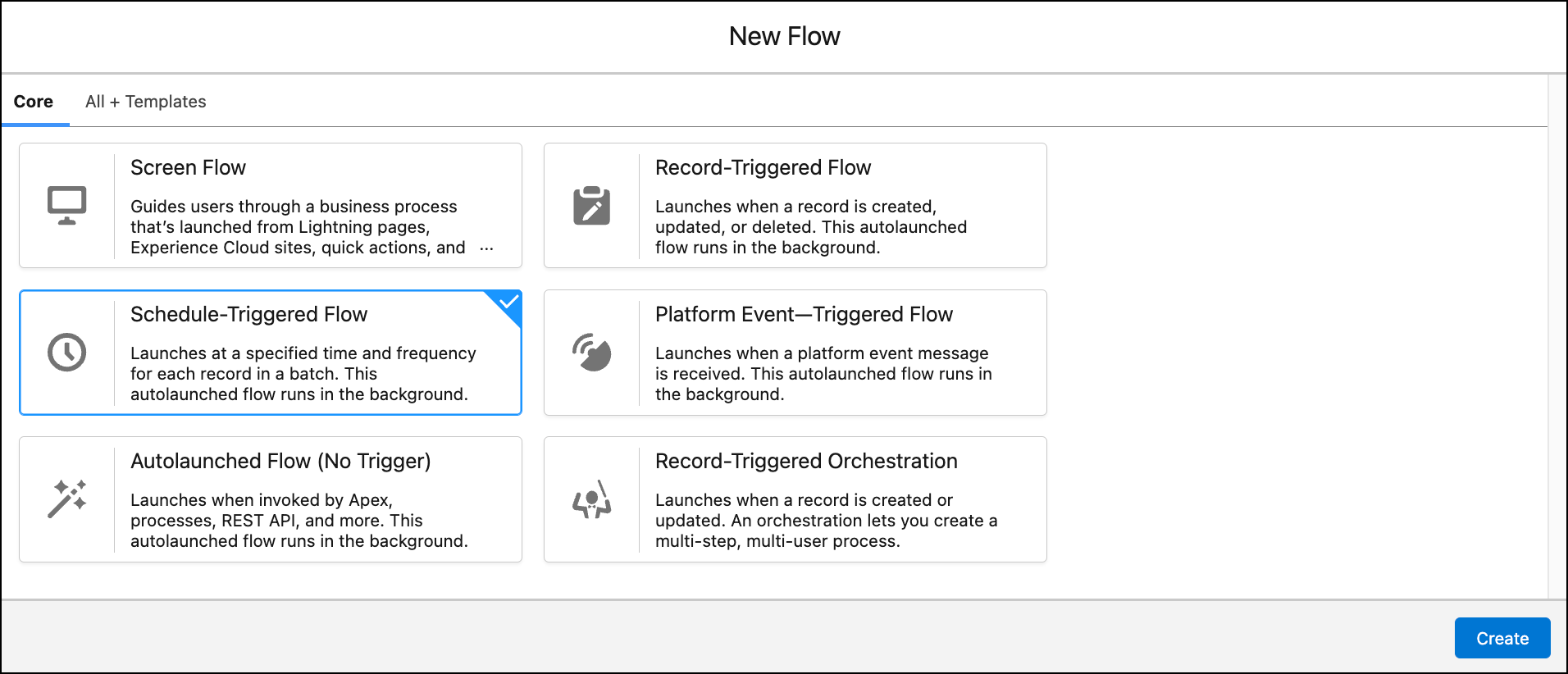
From the New Flow menu, select Schedule-Triggered Flow to start building your new flow.
What’s the difference between a schedule-triggered flow and batch Apex?
While batch Apex and a schedule-triggered flow look like siblings, think of batch Apex as the much older sibling capable of handling many more records with more capability than its younger sibling, the schedule-triggered flow.
Batch Apex is code written by a developer to process records in batches. Schedule-triggered flows are a low-code version of a scheduled batch Apex. Unlike batch Apex, which can query up to 50 million records, a schedule-triggered flow can only query up to 50,000 records before hitting the governor limit.
The maximum number of schedule-triggered flow interviews per 24 hours is 250,000, or the number of user licenses in your org multiplied by 200, whichever is greater. One interview is created for each record retrieved by the schedule-triggered flow’s query.
The maximum batch size for schedule-triggered flows is 200, whereas for batch Apex it’s 2,000.
Batch Apex can handle tasks that need to be performed at regular intervals, such as hourly, daily, weekly, or monthly and offers more flexibility than schedule-triggered flows.
Consider the data, the number of records, and frequency of the scheduled process when determining the right solution to meet your business requirements. If your process must accommodate for large volumes of data or more scheduling flexibility, schedule-triggered flows may not be the right solution to get the job done.
What are example use cases solved with a schedule-triggered flow?
There are many use cases that are solved with a schedule-triggered flow. Here are a few that come to mind.
- Deactivate users who have not logged in to Salesforce in X days; runs weekly on Saturdays at 10:00 AM.
- Send a custom notification daily at 8:00 AM reminding customer service reps to update open cases that have not been updated in over 5 days.
- Send birthday emails to customers for those celebrating a birthday; runs daily at 9:00 AM.
- Send a survey to students who complete a course that week on Fridays at 6:00 PM.
- Do a one-time bulk update of contact records to update a value of a new picklist field so all existing records have complete data.
- Send a reminder to the customer whose payment is past due by 10 days every week on Fridays at 12:00 PM.
- Do a one-time bulk update from ‘N/A’ to ‘Not Applicable’ for consistency in an opportunity field.
Example of a schedule-triggered flow?
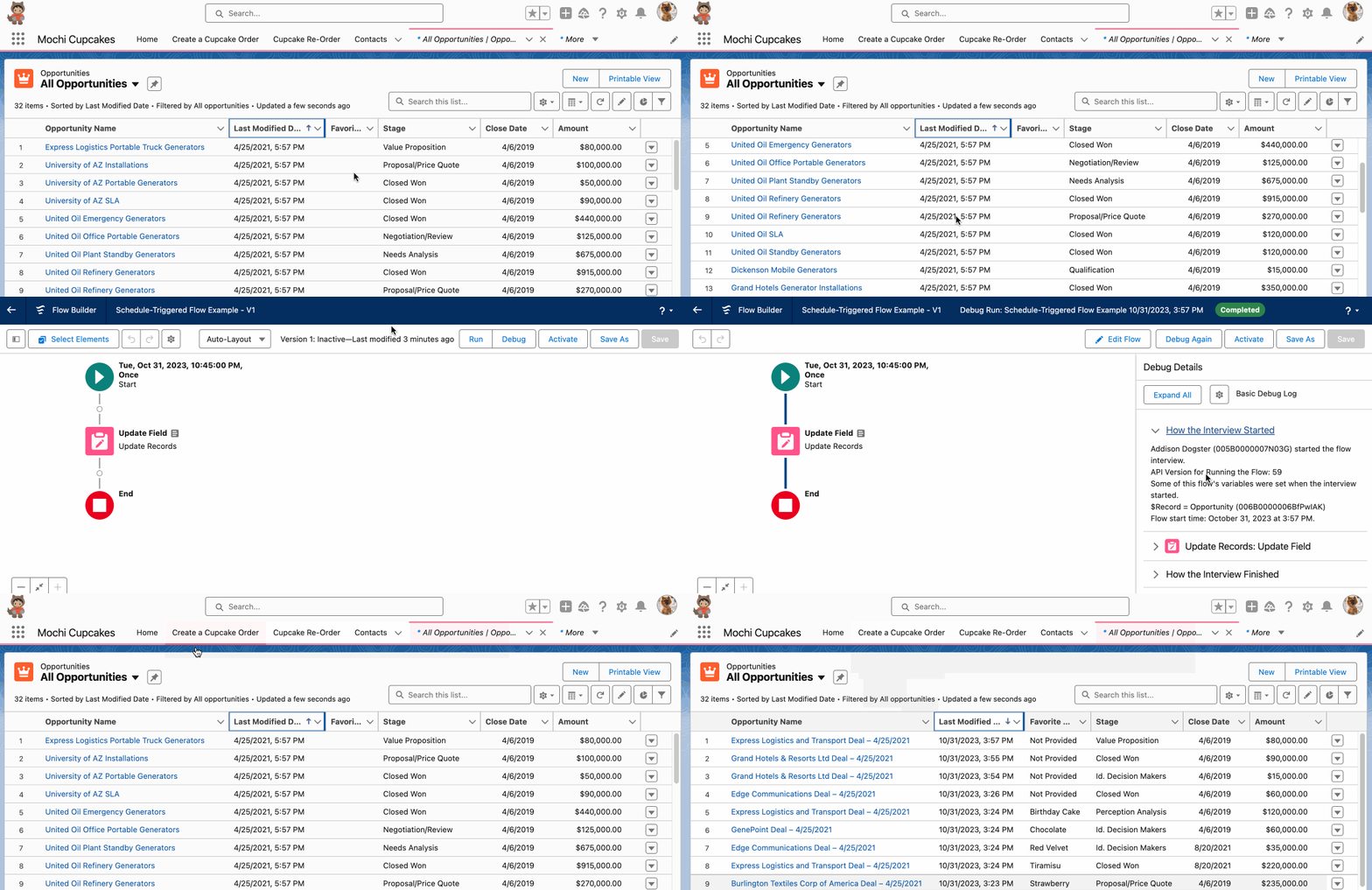
This use case covers the situation where we introduced a new picklist to the Opportunity object and, as expected, existing records don’t have a selected picklist value. The business would like the existing records to default to ‘Not Provided’ instead of displaying a blank value. An admin can use Data Loader to extract the records, set the value, and update the field in existing records. Our #AwesomeAdmin Addison Dogster decides to do a one-time bulk update using a schedule-triggered flow. In this flow, she’ll find all the opportunities that have a blank Favorite Cupcake picklist field and then update the field to ‘Not Provided’.
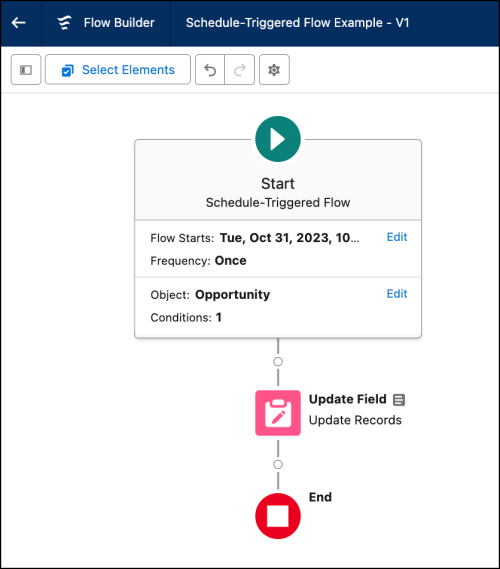
Addison starts off her schedule-triggered flow by setting the schedule—Start Date and Start Time. Note: You need to set the schedule to a future date and time, as a schedule-triggered flow can’t run on a date/time that’s already occurred.
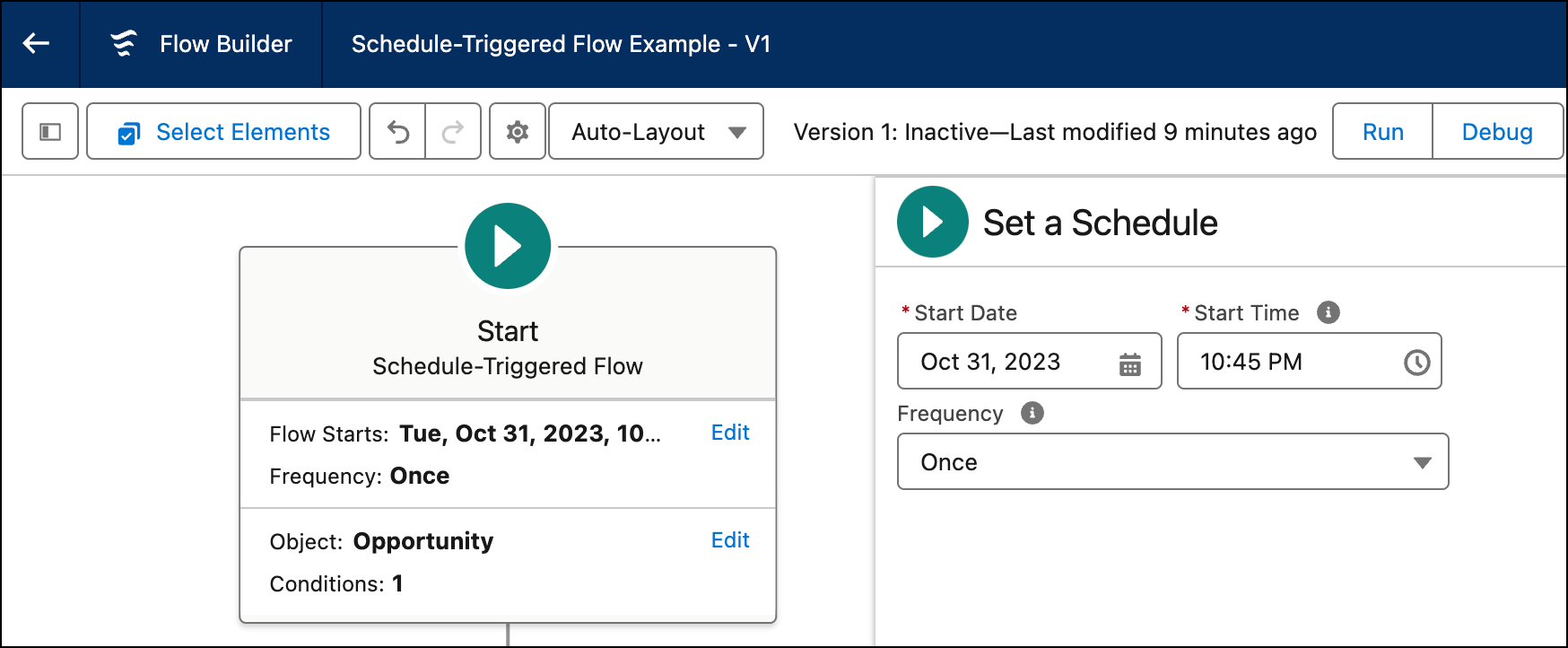
Addison maximizes performance by specifying the object and filter conditions to narrow the records to only those she wants to run through her schedule-triggered flow. For this automation, she only wants to look for opportunity records where the Favorite Cupcake picklist field is blank, so Addison specifies the object as ‘Opportunity’ and the filter condition as ‘Favorite Cupcake__c Equals Empty String (Not Null)’, which means the field is blank. If this condition is not met, that opportunity record is not run through this flow.
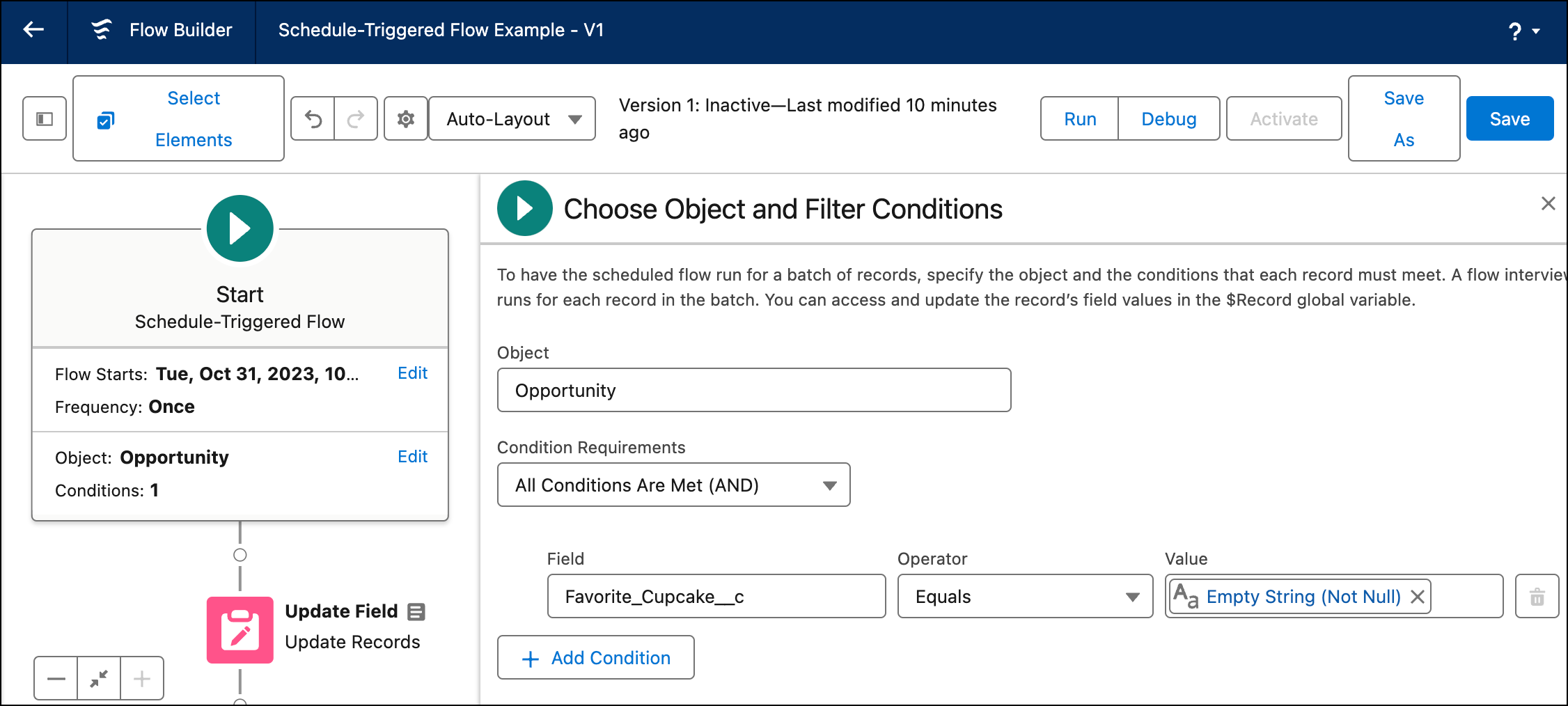
The one and only step in this schedule-triggered flow is an update to the record using an Update Records element. Here, Addison uses the $Record global variable, which refers to the opportunity record her schedule-triggered flow is running through the process. Note: You can set further filter conditions to narrow the opportunity records that are updated. But in Addison’s case, all opportunity records that make it past the entry condition will have the picklist value of the Favorite Cupcake field updated to ‘Not Provided’.
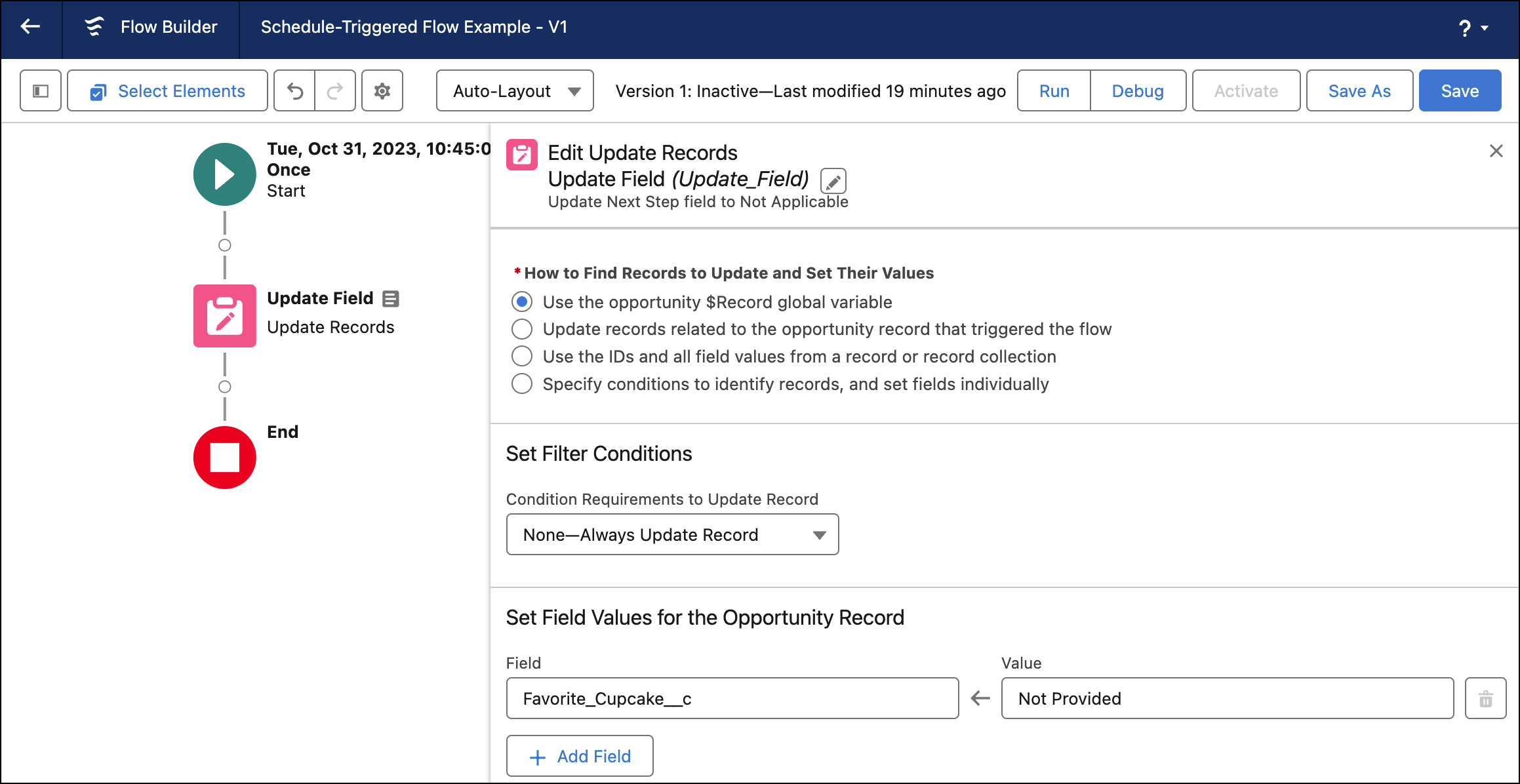
Testing and debugging schedule-triggered flows is fairly limited. Unlike a record-triggered flow or autolaunched flow where you can specify the record to use to debug, if you debug the schedule- triggered flow, it will automatically take the oldest matching record.
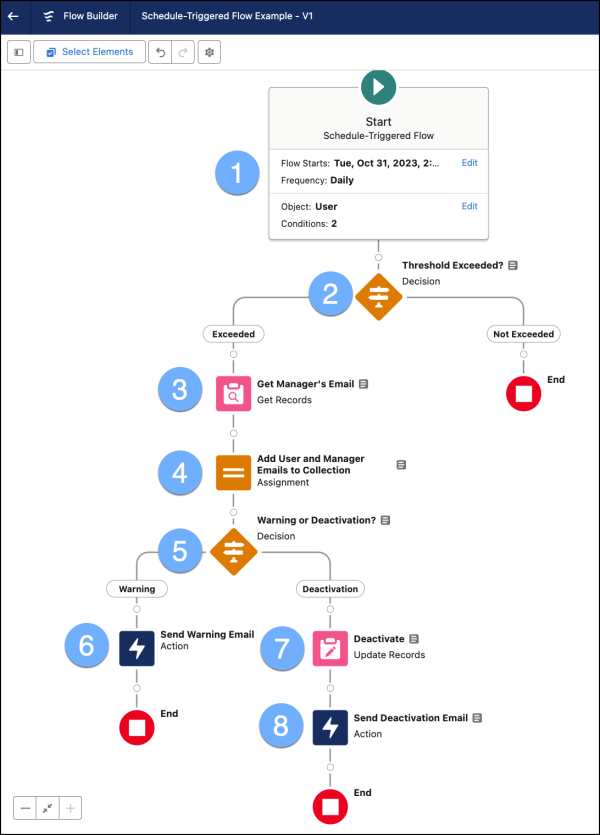
Our second scenario is a bit more intricate—and even more exciting. (This is a simplified version of a solution I once built as a Salesforce customer.) Addison wants to automate the deactivation of users who haven’t logged into Salesforce for over 90 days, specifically those with the “Service Rep” profile. Addison also wants to send a warning email 7 days before deactivation, giving users a chance to log in and avoid being deactivated before the 90-day limit is reached.
Let’s break down this schedule-triggered flow. It runs daily at a designated time. (1) The flow checks the User object to find active users who are eligible for automatic deactivation (a formula field qualifies users based on their profile). (2) It evaluates if the warning period has passed. (3) If it has, the flow retrieves the manager’s email address. (4) The Assignment element collects both the user’s and the manager’s email addresses into a collection variable. (5) A Decision element then checks if the user is in the warning window or if they have reached the deactivation threshold. (6) If the user is in the warning window, an email is sent to both the user and the manager, notifying them that the user is nearing deactivation. (7) If the deactivation threshold has been met, the user is deactivated, and (8) an email is sent to both the user and the manager, informing them that the user has been deactivated.
What should I keep in mind when building schedule-triggered flows?
Schedule-triggered flows behave differently than record-triggered flows and their siblings. Here are a few things to be aware of as you build schedule-triggered flows.
- The Automated Process user runs schedule-triggered flows. This will be handy to know who runs these flows when you troubleshoot them.
- The Start Time field value is based on the org’s default time zone, not your own time zone, if yours is different from the org’s.
- If you delete a schedule-triggered flow from the Scheduled Jobs page, all future runs for this specific schedule-triggered flow are cancelled. To enable future runs, you must deactivate and reactivate the schedule-triggered flow.
- If you scheduled the flow to run one time with a date and time that’s already passed, the flow will not run.
Summary
To summarise, schedule flow is an auto launched flow to start on a particular date and time and set the frequency to once, daily, or weekly. If you want that scheduled flow to run only for a set of records, you can specify an object and filter. Scheduled Flows in Salesforce offer a powerful way to automate routine tasks and simplify batch processing without relying on complex coding. By leveraging Scheduled Flows, admins can save time, reduce errors, and ensure that their Salesforce org runs efficiently.