Introduction
Lightning DataTable in Salesforce Lightning allows for the display of a variety of field types, but integrating a Lookup field within a DataTable can be a bit tricky. This blog will guide you through setting up and using the Lookup field effectively in a Lightning Data Table.
What is a Lookup Field?
A Lookup field in Salesforce is a type of relationship field that links records from one object to another. For instance, a custom object may have a Lookup field to a contact object, enabling users to select and display data related to contact in other objects. In the context of Lightning DataTable, a Lookup field allows us to display related records and even provide functionality for searching or selecting a different record.
Why Use a Lookup Field in a Lightning DataTable?
- Enhanced Data Presentation: Lookup fields enable you to show related records’ names instead of just IDs.
- Improved Usability: When editing rows in a table, using a Lookup field offers users the ability to search for and select related records, making the UI more intuitive.
- Relational Data: It helps to maintain relationships between objects while displaying a tabular view.
Step1 – Create a new Lightning Web Component:
In this step, we will create a lightning web component which will extend the LightningDatatable like the below
export default class ExtendedDataTable extends LightningDatatable { }
Extending LightningDatatable will help us to create our own Lightning DataTable Data Type
Step2 – Create a Custom DataType for Custom Lookup:
Now, as you have created the new component, in the js file of the same component create a custom datatype like below.
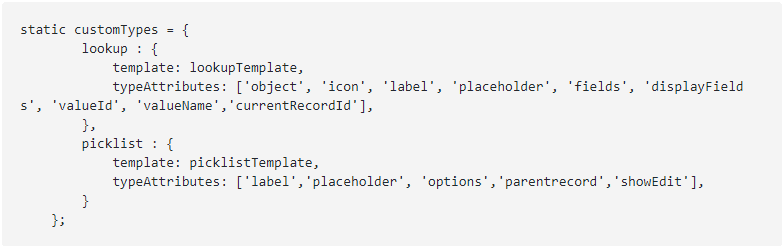
In the above example, I have defined the data type for the picklist and custom lookup.
Step3 – Create a new html file inside the Same Web Component:
Now, you need to create the .html file inside the same Web Component. here is the sample code which uses a search component which is actually used for custom Lookup
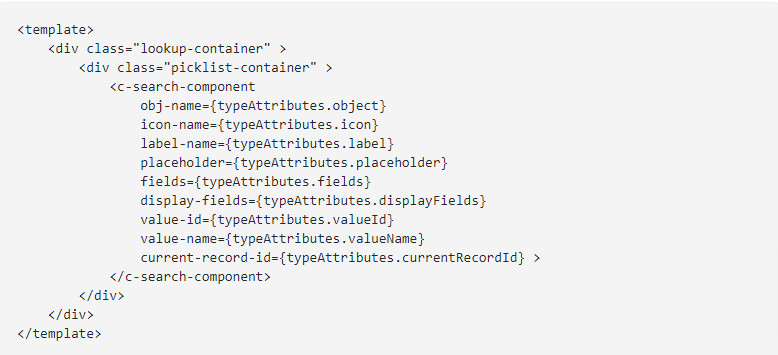
You can get the complete code for the Search Component from here
Step4 – Prepare the Custom Lookup Columns for DataTable:
Now, we need to create a new Lighting Web Component which will be using the component which we have created on the top.
Once you have created the component, you need to prepare the columns for the data table like below
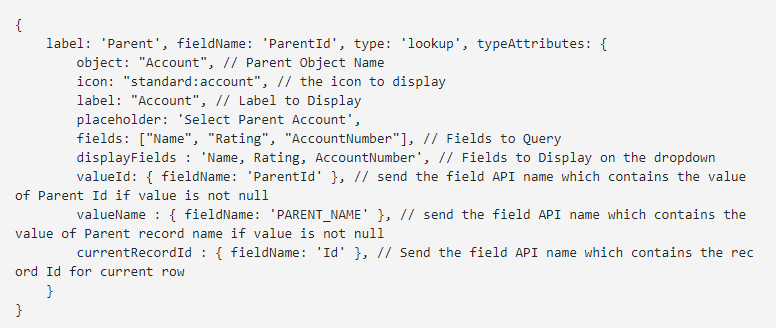
The above code contains the column for custom lookup using our new component & data type that we have created.
Here is the code for the Custom Picklist:
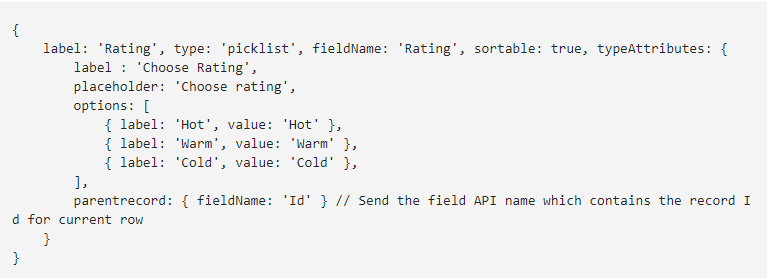
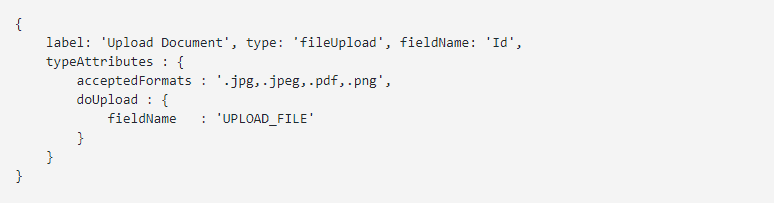
Here is the code for the custom file upload:
Summary
Incorporating Lookup fields into a Lightning DataTable offers a powerful way to present and edit relational data in Salesforce. While this setup requires custom column types and additional logic for handling search and display, the resulting functionality improves user experience and data management. By following the steps outlined in this blog, you can successfully create a custom Lookup field in Lightning DataTable that enhances the data presentation and usability of your Salesforce application.