1. New Flow Creation Wizard
There have been some changes to the flow creation wizard. Now, “instead of scrolling through all types and templates in one window, you’re prompted to decide whether you want to do”. You can:
- Start from scratch, or
- Use a template

While this has made flow creation a bit different and more engaging, the number of clicks and pages has also slowed down the experience for admins.
Where: This change applies to Lightning Experience and Salesforce Classic in Essentials, Professional, Enterprise, Unlimited, and Developer editions.
How: From the Flows section in Setup, click New Flow, or from the Automation Lightning app, click New. Select the type of automation you want to build, then click Next.
2. More Flow Types and the Ability to Search
Flow is becoming more and more powerful with every release. The introduction of new Flow types is a clear testament to that. This release drops new flow types besides standard screen flows, auto-launched flows, and triggered flows.

To use a template, you can click on ‘Use a Template’ and it will take you to the next window where you can search for your template to find it faster.
3. Unlimited Paused Flows
Salesforce has removed the limits on the number of Flow interviews you can pause. Previously the limit was 30,000 for Essentials and Professionals editions and 50,000 for Enterprise and Unlimited editions.
Now there’s no limit for paused and waiting flow interviews. However, the number of paused and waiting flows can still be limited by the amount of storage available to your org.
Where: This change applies to Lightning Experience in Enterprise, Performance, Unlimited, and Developer editions.
4. Flow Status Indications
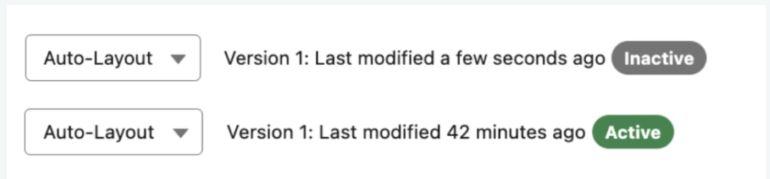
Salesforce Flow Builder now displays status indications, making it easier to see your Flow’s status. Now you can see the status of your flow such as Active or Inactive and the last time modifications happened to a Flow.
5. Action Button Component (Beta)
One of the most exciting Salesforce Flow new features is the Action Button Component.
Now you can add an Action Button component to a screen to run an auto-launched flow that can retrieve or crunch data. Then you can make the data available on your screen for other components.

Here are a few use cases you’ll now be able to achieve all within a single screen.
- Show related data: Turn chosen records (like accounts) into tables, radio buttons, or picklists that update based on your selection.
- External system data: Grab product info from another system and let users pick from it within the Flow.
- Smart picklists: Build picklists that change options based on other choices (like car make impacting car model options).
- Summarize selections: Get quick summaries of user choices, like total amounts or minimum dates.
Now you can add an Action Button component to a screen to run an auto-launched flow that can retrieve or crunch data. Then make the data available on your screen for other components to use.

Where: This change applies to Lightning Experience and Salesforce Classic in Essentials, Professional, Enterprise, Performance, Unlimited, and Developer editions.
How: First build an auto-launched flow (retrieves & saves data). Next up, create a screen flow with a button launching the auto-launched flow. Then add an element to the screen that uses retrieved data. Finally, save & run the flow.
6. Flow Repeater Component Now Generally Available
The Flow Repeater component has been around since the last release but has been made generally available in Summer ‘24! In the Summer release, this feature got a major upgrade!
It can now include most standard Salesforce components, along with conditional visibility, input validation, and help text for a better user experience. Debugging flows with Repeaters is also easier thanks to new debug info.

Where: Available in Lightning & Classic (Essentials-Developer). Not supported in Classic flow runtime.
Why: The Repeater is now more powerful, allowing:
- Custom & standard components
- Referencing child component outputs within the Repeater
- Conditional visibility, validation, and help text
- Debugging info in Salesforce Flow Builder
- User input reactivity
How: To use it, add the Repeater component to a Screen element in Flow Builder and add your desired child components within it.