
HubSpot Service Hub: Features, Tiers and Setup for Customer Support Teams
HubSpot Service Hub has changed a lot since 2024: a help desk workspace, SLA goals, skill-based routing, a support portal and an AI customer agent now sit on the same CRM as your sales and marketing data. This guide explains what each tool does, which edition includes it, and how to set it up in the right order.
Key Takeaways
- HubSpot Service Hub is HubSpot's customer service software: a help desk, routing, SLAs, self-service, AI and feedback tools on the same CRM record your sales and marketing teams use.
- Most of what support teams need (help desk workspace, knowledge base, support portal, feedback surveys, customer success workspace, customer agent) starts at Professional. Enterprise adds skill-based routing, conditional SLAs and capacity limits.
- Many features need an assigned Service seat, not just the subscription. Plan seats per person before you build.
- Set up in order: ticket pipeline and properties, channels, routing, SLAs, knowledge base, then the AI customer agent. AI is only as good as the content and ticket data under it.
- Most Service Hub problems are design problems, not missing features: routing that ignores priority, SLAs nobody enforces, and surveys nobody acts on.
HubSpot Service Hub is HubSpot's customer service platform: a help desk and ticketing system, routing and SLA tools, a knowledge base and support portal, an AI customer agent and feedback surveys, all on the same CRM as your marketing and sales data. Every support conversation sits next to the deal, the renewal date and the account history.
This guide is for support leaders, customer success managers, RevOps teams and HubSpot admins at growing and mid-market companies, and it applies just as well to enterprise service teams. It replaces our 2024 version of this article. Every product detail now links to HubSpot's own documentation, the tier information reflects HubSpot's pricing page in October 2026, and generic claims we could not source are gone.
What Is HubSpot Service Hub?
Service Hub is HubSpot's AI-powered, omni-channel customer service software, connected to marketing and sales data on one platform. HubSpot groups its tools into three jobs: scaling support (help desk, routing, SLAs, analytics), driving retention (customer success workspace, feedback, health scores) and self-service (knowledge base, support portal, customer agent).
| Tool | What it does | Edition |
|---|---|---|
| Ticketing | Tracks each customer issue as a ticket in a pipeline of stages | Starter and up |
| Help desk workspace | One place to work tickets from email, chat, forms, calls, WhatsApp, Messenger and custom channels | Professional and up |
| Routing and SLAs | Assigns tickets automatically and times first reply, next reply and close | Professional and up; skill-based routing and conditional SLAs on Enterprise |
| Knowledge base | Self-service help articles, public or behind a login | Professional and up |
| Support portal | A login-protected page where customers see and reply to their tickets | Professional and up |
| Customer agent | Breeze AI agent that answers questions from your content and hands off to people | Professional and up (uses HubSpot Credits) |
| Feedback surveys | CSAT, NPS and customer effort (CES) surveys | Professional and up |
| Customer success workspace | Book-of-business view and health scores for CSMs | Professional and up |
| Service analytics | Pre-built reports on response time, volume, SLAs and satisfaction | Starter and up |
Editions and features as listed on HubSpot's Service Hub pricing page and the linked Knowledge Base articles in October 2026. HubSpot changes packaging often, so confirm against the live page before you buy.
Which Service Hub Edition Do You Need?
Most growing support teams need Professional; Enterprise is for teams that route by skill, run different SLAs per customer segment or need capacity limits. Starter covers basic ticketing, calling and live chat. Professional adds the help desk workspace, knowledge base, support portal, surveys and customer agent. Enterprise adds advanced routing, conditional SLAs and a sandbox.
| Edition | What it adds | Best for |
|---|---|---|
| Free | Free service tools for up to 2 users | Trying HubSpot's CRM and basic tools |
| Starter | Ticketing, calling (500 minutes per account), live chat without HubSpot branding, Agent Builder, 500 HubSpot Credits | Small teams moving off a shared inbox |
| Professional | Help desk workspace, customer agent, knowledge base, support portal, feedback surveys, customer success workspace, 3,000 calling minutes, 3,000 HubSpot Credits | Growing and mid-market support teams |
| Enterprise | Conditional SLAs, skill-based routing, capacity limits, customer journey analytics, a standard sandbox, 12,000 calling minutes, 5,000 HubSpot Credits | Multi-team or tiered support with strict service levels |
Pricing in October 2026: HubSpot lists Professional from $90 per seat per month and Enterprise from $150 per seat per month, plus a required one-time onboarding fee of $1,500 for Professional and $3,500 for Enterprise. Prices depend on billing terms and change often, so check the pricing page and HubSpot's Product and Services Catalog, which lists every limit by edition.
Professional is usually enough if you have one support team (or a few teams with the same rules), a single knowledge base, and SLA goals that depend on one ticket property, such as priority, source or pipeline.
Plan for Enterprise if you need SLAs that combine properties (for example, customer tier and priority), routing by product or language skill, per-agent ticket capacity limits, more than one knowledge base, or a sandbox to test changes before they reach live customers.
Seats matter as much as the edition. HubSpot ties many features to an assigned Service seat: advanced help desk features such as custom views, SLAs and reply recommendations; automatic routing (a user without a seat cannot be in a routing rule); creating knowledge base articles; creating feedback surveys; and full use of the customer success workspace. Count who needs a seat before you budget.
How Does the HubSpot Help Desk Work?
Every message that arrives on a connected channel becomes a ticket in the help desk workspace, where agents reply, prioritize, collaborate and close it. Tickets move through a ticket pipeline whose stages mirror your support process, and each ticket links to the contact, company and deal records, so agents see the customer's history without leaving the thread.
The help desk workspace is available on Service Hub Professional and Enterprise. It connects chat, email, form, calling, custom, WhatsApp and Facebook Messenger channels, and a guided setup flow asks about your team, channels, existing tools and layout. By default, tickets are created automatically from every connected channel; they can also come from imports, integrations, workflows or the API.

Practical detail: design the ticket pipeline and its properties before you connect a single channel. Decide your stages (for example New, Waiting on us, Waiting on customer, Closed), your priority values, your ticket categories and the default pipeline, status and priority for each channel. Routing rules, SLA goals, reports and survey triggers all read those properties, so getting them right first saves rework everywhere else.
Two limits worth knowing: HubSpot recommends connecting every support channel to help desk, because tickets created by workflows from an unconnected channel arrive without their subject and thread; and the help desk is not yet available in the HubSpot mobile app.
How Do Routing and SLAs Work?
Routing decides who gets each ticket; SLAs decide how fast they must act on it. Help desk tickets arrive unassigned until you set routing rules per channel. SLA goals then time the first reply, every next reply and the time to close, and flag tickets as due soon before they breach.
Routing options
For each channel, HubSpot lets you assign incoming tickets to the customer agent, to specific users and teams, to a team only, through an assignment workflow, or to the contact owner with a fallback rule. You then pick a distribution method: load balanced (fewest open tickets), round robin or random. By default only available users receive tickets, based on working hours, out-of-office settings or a manual status. Enterprise adds skill-based routing and per-user capacity limits.
SLA goals
SLA goals in help desk can apply to all tickets, vary by one ticket property (priority, team, source or pipeline), or, on Enterprise, combine several properties, including custom ones. You can run them during set business hours and time zones, and pause the timer while a ticket waits on the customer. Super Admin permissions are needed to set them.
| Use case | Example rule | Edition |
|---|---|---|
| One standard for everyone | All tickets: first reply in 8 business hours, close in 3 business days | Professional |
| Critical issues | Priority is Urgent: first reply in 30 minutes | Professional |
| Channel expectations | Source is Chat: 15 minutes; Source is Email: 24 hours | Professional (one property) |
| High-value accounts | Company tier is Enterprise and priority is High: first reply in 1 hour; other tiers 4 hours | Enterprise (combined properties) |
The 30-minute, 15-minute, 24-hour and 1-hour/4-hour examples are HubSpot's own; the first row is an illustration. One behaviour catches teams out: the SLA rule is fixed when it is applied. If an agent changes a ticket's priority afterwards, HubSpot does not re-evaluate which rule applies, so set priority and category at creation (with channel defaults, forms or a workflow) rather than relying on agents to fix them later.
Which Channels Can You Connect?
Team email, live chat, forms, calling, WhatsApp, Facebook Messenger and custom channels can all feed the help desk, so customers reach you where they are and agents work in one queue. Tickets can also be synced to Slack, Microsoft Teams and Google Chat so other teams can follow and comment without a HubSpot login for every step.
Team email and forms
A shared address such as support@ creates a ticket for every email; forms create tickets with the fields you ask for, which makes routing and SLAs more reliable.
Live chat and bots
Built in chatflows on your website, with assignment to users, teams or the customer agent.
A WhatsApp Business account (not a personal one) with up to 25 numbers. Only new messages sync, and once connected, messages appear in HubSpot instead of the WhatsApp app.
Calling
Phone support with call tracking and interactive voice response; calling minutes scale by edition (500, 3,000 or 12,000 per account).
Facebook Messenger
Messages to your Facebook Business page arrive in help desk through a Messenger chatflow.
Slack and custom channels
Sync help desk tickets to Slack by criteria, with internal comments and property updates; connect other messaging apps through the custom channels API.

If WhatsApp is a primary channel for you, plan for Meta's requirements too: a verified Meta Business Manager is needed to go beyond 50 business-initiated conversations per day. We cover the setup in our guide to WhatsApp integration with HubSpot.
How Do Self-Service Tools Reduce Tickets?
The knowledge base answers common questions before a ticket exists, and the support portal lets customers check and reply to their own tickets without emailing for updates. Both are included from Service Hub Professional, and both feed the AI customer agent, which answers from your knowledge base content.
Knowledge base
Knowledge base articles carry a URL slug, language, category, tags and meta description, and each article can be public, limited to an access group, or behind single sign-on. Professional allows one knowledge base with up to 2,000 articles; Enterprise allows up to 100 knowledge bases with up to 10,000 articles in total. Creating articles needs an assigned Service Hub seat.

Support portal
The support portal, which replaces HubSpot's legacy customer portal, is a login-protected space where customers view and manage their tickets, usually reached from the knowledge base. You choose whether a contact sees only their own tickets, all tickets from their company, or company tickets only if they meet set criteria, and whether access is by invitation or self-registration. Two things to plan for: only tickets appear (a chat that never became a ticket will not), and each portal runs in one language.

Practical detail: write articles from your ticket data, not from a brainstorm. Report on your top ticket categories for the last 90 days, write one article per top question, link articles from your macros and canned replies, and review each article on a schedule. A stale knowledge base hurts twice: customers stop using it, and the customer agent repeats the stale answers.
What Does the Breeze Customer Agent Do?
The customer agent is HubSpot's AI agent that answers customer questions on chat, email and other channels using your synced content, performs actions you configure, and hands the conversation to a person when it is unsure or an escalation rule is met. It can also draft reply recommendations for agents inside help desk without talking to customers at all.
According to HubSpot's customer agent documentation, it is available on the Professional and Enterprise editions of Service Hub and other hubs. Before you can publish it you need at least one Facebook, WhatsApp or live chat channel connected, and the relevant AI and data settings turned on. You control which conversations it takes by channel, or with workflows that filter by customer tier or issue type.
| Question | What HubSpot's documentation says |
|---|---|
| How is it billed? | Deploying it to channels uses HubSpot Credits, charged per resolution, not per message |
| What counts as a resolution? | The agent shared a content source or performed an action, and the visitor did not ask for a person within 72 hours of their last reply |
| Can we try it first? | First-time setups can opt in to 14 days of free access, during which it uses no credits |
| Do reply recommendations cost credits? | No; agents can use recommendations in help desk without deploying the agent to customers |
| What if credits run out? | The agent stops taking new conversations until the reset date or a top-up, and your handoff rules route them to people |
Start with reply recommendations. Let agents see and edit the AI's drafts for a few weeks, fix the knowledge base articles behind any wrong answers, and only then deploy the agent to a low-risk channel with a clear handoff. Our page on AI in HubSpot covers how we approach Breeze rollouts.
How Do Surveys and Health Scores Improve Retention?
Surveys measure how customers feel after each interaction and over time; the customer success workspace turns that signal, plus usage and ticket data, into health scores CSMs can act on. Together they move support from closing tickets to spotting at-risk accounts before renewal.
| Survey | Measures | Delivered by | Use it for |
|---|---|---|---|
| CSAT | Satisfaction with one interaction | Email, chat or a web page | Quality of individual tickets and agents |
| CES | How easy the support experience was, on a seven-point scale | Finding friction in your process | |
| NPS | Likelihood to recommend you | Email or a web page | Relationship health and advocacy |

The customer success workspace gives CSMs daily tasks, custom views of their accounts, and health scores that grade customers as At-risk, Neutral or Healthy, with alerts when a status changes. The survey is only half the job: build a workflow that creates a task or ticket for every detractor or low CSAT score, so a person follows up, and feed scores into the health score. Our article on HubSpot customer success and health scores goes deeper.
What Can You Automate and Report On?
Ticket-based workflows automate the routine steps around a ticket, and service analytics reports show whether the team is meeting its goals. Workflows on tickets need Service Hub Professional or Enterprise; the service analytics reports start at Starter.
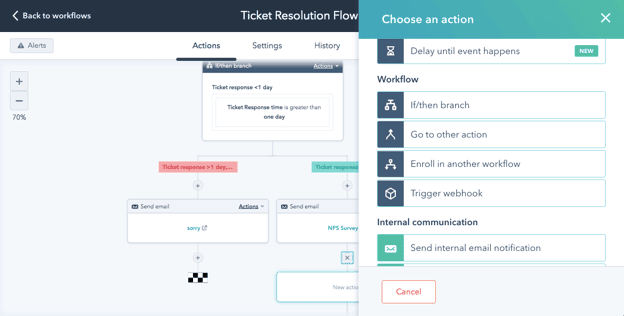
Workflows that pay back first
- Triage: set priority and category from form answers or keywords, so routing and SLAs start from the right values.
- Waiting on customer: send a reminder after a set delay, then close the ticket automatically if there is no reply.
- Close-out: send a CSAT survey when a ticket closes, and create a follow-up task for any low score.
- Escalation: notify a team lead, or post to a Slack channel, when a high-priority ticket from a key account is created or reopened.
- Sales handoff: alert the account owner when a customer near renewal opens several tickets in a short period.
Reports to watch
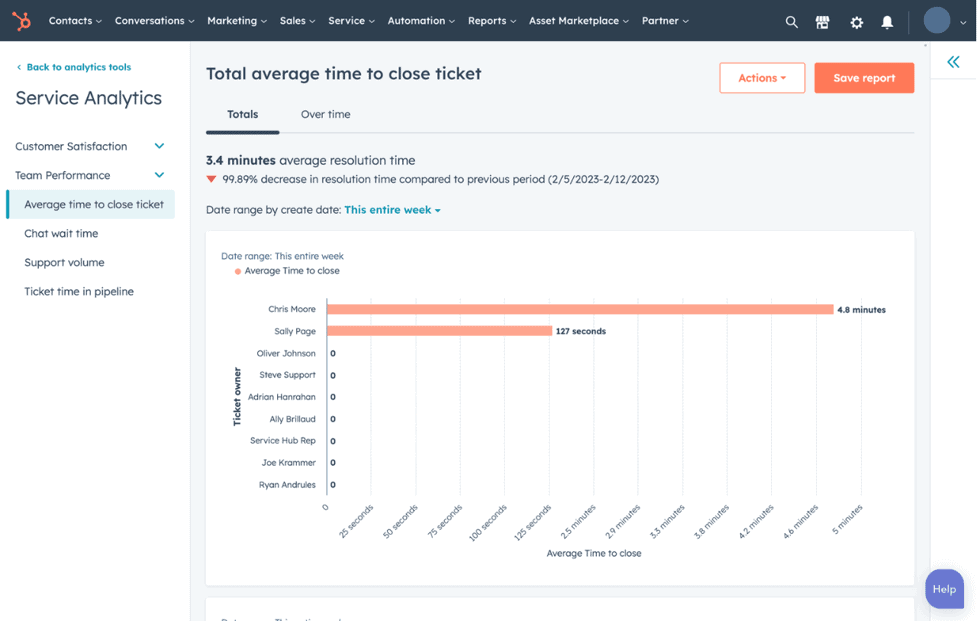
Service analytics includes pre-built reports such as customer wait time, owner reply time, support volume and time of day, and SLA reports with a 24/7 view and a business-hours view. For anything else, build a custom help desk report. A useful weekly set: first-reply time and SLA attainment by priority, ticket volume by category, backlog age, CSAT by agent and category, and repeat tickets per account.
For workflow design rules (naming, enrollment and testing), see our HubSpot workflow best practices.
How Does Service Hub Integrate With Salesforce?
Service Hub runs on HubSpot's CRM, so support already shares records with HubSpot marketing and sales; for other systems, use native integrations, the HubSpot App Marketplace or the API. The key design decision is which system owns each record, so support, sales and finance never work from different versions of the customer.
- Salesforce: the HubSpot-Salesforce integration syncs contacts, companies, deals, activities and other supported data. If sales lives in Salesforce and support in Service Hub, decide which fields support needs to see (account value, renewal date, owner) and which support signals sales needs back.
- Slack, Microsoft Teams and Google Chat: sync help desk tickets so product and engineering can follow escalations where they already work.
- Billing, product and ERP data: bring plan, usage or order data onto the company record so routing, SLAs and health scores can use it.

When your stack spans both platforms, one team should design the system of record for each object and field. That is the core of our Salesforce-HubSpot integration consulting.
How Should You Set Up Service Hub?
Build from the data model outwards: ticket pipeline and properties first, then channels and routing, then SLAs and self-service, then AI and reporting. Each step depends on the one before, and teams that start with the customer agent or a channel usually rebuild later. A typical order:
Moving from another help desk? Plan the ticket history migration alongside step 2, because historical tickets need to land in the new pipeline and properties to be useful in reports.
What Are the Most Common Service Hub Mistakes?
The platform is rarely the problem; the design underneath it is. These are the patterns we find again and again when we audit Service Hub portals, and none of them is a missing feature.
Should You Use a HubSpot Partner?
A single team with one channel and simple SLAs can usually set up Service Hub in-house with HubSpot's onboarding. Bring in a partner when you are migrating from another help desk, running tiered or multi-team support, connecting Salesforce or other systems, or fixing a portal that is not working.
Twopir Consulting is a Salesforce Partner and HubSpot Partner. We help growing and mid-market companies solve complex CRM, integration, and business system challenges, and on HubSpot Service Hub that covers:
- Audit: a free five-day Service Hub portal audit with written findings.
- Implementation and migration: help desk, ticketing, SLAs, knowledge base and support portal, including migrations from Zendesk, Freshdesk and Intercom.
- Rescue and rebuild: fixing routing, SLAs and reporting on a live portal.
- AI and custom work: Breeze customer agent rollout, customer health scoring and custom development on the HubSpot platform.
- After go-live: ongoing managed service and optimization as your team grows.
See our wider HubSpot practice for Marketing Hub, Sales Hub and integration work.
The Bottom Line
HubSpot Service Hub gives support teams a help desk, routing, SLAs, self-service, AI and feedback on the same CRM as sales and marketing. The results depend on the order you build in and the design behind each tool, not on how many features you switch on.
- 1
Choose the edition by routing and SLA needs, and count Service seats before you budget.
- 2
Design the ticket pipeline and properties before connecting channels.
- 3
Route on priority and tier, and set SLA values when the ticket is created.
- 4
Write the knowledge base from real ticket data and keep it current.
- 5
Add the customer agent last, starting with reply recommendations.
Get Your Service Hub Working the Way Your Team Does
On a 30-minute discovery call, a Twopir HubSpot consultant will look at your support process and Service Hub setup with you, point out the biggest gaps in routing, SLAs and self-service, and tell you which fix to make first.
Schedule a Discovery CallFrequently Asked Questions
Service Hub is HubSpot's customer service software. Support teams use it to manage tickets from email, chat, phone, WhatsApp and other channels in one help desk, route and time them with SLAs, offer a knowledge base and support portal, answer routine questions with an AI customer agent, and measure satisfaction with CSAT, NPS and CES surveys.
Professional includes the help desk workspace, knowledge base, support portal, feedback surveys, customer success workspace and customer agent. Enterprise adds conditional SLAs that combine ticket properties, skill-based routing, ticket capacity limits, customer journey analytics, a sandbox, more knowledge bases and higher limits such as calling minutes and HubSpot Credits.
In October 2026, HubSpot listed Professional from $90 per seat per month and Enterprise from $150 per seat per month, plus one-time onboarding fees of $1,500 and $3,500. Free tools cover up to 2 users, and Starter is priced per seat. Prices change and depend on billing terms, so check HubSpot's pricing page.
Yes. On Professional and Enterprise you can set goals for time to first reply, time to next reply and time to close, for all tickets or by priority, team, source or pipeline, with business hours and pause conditions. Enterprise can combine several properties, including custom ones, such as customer tier and priority.
Deploying the customer agent to channels uses HubSpot Credits per resolution, not per message. A conversation counts as resolved when the agent shared a source or performed an action and the visitor did not ask for a person within 72 hours. First-time setups can opt in to 14 days of free access, and reply recommendations use no credits.
Yes. HubSpot's Salesforce integration, available on Service Hub Professional and Enterprise, syncs contacts, companies, deals, activities and other supported data between the two platforms. Plan which system owns each record and which fields support and sales each need to see before you turn the sync on.
It depends on scope. A single team with email, chat and simple SLAs can go live in a few weeks. Tiered routing, several channels, a migration from another help desk, a Salesforce integration or an AI agent rollout take longer, so scope the work after an audit of your process and current portal.
