
The Ultimate Guide To Using PandaDoc Documents: Templates, E-Signatures, And Salesforce
How PandaDoc documents work from template to signed PDF, which plan unlocks which feature, and exactly how to connect PandaDoc to Salesforce so proposals, quotes and contracts build themselves from CRM data and report their status back.
Key Takeaways
- PandaDoc is a document workflow platform for creating, sending, tracking and e-signing proposals, quotes and contracts from reusable templates.
- Every document moves through statuses (Draft, Sent, Viewed, Completed and others). Those statuses are what you report on and automate against in Salesforce.
- The Salesforce integration needs PandaDoc Business Annual or Enterprise Annual plus the paid integration add-on, and two-way sync needs Salesforce API access.
- Setup has five steps: connect the accounts, install the AppExchange package, assign permission sets, add the PandaDoc Documents Lightning component, then map tokens, recipients and products.
- Native triggers can write status, products, PDFs and field values back to Salesforce. Generating documents automatically from a Salesforce process is custom work through the API.
Using PandaDoc documents well comes down to two things: building templates that fill themselves with the right data, and connecting each document's status to the system your team already runs on. This guide covers both. The first half explains how PandaDoc documents, templates, statuses, plans and e-signatures work. The second half is a step-by-step walkthrough of the PandaDoc Salesforce integration, from the AppExchange install to the two-way sync that moves an Opportunity forward when a contract is signed.
We have rewritten this guide for 2026. It reflects PandaDoc's current plan names, the current AppExchange package, and what the Salesforce integration can and cannot do without custom development.
What Is PandaDoc, And What Are PandaDoc Documents?
PandaDoc is a document workflow automation platform that teams use to create, send, track and electronically sign business documents, mainly proposals, quotes and contracts. A PandaDoc document is a live, trackable file built from a template or an upload. It carries recipients, variables, pricing data and signature fields, and it reports a status as it moves from draft to completed.
The difference from a Word file or a PDF attachment is that a PandaDoc document knows who it belongs to and what has happened to it. You can see when a recipient opened it and how long they spent on each page. Approvals can happen before it goes out. Recipients can sign in a set order and pay on completion. When it is connected to a CRM, it can fill itself with customer and product data.

Templates and the content library
A template is a reusable master copy of a document. The content library stores reusable blocks, such as terms, case studies and product descriptions, that you drop into documents.
Variables
Placeholders written in square brackets, such as [Client.Name], that are filled with data from a person, a form or a connected CRM.
Pricing tables and quotes
Line items with price, quantity, discount and tax that total automatically, and that CRM products can fill.
E-signature and signing order
Signature, initials and date fields for each recipient role. Recipients sign one after another, or in groups at the same time.
Approval workflows
A "Submit for approval" step before sending, so pricing or non-standard terms are checked before a customer sees them.
Tracking and audit trail
Shows the time each recipient spent on each page, when they last viewed the document, and whether they downloaded it. Every sent document also gets a step-by-step history of its status changes.
Payments
A "Collect payment" step through gateways such as Stripe, PayPal, QuickBooks Payments, Square and Authorize.net, for one-time, recurring or instalment payments.
Integrations and API
Native CRM integrations, including Salesforce and HubSpot, plus a REST API and webhooks for custom workflows.
How Does A PandaDoc Document Move From Draft To Completed?
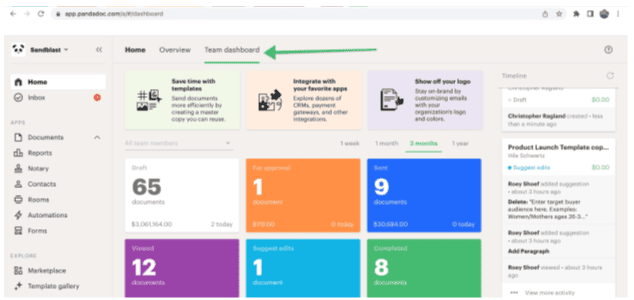
A PandaDoc document starts as a Draft, which anyone with access can edit. Sending it seals the content, so recipients can only fill fields and sign. It then moves through Viewed, and optionally approval or payment steps, to Completed once every recipient has finished. Expired and Declined end a document without completion.
Statuses matter more than they first appear to. They drive the dashboard your team works from, the notifications they get and, once you connect a CRM, the automation in it. The app and the API name the same states differently, and you need the API names when you build Salesforce automation or webhooks.
| Status in the app | API status | What it means |
|---|---|---|
| Draft | document.draft | Every part of the document can still be edited |
| For approval | document.waiting_approval | Waiting for an internal approver before it can be sent (document.approved or document.rejected follow) |
| Sent | document.sent | Sealed: no edits except recipients filling in fields and signing |
| Viewed | document.viewed | A recipient has opened it |
| Suggest edits | document.external_review | A recipient is proposing changes with Suggest Edit |
| Waiting for payment | document.waiting_pay | Signed, with payment still due |
| Paid | document.paid | Payment received |
| Completed | document.completed | Every recipient has completed their part |
| Expired | document.voided | Past its expiry and no longer available |
| Declined | document.declined | Marked as declined |
Source: PandaDoc API document status reference and PandaDoc Home dashboard help. The API also has document.uploaded and document.error for documents that are still being created.
You can change a status by hand to Completed, Expired, Declined or Paid, which helps when a contract was signed outside PandaDoc. But a document marked Completed by hand gets no signature certificate, so don't use that as a shortcut for documents that need legal evidence.
How Do You Set Up PandaDoc And Build Your First Template?
Set up your profile and brand first. Then build a template rather than a one-off document: add variables for anything that changes, a pricing table for anything you sell, recipient roles with signature fields, and any approval or payment step. Every document created from that template inherits all of it.


Free and Starter plans hold up to five templates, and Business and Enterprise allow unlimited templates (PandaDoc template help). Five templates go quickly if every product line or region gets its own, so plan your template set before you choose a plan.


Once the template works, PandaDoc's automations can handle what happens after a status changes, such as creating a follow-on document or moving a completed document into a folder. Built-in automations are available on Business and Enterprise, and automations that act on other systems, such as a CRM, are a paid add-on on Business and included in Enterprise (PandaDoc automations help).

Which PandaDoc Plan Do You Need?
Starter adds unlimited uploads, e-signatures and real-time tracking to the free tier. Business is the minimum for CRM integrations, including Salesforce, and for approval workflows, the content library and bulk send. Enterprise adds smart (conditional) content, CPQ, workflow automation, SSO and team workspaces. Most sales teams connecting PandaDoc to a CRM start on Business.
| Capability | Free | Starter | Business | Enterprise |
|---|---|---|---|---|
| Listed price (annual billing) | $0, 60 documents a year | $19 per seat a month | $49 per seat a month | Quote-based |
| Templates | Up to 5 | Up to 5 | Unlimited | Unlimited |
| Uploads and e-signatures | Within 60 documents a year | Unlimited | Unlimited | Unlimited |
| Signing order | Yes | Yes | Yes | Yes |
| Recipient analytics (time per page) | No | Yes | Yes | Yes |
| CRM integrations (Salesforce, HubSpot) | No | No | Add-on | Add-on |
| Approval workflows, content library, bulk send | No | No | Yes | Yes |
| Smart (conditional) content | No | No | Pre-selected content only | Yes |
| CPQ, workflow automation, SSO, team workspaces | No | No | No | Enterprise |
From the PandaDoc pricing page and PandaDoc help articles, checked on 14 October 2026. Prices are in US dollars and exclude tax, and some features use usage credits or paid add-ons. The Salesforce integration is a paid add-on on Business Annual and Enterprise Annual. Confirm current pricing with PandaDoc before budgeting.
Two details catch teams out. First, the Salesforce integration requires an annual Business or Enterprise plan, not a monthly one. Second, if you already run Salesforce CPQ, PandaDoc's Salesforce CPQ connector is a further paid add-on on top of the Salesforce integration. PandaDoc's own CPQ for Salesforce is a separate Enterprise add-on.
Are PandaDoc E-Signatures Legally Binding?
In the United States, yes, for most business contracts. The federal ESIGN Act says a signature or contract may not be denied legal effect solely because it is electronic. PandaDoc states that its e-signatures comply with ESIGN, UETA and the EU's eIDAS regulation, and it attaches a signature certificate to completed documents.
The ESIGN Act's exact wording is that a signature, contract or record "may not be denied legal effect, validity, or enforceability solely because it is in electronic form" (15 U.S.C. 7001). What makes a signature hold up in practice is evidence. PandaDoc's signature certificate records each signer's name, IP address and the timestamps for sent, viewed and completed. The audit trail adds every status change.
- Qualified electronic signatures (QES) under eIDAS are available on annual plans, according to PandaDoc's pricing page. Some EU transactions need them.
- Notarisation: PandaDoc Notary On Demand handles general notary work, such as affidavits and powers of attorney, for US customers only.
- Exceptions exist. ESIGN and local laws exclude or add rules for some document types. Check with your counsel before using e-signatures for regulated documents. This guide is not legal advice.
What Do You Need Before Connecting PandaDoc To Salesforce?
You need a PandaDoc Business Annual or Enterprise Annual plan with the Salesforce add-on, and Salesforce Professional, Enterprise, Unlimited or Developer edition with My Domain enabled. You also need a Salesforce admin to install the package. For two-way sync, Salesforce API access is required, which Professional edition only has with the API add-on.
| Requirement | Detail |
|---|---|
| PandaDoc plan | Business Annual or Enterprise Annual, plus the paid Salesforce integration add-on |
| Salesforce edition | Professional, Enterprise, Unlimited or Developer |
| API access | Needed for two-way sync: Enterprise edition, or Professional with the API Access add-on. Without it you can create documents, but nothing syncs back. |
| My Domain | Required for the PandaDoc Lightning component |
| Who installs | A user with Salesforce Admin rights. Salesforce Platform Integration user types are not supported. |
| Objects | Opportunities, Leads, Contacts, Accounts and custom objects; any standard object from package version 2.32 |
| Environment | Production or a sandbox. Test in a sandbox first, and install the package in the same environment you connected. |
Source: PandaDoc: Salesforce Lightning, install and configure. The current package on the AppExchange listing was version 2.45 on 14 October 2026.
How Do You Connect PandaDoc To Salesforce, Step By Step?
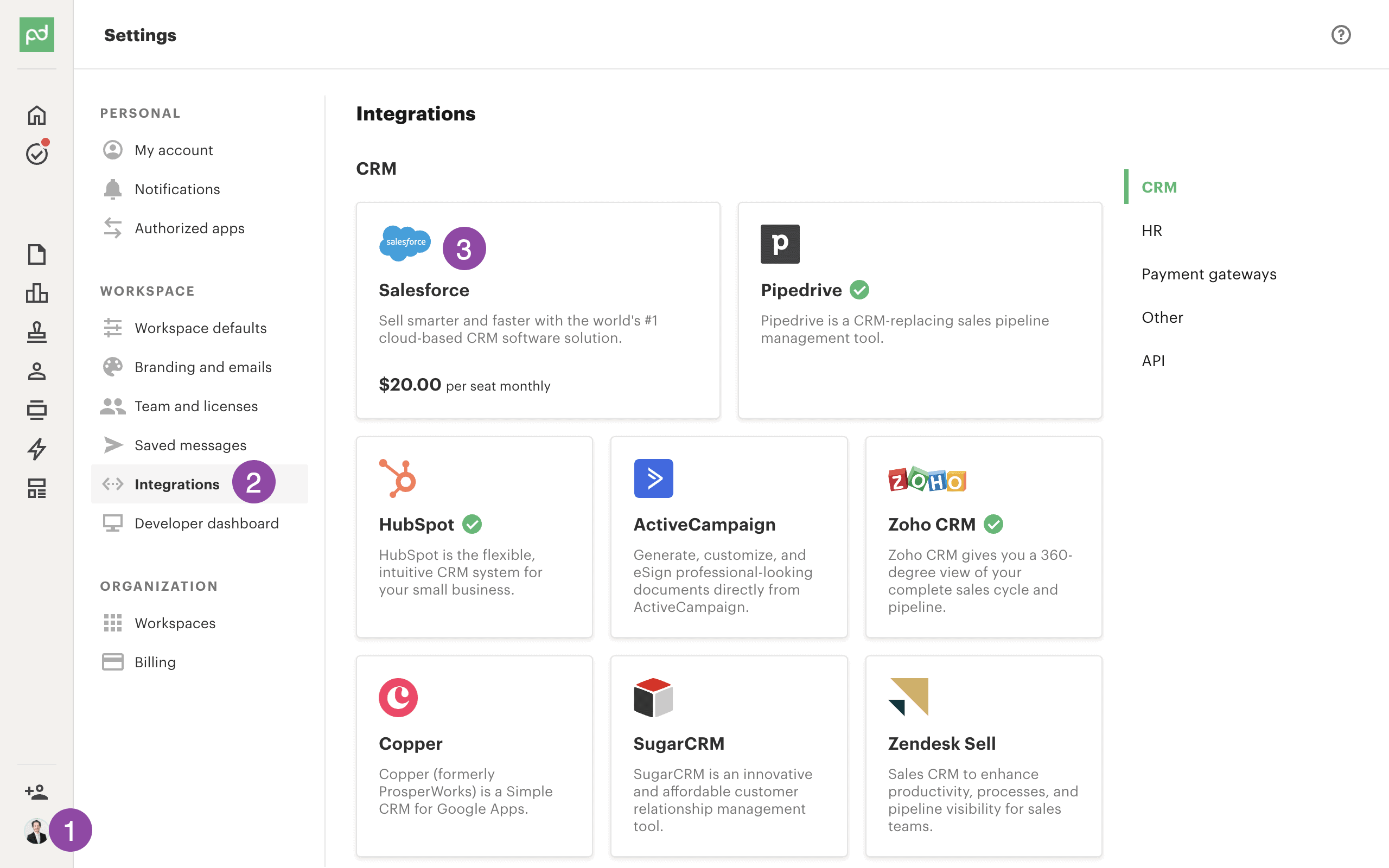
Connect the accounts from PandaDoc's settings, install the PandaDoc package from AppExchange into the same Salesforce environment, and assign the PandaDoc Admin or PandaDoc User permission set. Then add the PandaDoc Documents Lightning component to each record page where reps will create documents.
Step 1: Connect PandaDoc to Salesforce
- In PandaDoc, open Settings › API and Integrations › Salesforce and click Start setup.
- Choose Sandbox or Production, log in to Salesforce if asked, and click Allow to authorise PandaDoc.
- If your org enforces Salesforce's connected-app restrictions, an admin approves the app at Setup › Connected Apps › Connected Apps OAuth Usage › PandaDoc › Approve.


Step 2: Install the PandaDoc package from AppExchange
- Open PandaDoc for Salesforce on AppExchange. Choose Get It Now for production or Try it free for a sandbox.
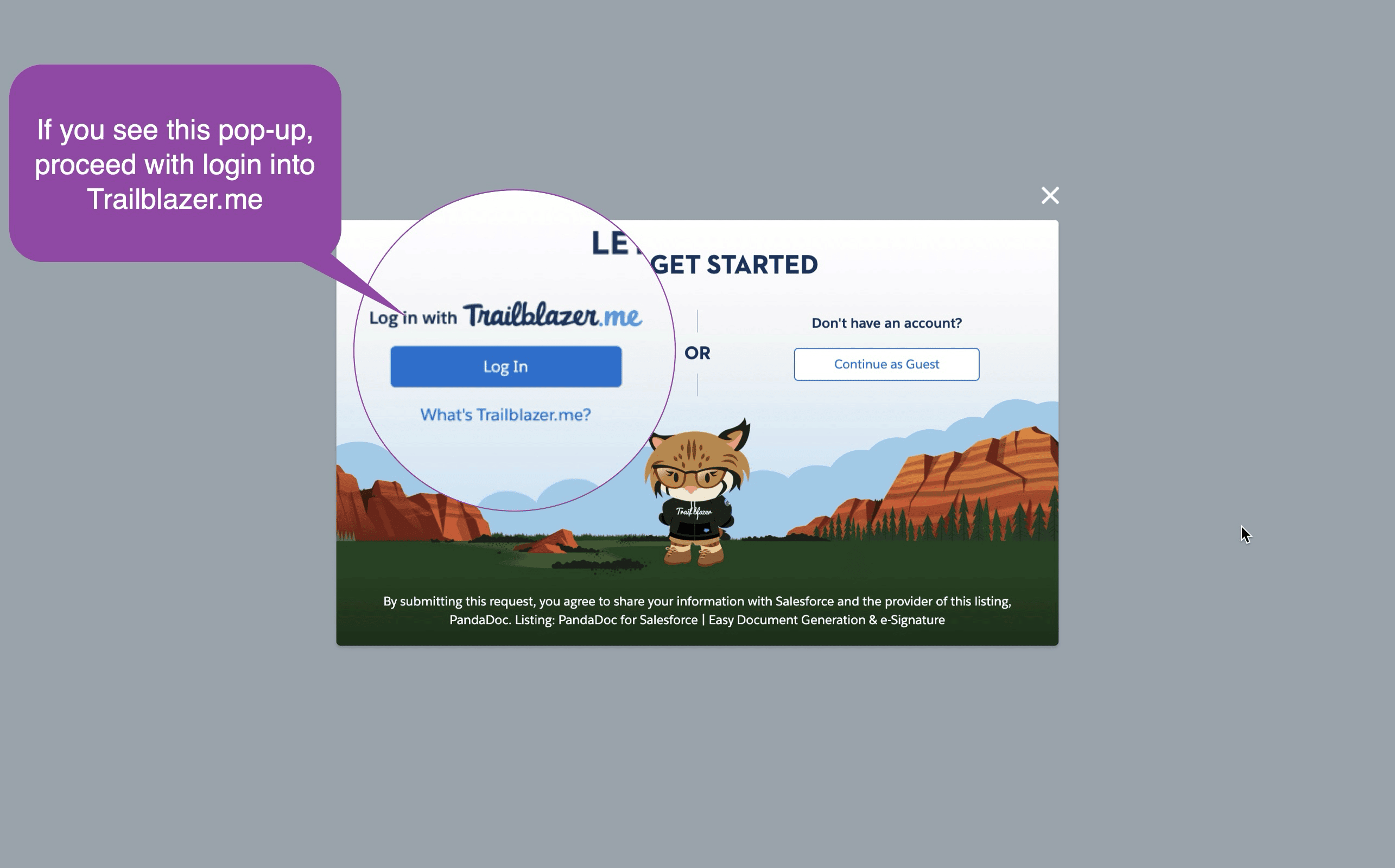
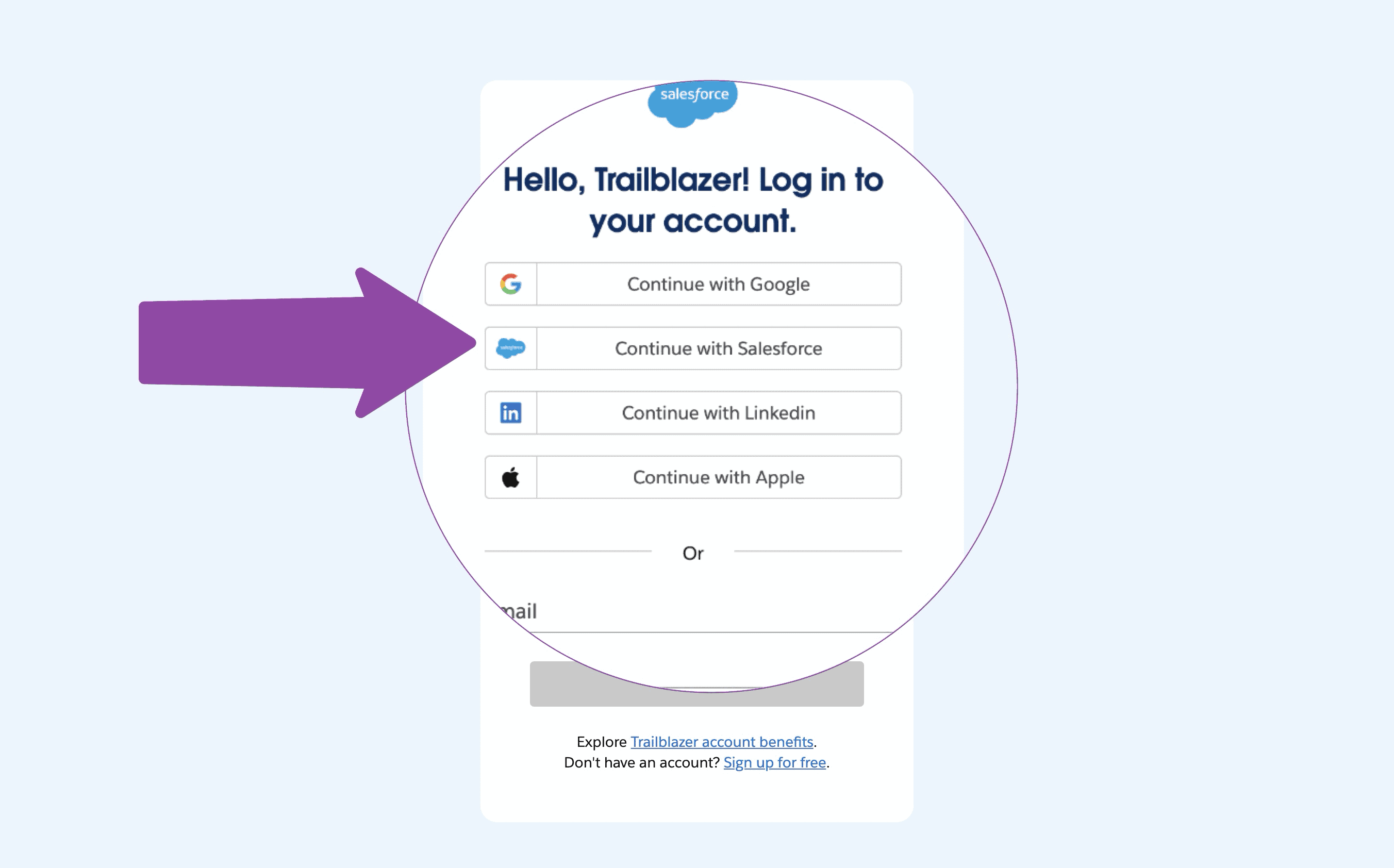
- If a Trailblazer login pop-up appears, log in (Continue with Salesforce works), then click Allow.
- Pick the same environment you connected in Step 1, accept the terms, and click Confirm and Install.
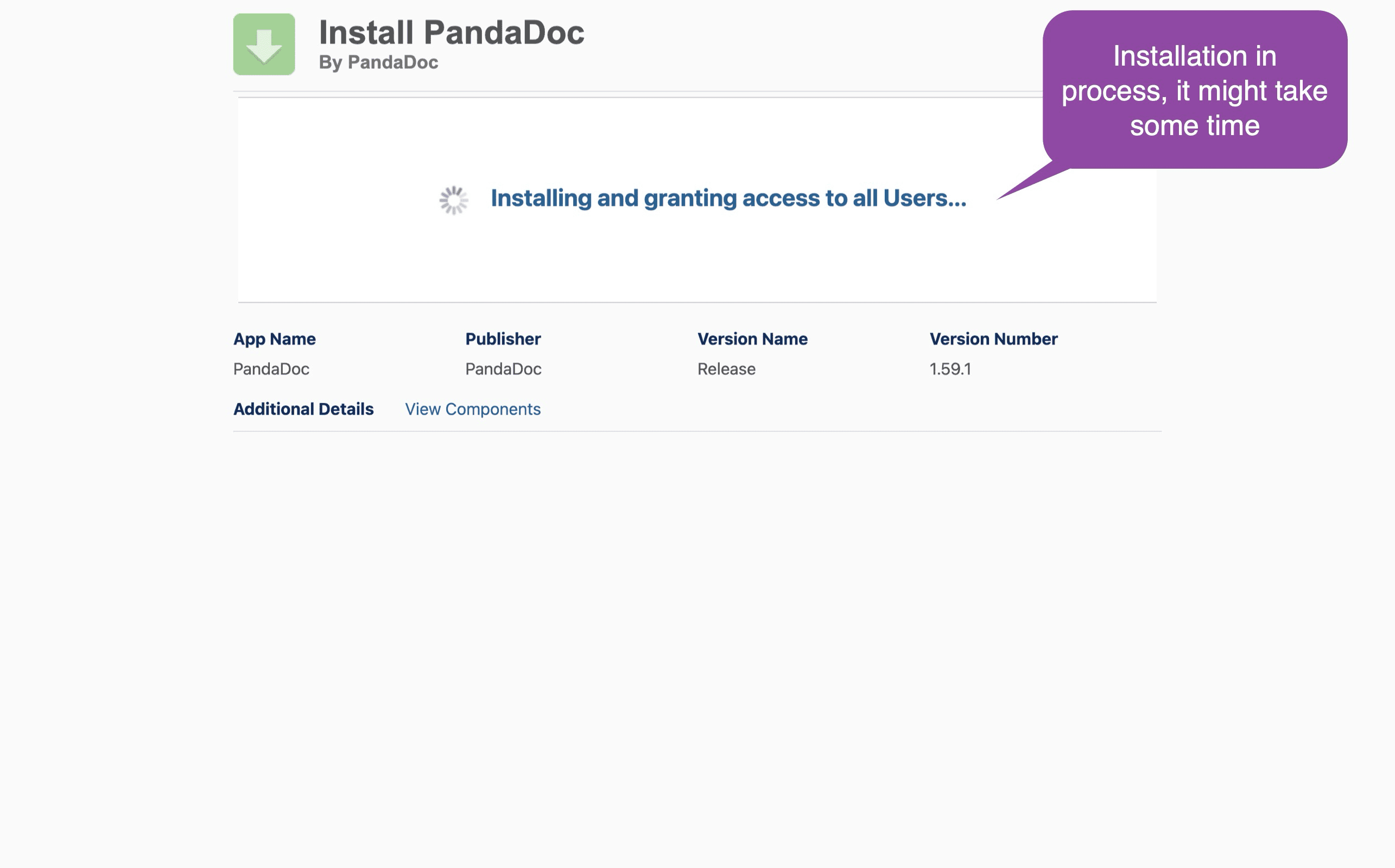
- Select Install for All Users, then grant access to the third-party websites when prompted, and click Continue.
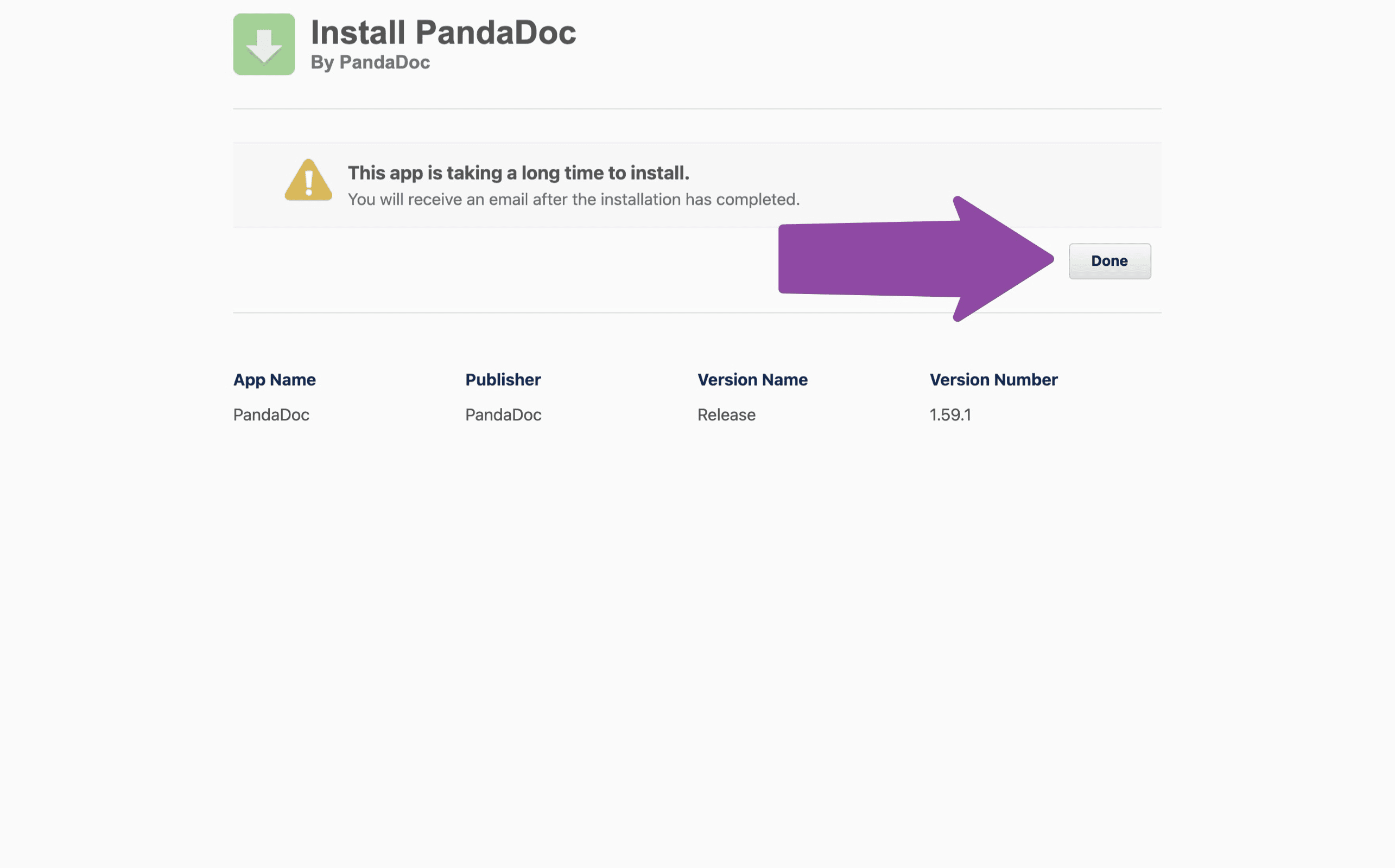
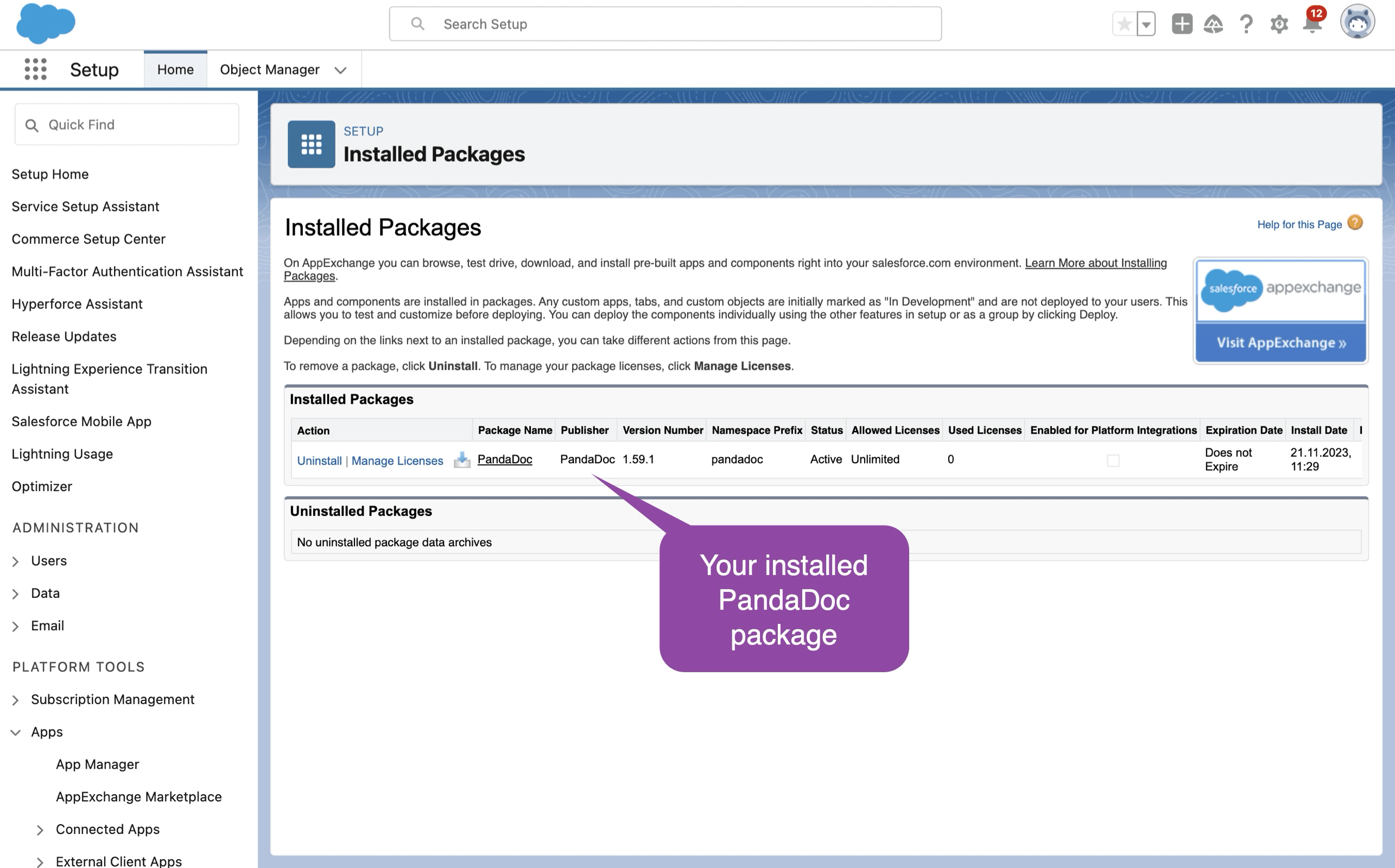
- Wait for the install to finish (Salesforce emails you if it takes a while), then click Done. The package then appears under Setup › Installed Packages.
Step 3: Assign permission sets
Assign PandaDoc Admin to the people who manage the integration, mappings and package, and PandaDoc User to everyone who creates documents. Users need one of these permission sets to work with PandaDoc from Salesforce.
Step 4: Add the PandaDoc Documents component to a record page
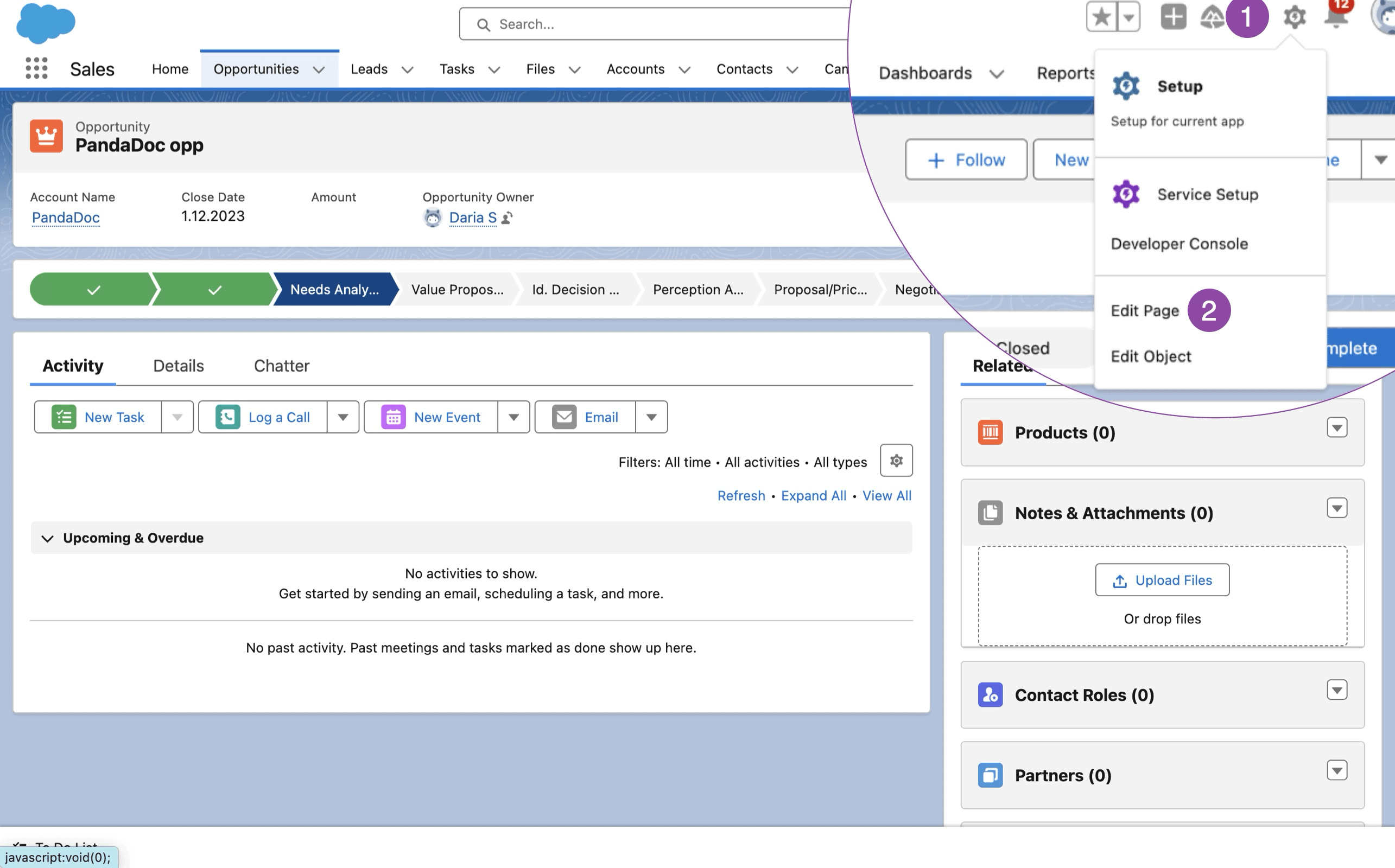
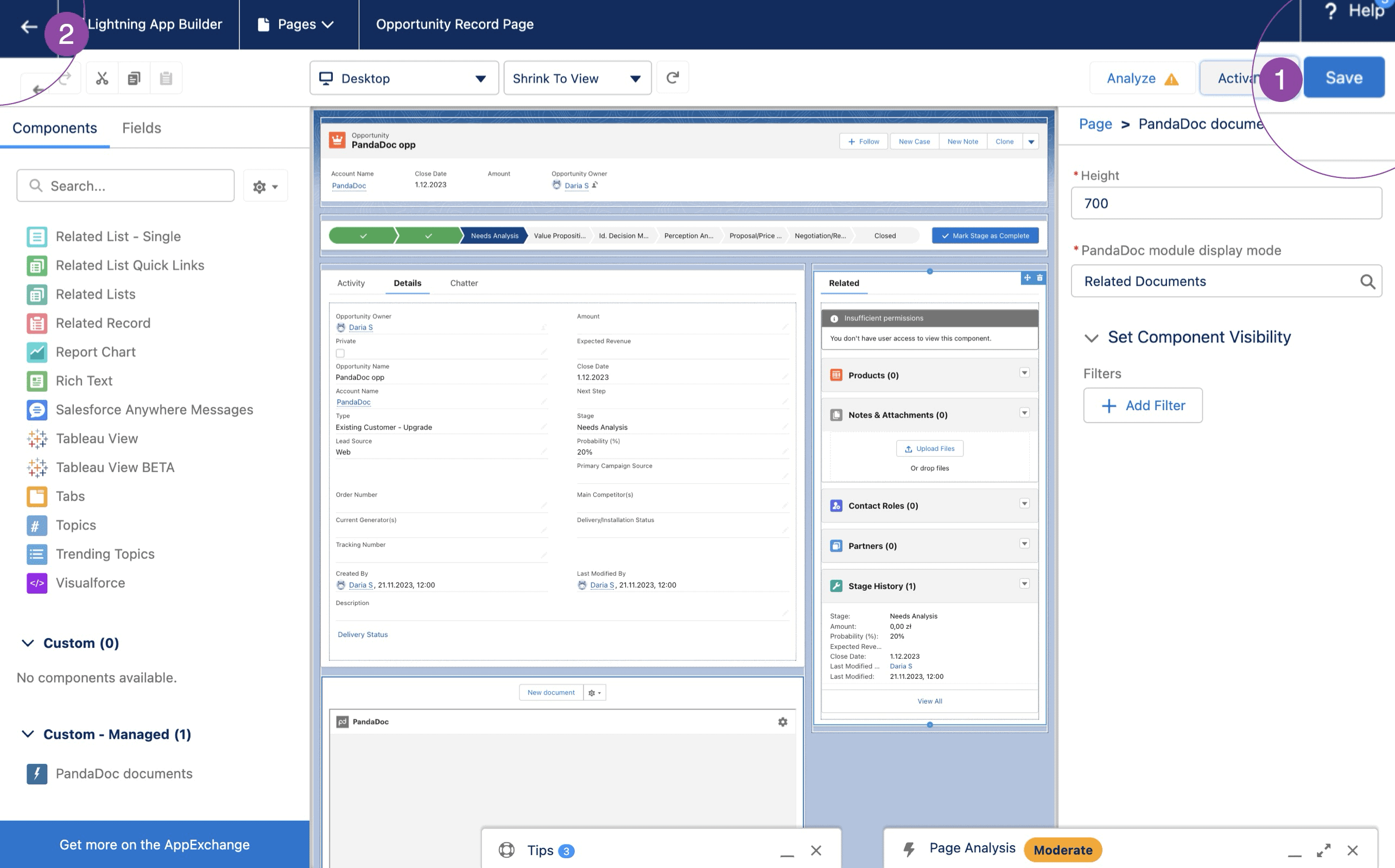
- Open a record, for example an Opportunity, click the gear icon and choose Edit Page.
- In Lightning App Builder, find the PandaDoc Documents component under the managed components and drag it onto the layout.
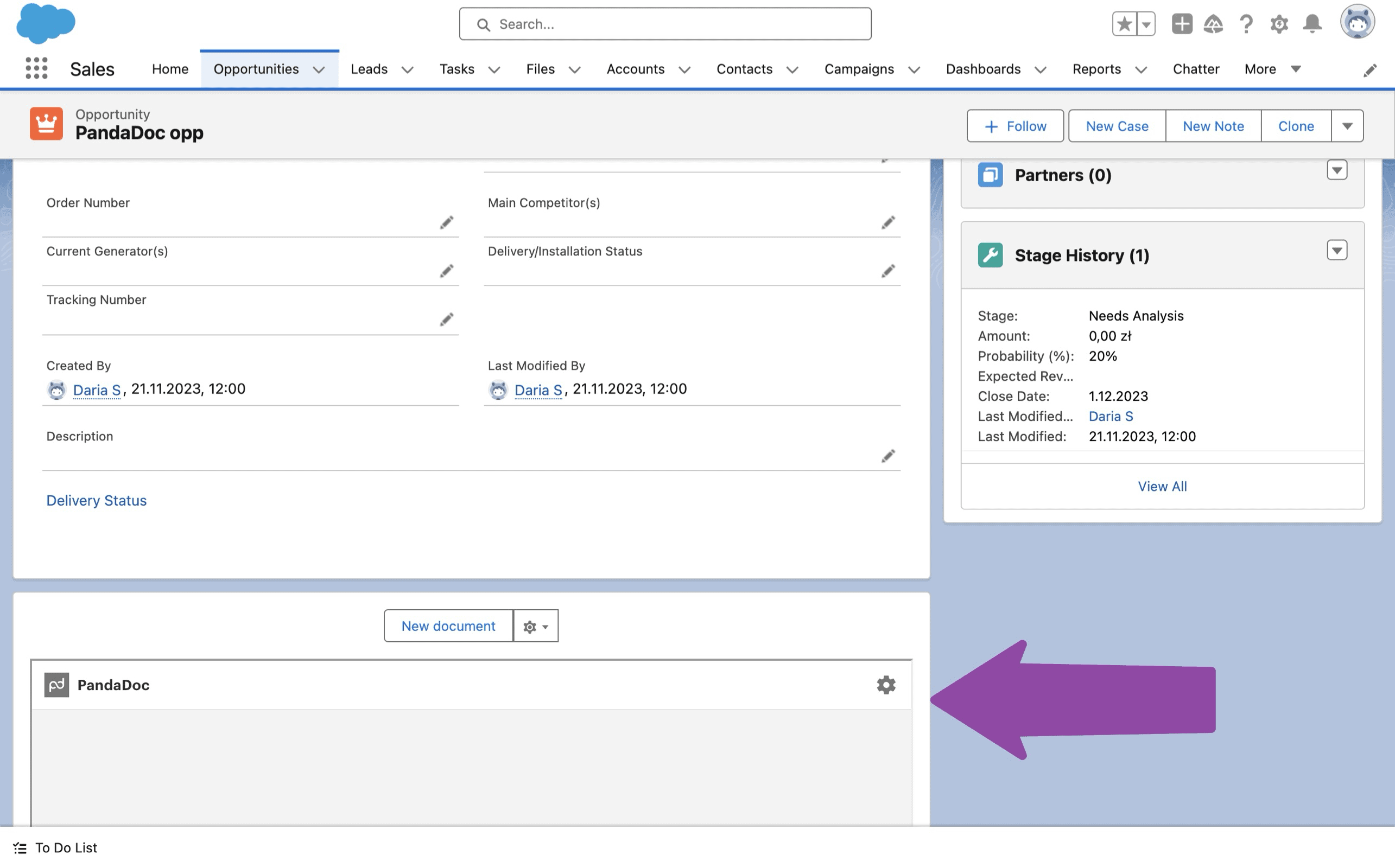
- Set the height and the display mode. Related documents lists documents created from this record, and Template selection shows the templates to create from. You can add the component more than once, one in each mode.
- Click Save, then Activate, choose Assign as Org Default and the form factor, and save again.
Step 5: EU data residency (if it applies)
If your PandaDoc account is hosted in the EU, point the package at pandadoc.eu. That means changing the PANDADOC_APP_HOST and PANDADOC_DOCSERVICE_HOST custom settings, the PD_API remote site and the trusted URL.
How Do Salesforce Fields, Contacts And Products Flow Into A PandaDoc Document?
Configure all three in the PandaDoc Setup app in Salesforce. Tokens map Salesforce fields to template variables for each object. Recipient mapping turns Contact Roles or Contacts into signers. Pricing-item mapping sends Opportunity Products into the template's pricing table. Rep-entered data then flows into every document without retyping.
Tokens: Salesforce fields to variables
Configure tokensWhere: App Launcher › PandaDoc Setup › Salesforce to PandaDoc data flow › Configure tokens
Pick the object, choose the fields, and copy the variable names from the Variables list into your template, square brackets included. Merge fields take the same name without brackets. Variables are set per object and cannot pull values across objects, so if an Opportunity document needs an Account field, bring that value onto the Opportunity with a formula field first. An empty Salesforce field leaves the variable blank, and encrypted text fields cannot be passed.
Recipients: who signs
Configure recipientsSource by object: Opportunity › Contact Roles · Account › Contacts · Lead › the Lead · Contact › the Contact · Quote › Contact
Map first name, last name, email, company, phone and role. The role names on the Contact Role must match the role names in the PandaDoc template exactly. A "Decision Maker" against a "Signer" role means nobody is assigned to the signature field.
Products: line items to the pricing table
Configure pricing itemsRequires: a pricing table with Data merge turned on (the default)
Map Opportunity Product fields to pricing-table columns. Line-item order is kept, and up to five related lists can feed one pricing table or quote builder (package 1.86 or later). The quote builder block receives product name, price, quantity and discount.
To create a document, a rep opens the record, clicks New Document in the PandaDoc component, picks a template, reviews the items and recipients, and sends. If the deal changes before sending, Refresh data pulls the latest values into the document. This works on Draft documents only (PandaDoc: Salesforce new experience). After a document is sent, a change means a new revision.
What Can PandaDoc Write Back To Salesforce?
With API access enabled, PandaDoc's document triggers update the Opportunity stage from the document status, log document activity as Notes, and save the signed PDF to Files. They can also update Opportunity Products and write document variables or form-field values into Salesforce fields when a document is sent or completed. All of this is configured in PandaDoc Setup › Document trigger settings.
| Trigger | What it does | Watch out for |
|---|---|---|
| Change Opportunity status | Maps document statuses to Opportunity stages, for all documents or per template | A mapping for a specific template overrides the default |
| Documents activity | Saves events such as created, sent, viewed, completed and paid as Notes | Heavy senders create many Notes; agree who reads them |
| Save PDF to Files | Attaches the completed PDF to the record | PDFs over 12 MB cannot be saved (Salesforce heap limit) |
| Update Opportunity products | Writes Discount, Line Description, Quantity and Sales Price on Sent or Completed | Product Code, Name and List Price are never updated |
| Update Salesforce fields | Writes document variables (sent date, completion date, value, reference number) and field values (text, date, checkbox, dropdown) to Salesforce fields | Create the target fields first and restrict who can edit them |
Source: PandaDoc: Salesforce two-way sync.
If you run Salesforce CPQ, the CPQ connector adds two modes. PDF mode sends the CPQ-generated PDF out for signature as it is. Editable mode turns it into a PandaDoc document. Its sync triggers keep the Quote status, the Opportunity and the document value (the Quote's net amount) aligned.
When Do You Need Salesforce Flow, The PandaDoc API Or Webhooks?
The native triggers cover most write-backs. Use Salesforce Flow when a document event must cause other Salesforce changes, such as closing an Opportunity or creating a renewal. Use the PandaDoc API when documents must be generated without a rep clicking New Document, for example when a stage changes or from another system.
Document trigger settings
Stage updates, Notes, PDF to Files, product and field write-backs. No code, set up by an admin.
A record-triggered Flow on the PandaDoc Document object
The package installs a pandadoc__PandaDocDocument__c object that is linked to the Opportunity, Account, Contact or Lead. PandaDoc's own Flow example sets the Opportunity to Closed Won when the document's status equals document.completed. The same pattern can start onboarding tasks, a renewal Opportunity or a handover to finance.
Create from a template and listen for events
Calling POST /public/v1/documents with a template ID creates a document asynchronously. It starts as document.uploaded and can't be sent until it reaches document.draft. PandaDoc recommends webhooks over polling. Note that recipient_completed fires per recipient and does not mean the whole document is complete.
We found no documented, built-in Flow action that generates a PandaDoc document. Automatic generation from a Salesforce stage change is custom work in Apex or middleware calling the API. In one of our quote-to-cash projects, a Salesforce Flow generates the PandaDoc pilot agreement when an Opportunity reaches "Pilot Approved". Chargebee's PandaDoc integration then creates the invoice and payment page once it is signed. Our PandaDoc API development page covers the patterns we use for retries, rate limits and idempotent webhooks.
What Are The Most Common PandaDoc Setup Mistakes?
Most of these problems come from configuration decisions, not product limits. Get them right in the sandbox.
What Can PandaDoc AI Do Today?
PandaDoc's AI features are still young. The in-editor AI assistant is in limited beta and edits rich text and variables. An MCP server, launched in September 2025, lets AI assistants such as Claude and ChatGPT work with PandaDoc. PandaDoc's August 2026 update added AI data extraction and filling variables from pasted context.
Treat these as accelerators for drafting and review, not as a replacement for well-built templates and mapped CRM data. AI features that touch contracts also need governance: decide who may use them, on which documents, and what data they can see. Sources: PandaDoc AI assistant help and PandaDoc AI information.
When Should You Bring In A PandaDoc Implementation Partner?
A single team using one or two templates can usually set up PandaDoc themselves with this guide. A partner earns their fee when documents must be generated automatically, when product and pricing data come from CPQ or several related lists, when signed documents must start billing or onboarding, or when an earlier setup has drifted into dozens of inconsistent templates.
That is the work Twopir Consulting does. We help growing and mid-market companies solve complex CRM, integration, and business system challenges, and PandaDoc sits right where CRM, contracts and billing meet. In one PandaDoc and Salesforce integration for a US B2B SaaS sales team, reps generate a fully branded, data-accurate proposal or invoice from an Opportunity or Order record in under 60 seconds, with no manual exports or copy-paste steps. Our PandaDoc consulting and implementation work covers assessment, template architecture, CRM integration, approval and workflow automation, and support after go-live.
Get PandaDoc And Salesforce Working As One System
On a 30-minute discovery call, a Twopir consultant reviews your templates, Salesforce data model and approval flow, and tells you what to configure natively, what to automate, and what to leave alone.
Schedule a Discovery CallThe Bottom Line
PandaDoc works best when templates do the work and the CRM supplies the data. Build a small set of variable-driven templates, choose the plan that matches what you actually need, and test the Salesforce connection in a sandbox before reps touch it. Native sync then keeps Salesforce honest about where every proposal and contract stands. Add Flow or the API only where a document event must start the next step in your revenue process.
- 1
Build templates, not documents: variables, pricing tables, roles and workflow steps all live on the template.
- 2
Learn the status model. Draft, Sent, Viewed and Completed drive the dashboard, reminders and every Salesforce automation.
- 3
The Salesforce integration needs Business Annual or Enterprise Annual plus the add-on, and two-way sync needs Salesforce API access.
- 4
Map tokens, recipients and products in PandaDoc Setup. Make sure role names match and plan for cross-object data.
- 5
Use native triggers first, Flow on the PandaDoc Document object next, and the API with webhooks for automatic generation.
Frequently Asked Questions
PandaDoc is used to create, send, track and electronically sign business documents, mainly proposals, quotes and contracts. Teams build reusable templates with variables and pricing tables, send documents for e-signature, see when recipients open them, and connect them to CRMs such as Salesforce and HubSpot.
Yes. PandaDoc for Salesforce is a managed package on AppExchange. It adds a PandaDoc Documents Lightning component to record pages, fills templates with Salesforce fields, contacts and products, and syncs document status, PDFs and field values back to Salesforce. It requires a PandaDoc Business Annual or Enterprise Annual plan with the paid Salesforce add-on.
PandaDoc supports Salesforce Professional, Enterprise, Unlimited and Developer editions. Two-way sync needs Salesforce API access, which means Enterprise edition or Professional with the API Access add-on. The org also needs My Domain enabled for the Lightning component.
Yes. In PandaDoc Setup, the Change Opportunity Status trigger maps document statuses to Opportunity stages, either for all documents or per template. For more complex logic, a record-triggered Flow on the PandaDoc Document object can close the Opportunity and start other processes when the status equals document.completed.
Not without some custom work. The standard integration lets reps create documents from a record, and the native triggers handle updates after sending. Generating a document automatically, for example when a stage changes, needs Apex or middleware that calls the PandaDoc API to create a document from a template.
For most business contracts in the United States, yes: the ESIGN Act says a signature may not be denied legal effect solely because it is electronic. PandaDoc states compliance with ESIGN, UETA and eIDAS and issues a signature certificate for completed documents. Some regulated document types have special rules, so check with counsel.
Business adds CRM integrations, approval workflows, the content library, branding, web forms and bulk send to the Starter features. Enterprise adds smart conditional content, CPQ, workflow automation, single sign-on, team workspaces and Notary, and its pricing is quote-based.
