
Automation Studio and Journey Builder: A Beginner's Guide for Marketing Cloud
Automation Studio moves and shapes your data. Journey Builder moves your customers. This guide explains what each tool does, when to use which, how they hand work to each other, and how to build your first automation and your first journey without the mistakes most teams make in their first month.
Key Takeaways
- Automation Studio runs data and marketing tasks in batches: imports, SQL queries, filters, extracts, file transfers and scheduled sends, on a schedule, a file drop or an API trigger.
- Journey Builder moves each contact along a designed path: one entry source, then messages, waits, splits and record updates, with a goal and exit criteria.
- They are partners, not alternatives. The usual pattern is that Automation Studio builds a data extension and Journey Builder admits the people in it.
- Journey Builder's Update Contact activity writes to a data extension, not to Sales Cloud. To change a CRM record, use the Sales and Service Cloud activities, which need Marketing Cloud Connect.
- Salesforce positions Marketing Cloud Next as a complement to Marketing Cloud Engagement, not a replacement, so existing automations and journeys keep running.
What are Automation Studio and Journey Builder? They are the two automation tools inside Salesforce Marketing Cloud Engagement. Automation Studio runs batch data and marketing activities, such as imports, SQL queries and scheduled sends, on a schedule or when a file arrives. Journey Builder sends each customer along a personalised path of messages, waits and decisions that responds to what they do.
We first published this guide in 2023. This version is rebuilt from Salesforce's current Help documentation, release notes and Trailhead, checked in October 2026. It corrects one claim in the original worked example, adds how the two tools hand work to each other, the limits that catch beginners, step-by-step first builds, and where Marketing Cloud Next fits. It is written for marketers, marketing operations teams and Salesforce admins at growing and mid-market companies who are new to Marketing Cloud, or who inherited an account someone else built.
What Is the Difference Between Automation Studio and Journey Builder?
Automation Studio works on data sets; Journey Builder works on individual customers. An automation runs a fixed sequence of steps against whole tables of data at a set time or when a file lands. A journey admits contacts one by one, remembers where each person is, and decides their next step from their data and behaviour. Most real programmes use both.
Salesforce's own summary of the pair is that they execute simple or multistep marketing and data management activities on an immediate, triggered, or scheduled basis. The split of labour is what matters for a beginner:
Automation Studio
The back office. Brings data in, cleans and segments it with SQL or filters, sends it out, and runs batch sends. Nobody sees it working; everything else depends on it.
Journey Builder
The customer-facing path. Admits contacts from an entry source and moves each one through emails, SMS, waits, splits and CRM updates until they reach a goal or exit.
The hand-off
A data extension. Automation Studio fills it; Journey Builder reads it as its entry source, either on a schedule or the moment the automation finishes.
How Does Automation Studio Work?
An automation is a starting source followed by numbered steps, each holding one or more activities. The starting source decides when it runs: on a schedule, when a file is dropped on your Enhanced FTP, or when a file lands in external cloud storage. Steps run in order; activities inside one step run together. Activities are saved separately, so one SQL query can be reused in several automations.
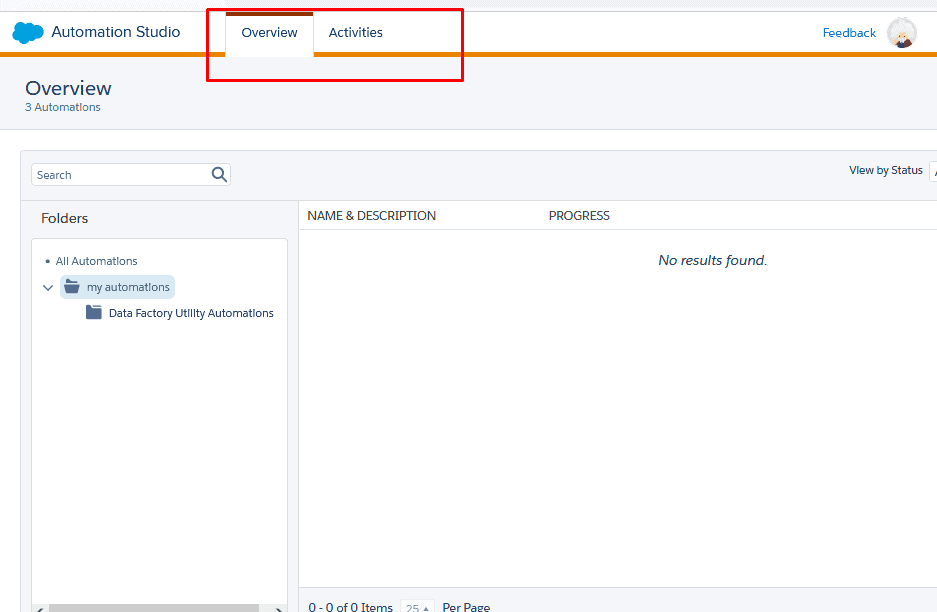
The two tabs: Overview and Activities
Automation Studio opens on two tabs. Overview lists your automations with their status, progress and run history, organised in folders, and lets you run any of them once on demand. Activities lists every activity you have configured, including ones not yet used in any automation, so you can build reusable pieces once.
Three ways to start an automation
Salesforce documents three starting sources. You can also click Run Once to start any automation immediately, which is how you test it.
| Starting source | Starts when | Use it for |
|---|---|---|
| Schedule | A date, time and time zone you set, repeating until an end date. Since May 2024 a schedule can repeat as often as every 15 minutes; the minimum used to be one hour. | Nightly segment refreshes, daily newsletters, regular data extracts |
| File Drop | A file is uploaded to the Import or Triggered_Automations folder of your Enhanced FTP, optionally matching a filename pattern. | Files from a CRM, ERP or data warehouse that arrive at unpredictable times |
| Trigger | A file is uploaded to an external location such as Amazon S3, Google Cloud Storage or Microsoft Azure Blob Storage, watched through a trigger API. | Teams whose data pipeline already writes to cloud storage |
Two File Drop details catch beginners. Without a filename pattern, a folder can serve only one file drop automation, and if a file matches more than one active trigger Salesforce picks one at random, so use patterns or subdirectories. File drop runs are queued by default: a file that arrives mid-run waits for the current run to finish.
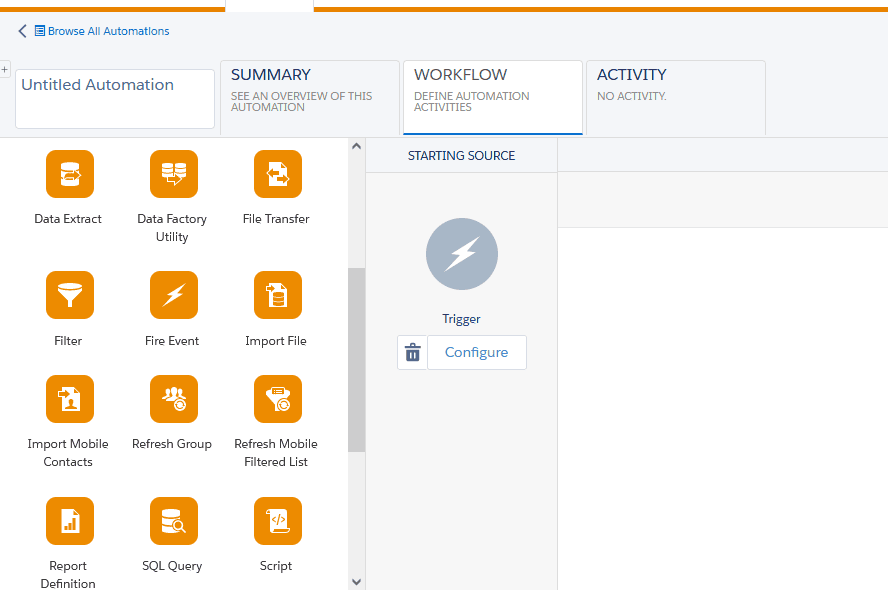
The activities you will use most
Activities are, in Salesforce's words, the building blocks of an automation. There are more than 20 types; these are the ones a first project needs.
| Activity | What it does |
|---|---|
| SQL Query | Selects data from data extensions and system data views and writes the result to a target data extension. The workhorse of segmentation. |
| Data Copy or Import (formerly Import File) | Loads a file from your FTP into a data extension or a list. |
| Filter | Applies a saved data filter to create a group or data extension, with no SQL. |
| Data Extract | Creates zipped files of your data for use outside Marketing Cloud, and can convert XML to delimited files. |
| File Transfer | Unzips or decrypts a file, or moves an extract from the secure Safehouse to an FTP location. |
| Send Email, Send SMS, Send Push | Batch sends to a data extension or list at the point in the sequence you choose. |
| Script | Runs server-side JavaScript for logic the other activities cannot express. |
| Wait | Pauses for a duration or until a set time before the next step. |
| Verification | Checks a data extension against conditions you set, such as an unexpected record count, and stops the automation, sends an alert email, or both. |
| Fire Event | Starts a journey from the automation, using the same data extension as the journey's entry source. |
SQL Query activity limits to know before you write one
Marketing Cloud SQL is based on SQL Server 2016 but only allows SELECT statements. You cannot use variables, temporary tables, common table expressions or -- line comments, and the result always goes to a target data extension through one of three data actions: Append, Update or Overwrite. Salesforce notes that Overwrite performs best in most cases and Update usually performs worst.
The query limits are the reason automations fail at scale: a hard 30-minute timeout per query (aim for under five minutes), soft limits of five data extensions and four joins per query, and a daily query allowance that depends on your edition. A query activity that fails 24 times in a row is suspended.
How Does Journey Builder Work?
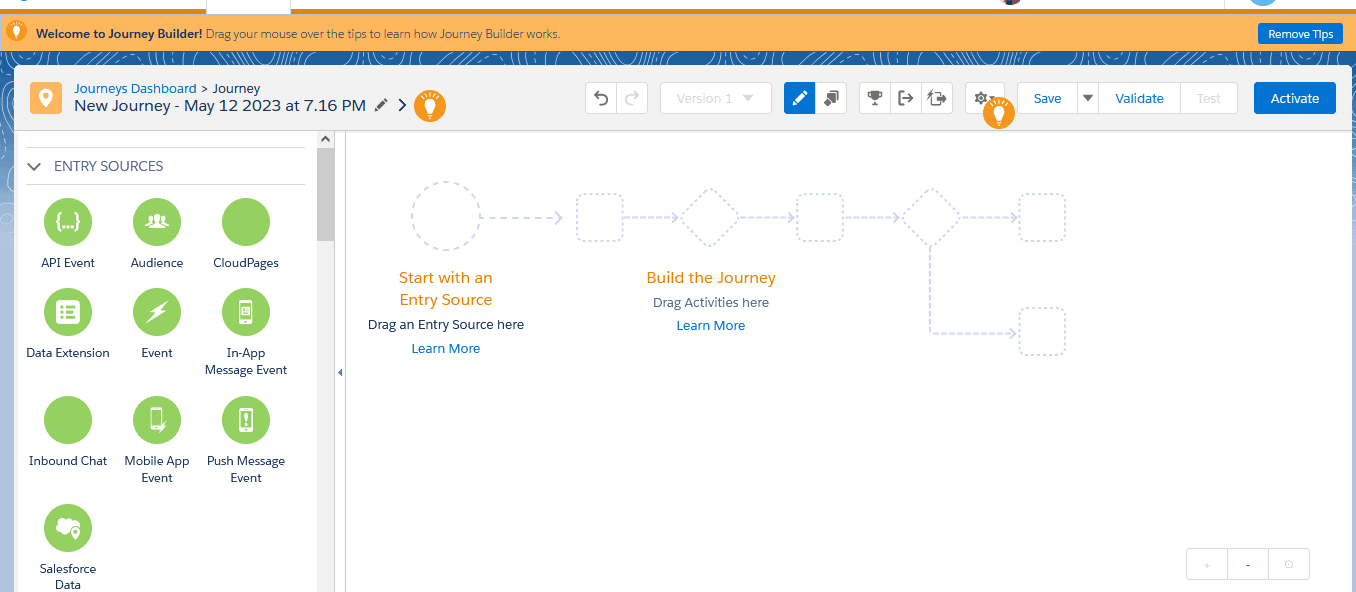
A journey is one entry source followed by a canvas of activities that each contact travels individually. Salesforce calls Journey Builder a campaign planning tool for designing and automating campaigns. Contacts enter, the journey keeps evaluating each one, and moves them to the next message, wait or decision based on their own data and behaviour.
Entry sources: how contacts get in
Every journey has exactly one entry source. The ones beginners use first are a Data Extension (a batch of contacts admitted on a schedule), an API Event (an external system injects one contact in near real time), a Salesforce Data Event (a record created or updated in Sales or Service Cloud, initiated through Flow), and CloudPages form submissions. The full list is in Salesforce's entry sources reference; it notes that Contact Data Events are being retired in favour of data extension entry.
Journey types and entry modes
Choose the journey type first: a Single Send journey sends one batch message, a Transactional Send journey answers a contact's action such as a purchase, and a Multi-Step journey runs a responsive series across channels. Then choose how often a contact may enter, because this setting is easy to get wrong and hard to undo.
| Contact entry mode | Behaviour | Typical use |
|---|---|---|
| No re-entry | A contact can enter once, ever. Cannot be changed after activation. | Welcome and onboarding series |
| Re-entry at any time | A contact can be in several instances at once, with no maximum. | Order confirmations, receipts |
| Re-entry only after exiting | A contact can re-enter, but only one instance at a time. | Abandoned basket, renewal reminders, preference updates |
Uniqueness is checked by contact key, and the setting applies to the whole journey across versions.
Activities: messages, flow control and updates
The activity reference groups the canvas into four families:
- Messages: Email, SMS, Push Notification, Inbox, In-App Message and LINE. Build the content before you build the journey.
- Flow control: Wait By Duration, Wait By Attribute and Wait Until Date; Decision, Random and Engagement Splits; Join; and Path Optimizer, which tests up to 10 paths and picks a winner.
- Customer updates: Update Contact, which writes a value to a data extension, for example to record that someone reached a step.
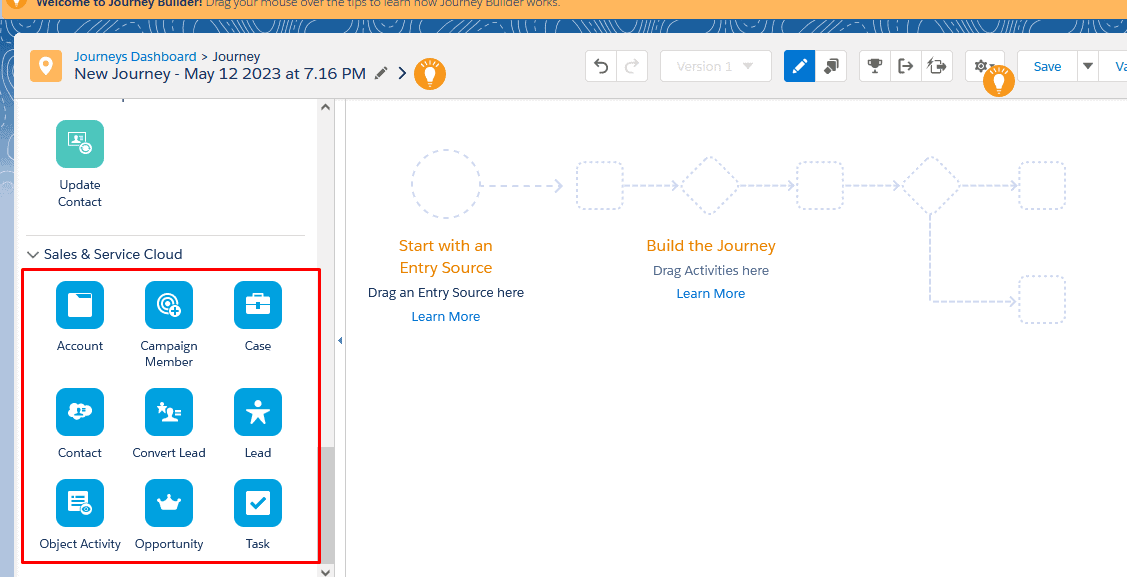
- Sales and Service Cloud: create or update Lead, Contact, Account, Opportunity, Case, Task and Campaign Member records, or convert a lead.

The Sales and Service Cloud activities only appear in accounts with Marketing Cloud Connect installed. They run asynchronously, and Salesforce says to allow up to 24 hours for an update to process. Users need the Salesforce CRM integration and Journey Builder Sales and Service Cloud permissions, and Salesforce notes that users with the Marketing Cloud Engagement Administrator role cannot be granted access to create or edit these activities.
Versions, goals and exit criteria
Editing a running journey creates a new version. New contacts enter the new version, while contacts already inside the old one finish on the old path. A goal measures what the journey is for, such as a purchase, and can remove contacts who reach it; exit criteria remove contacts the journey no longer suits. Salesforce evaluates goals every 24 hours, processes them before exit criteria, and recommends using goals to measure and exit criteria to remove.
Automation Studio vs Journey Builder: Which Should You Use?
Ask whether a customer is on a path or a system is doing a job. If the work is about data, such as importing, querying, cleaning or exporting, or a one-off batch send to a fixed segment, it belongs in Automation Studio. If each person needs their own timing, branching and follow-up based on what they do, it belongs in Journey Builder. Work that needs both splits at a data extension.
| Question | Automation Studio | Journey Builder |
|---|---|---|
| Works on | Whole data sets, in batches | Individual contacts, one path each |
| Starts from | Schedule, file drop or cloud-storage trigger | One entry source: data extension, API event, Salesforce data event and others |
| Remembers each person's state | No | Yes |
| Runs SQL | Yes (SQL Query activity) | No (reads data that SQL prepared) |
| Imports and exports files | Yes | No |
| Waits and branches per person | No (Wait pauses the whole run) | Yes |
| Updates Sales Cloud records | Not from a standard activity | Yes, with Marketing Cloud Connect |
| Must include a message | No | Yes: validation fails without one |
Use Automation Studio for nightly imports, SQL segmentation, data hygiene, tracking extracts to a warehouse, suppression lists, and the fixed-time newsletter to a whole segment. It is also where you prepare the data extension a journey will read.
Use Journey Builder for welcome series, onboarding, abandoned baskets, renewals, re-engagement and lead nurture, anywhere the next message depends on what this person did. Salesforce says journeys must contain a message and that pure data transfer or segmentation belongs in another tool.
How Do Automation Studio and Journey Builder Work Together?
Automation Studio prepares a data extension and Journey Builder admits the contacts in it. Set the journey's data extension entry source to run on the Automation schedule type, and the journey evaluates the data extension each time that automation completes. Alternatively, add a Fire Event activity at the end of the automation. Either way the journey never runs on half-built data.
Synchronized CRM data, imported files and system data views
Marketing Cloud Connect's Synchronized Data Sources bring Sales and Service Cloud objects in as data extensions named like Contact_Salesforce_1, at an interval you set. Files arrive through Data Copy or Import, and data views such as _ListSubscribers expose platform data.
SQL Query and Filter activities build one sendable data extension
Salesforce's Trailhead guidance is to combine data from several data extensions into a single entry data extension with a SQL Query activity, filtered in advance and holding every field you will personalise with. Add a Verification activity so an empty or oversized result stops the run.
Data extension entry source on the Automation schedule
The journey evaluates the data extension when the selected automation completes. If the previous evaluation is still running when the next is due, that run is skipped and the records are processed next time.
Sales Cloud records, data extensions and tracking extracts
Sales and Service Cloud activities update CRM records, Update Contact records progress in a data extension, and a scheduled Data Extract in Automation Studio sends engagement data on to reporting.
Twopir Consulting designs this layer as one system rather than as separate builds: our Marketing Cloud automation services cover the Automation Studio side, and our Journey Builder implementation services cover entry sources, suppression, goals and versioning.
How Do You Build Your First Automation?
Create the target data extension first, then the automation: schedule, SQL query, verification, save, test with Run Once, then activate. A good first project is a nightly segment, such as active subscribers who opened an email in the last 30 days, written to a data extension a journey or send can use. It exercises every core concept without touching a customer.
- 1
Create the target data extension in Contact Builder or Email Studio, with the fields your query returns and a primary key such as SubscriberKey. Make it sendable if a send or journey will use it.
- 2
Create the automation. In Automation Studio, click New Automation, name it for its purpose and frequency, and drag Schedule into the starting-source position.
- 3
Add a SQL Query activity to step 1. Write the query, click Validate Syntax, choose the target data extension and pick a data action. Overwrite suits a segment rebuilt every night.
- 4
Add a Verification activity in step 2 that stops the automation and emails you if the record count in the data extension is lower than you expect. Activities that read the query's output must sit in a later step, not the same one.
- 5
Configure the schedule. Set the start date, time and time zone and how often it repeats. Salesforce recommends staggering start times off the hour, such as 2:30 rather than 2:00.
- 6
Add a notification address so someone is told when a run errors or is skipped. Use a shared mailbox, not one person's inbox.
- 7
Save, click Run Once, and check the result in the target data extension and the run history. Only then click Active and Activate: a saved automation stays paused until you do.
Write the query in the dialect Marketing Cloud supports. This example uses the _Open and _Subscribers system data views (open data is kept for six months, and _Subscribers returns results only at the Enterprise level, not in child business units):
SELECT s.SubscriberKey, s.EmailAddress
FROM _Subscribers s
WHERE s.Status = 'active'
AND EXISTS (
  SELECT 1 FROM _Open o
  WHERE o.SubscriberKey = s.SubscriberKey
  AND o.EventDate >= DATEADD(DAY, -30, GETDATE())
)
If your automation also needs custom code, our comparison of AMPscript and SSJS in Marketing Cloud explains which language suits a Script activity.
How Do You Build Your First Journey?
Prepare the content and the entry data extension first, then build, validate, test and activate. A welcome series is the classic first journey: new subscribers enter from a data extension, receive a welcome email, wait two days, and then take one of two paths depending on whether they opened it. It uses every core journey concept in under ten activities.
- 1
Build the emails in Content Builder and the sendable entry data extension, with every field you will personalise or split on.
- 2
Create a Multi-Step journey and drag the Data Extension entry source onto the canvas. Select the data extension and, if needed, a filter.
- 3
Set the entry schedule: Run Once, Recurring, or Automation so it evaluates when your feeding automation completes.
- 4
Choose the contact entry mode in Journey Settings. For a welcome series, No re-entry, but set it last, because Test mode does not support No re-entry.
- 5
Add the path: Email, Wait By Duration of two days, then an Engagement Split on whether the welcome email was opened, with a different follow-up on each branch.
- 6
Set a goal and exit criteria, such as a first purchase, so contacts who convert stop receiving the nurture.
- 7
Validate, then test. With a data extension entry source, Test mode simulates real contacts' paths through the splits without sending messages or affecting tracking, and ignores wait times.
- 8
Activate, then watch Journey Health and the Journeys Dashboard for entry totals and goal attainment during the first week.
How Do You Sync Publication List Preferences With Sales Cloud?
Use a journey to push preferences into Sales Cloud and an automation to pull them back. Marketing Cloud to Sales Cloud runs as SQL, then a journey with a confirmation email and a Sales and Service Cloud Contact activity. Sales Cloud to Marketing Cloud runs entirely in Automation Studio: SQL on the synchronized data extension, Data Extract, File Transfer, then Import into the publication list.
A publication list lets a subscriber opt out of one category of email, such as a monthly newsletter, without unsubscribing from everything. Sales teams often want that preference on the Salesforce contact. In this example the preference lives in a custom contact checkbox we will call Newsletter_Opt_In__c.
Direction 1: Marketing Cloud to Sales Cloud
- 1
Create a sendable data extension for the entry data, holding the subscriber key, email address, list status and the Salesforce contact ID.
- 2
Build an automation with a SQL Query activity that reads the
_ListSubscribersdata view for the publication list and joins it to the synchronized contact data extension to pick up the contact ID. In a child business unit, shared data extensions take theENT.prefix. - 3
Build a Multi-Step journey with that data extension as the entry source on the Automation schedule, and Re-entry only after exiting, so the same contact can be processed again when their preference changes.
- 4
Add a Decision Split on status, a confirmation email on each path (the journey needs a message to validate, and the subscriber gets a useful receipt), then a Sales and Service Cloud Contact activity that finds the contact by ID and sets the checkbox to true or false.
SELECT ls.SubscriberKey, ls.EmailAddress, ls.Status, c.Id AS ContactId
FROM _ListSubscribers ls
INNER JOIN ENT.Contact_Salesforce_1 c
  ON c.Email = ls.EmailAddress
WHERE ls.ListName = 'Monthly Newsletter'
AND ls.ListType = 'Publication list'
Two cautions. Joining on email address assumes one contact per email, so deduplicate first or join on an ID if your subscriber key already holds the Salesforce contact ID. And in practice you would also filter to recent changes, for example on the DateUnsubscribed column, so that the journey only processes people whose preference changed, not the whole list every night.
This corrects the version of this guide we published in 2023, which used Update Contact for this step. Update Contact only writes to a data extension; the CRM field changes only through the Sales and Service Cloud Contact activity, which is asynchronous and can take up to 24 hours.
Direction 2: Sales Cloud to Marketing Cloud
- 1
SQL Query: select contacts with
Newsletter_Opt_In__cset to true from the synchronizedContact_Salesforce_1data extension into a staging data extension with subscriber key and email address. - 2
Data Extract: export the staging data extension to a file with a fixed naming pattern.
- 3
File Transfer: move the file from the Safehouse to your Enhanced FTP Import folder, using the same naming pattern as the extract.
- 4
Data Copy or Import: import the file into the publication list with Add and update. Salesforce notes that subscriber attributes are not supported for publication list imports, so carry only the key and email.
Put each activity in its own step, in this order, so every step reads finished output. You cannot import directly into a synchronized data source, which is why the data goes out through an extract and back in through an import. Unsubscribes from All Subscribers do not need this pattern: Marketing Cloud Connect's subscriber status sync already covers them.
What Mistakes Do Beginners Make With Automation Studio and Journey Builder?
Most first-month problems are not bugs in Marketing Cloud. They come from timing, settings chosen by default, and assumptions about what an activity does. These six appear in almost every account we are asked to review.
If your account already shows these symptoms, a Marketing Cloud audit inventories the automations, journeys and versions that are still running and what each one depends on.
Does Marketing Cloud Next Replace Journey Builder?
Yes. Salesforce states that Marketing Cloud Next does not replace Marketing Cloud Engagement but complements and extends it, and that existing campaigns, automations and templates continue running. Automation Studio and Journey Builder are part of Engagement, which Salesforce describes as the evolution of ExactTarget and its execution engine for high-volume email, SMS and journey messaging.
What changes is the direction of new work. According to Salesforce's Trailhead module on Marketing Cloud Next, Next adds Agentforce, Data 360 for data, segmentation and consent, and Flow-based orchestration across clouds. Salesforce's Marketing Cloud Engagement page describes Flow as the next-generation automation engine and says existing Journey Builder journeys can be used within Flow.
For a beginner, the practical advice is simple: learn Automation Studio and Journey Builder well, because they run most Marketing Cloud accounts today, and keep your data clean and documented, because that is what any move to Data 360 and Flow will depend on. Our Marketing Cloud Next services page covers how we assess that path.
The Bottom Line
Automation Studio and Journey Builder are two halves of one system: the first prepares the data, the second carries each customer through a path built on it. Twopir Consulting implements, rescues and optimizes Salesforce Marketing Cloud for growing and mid-market companies, and our Marketing Cloud case study shows automations and journeys built for multiple customer paths, alongside Mobile Studio and campaign analytics.
- 1
Use Automation Studio for data and batch work, and Journey Builder for per-customer paths.
- 2
Hand off through one sendable data extension, on the Automation entry schedule.
- 3
Keep SQL simple, one dependent activity per step, and well inside the 30-minute timeout.
- 4
Choose entry modes, goals and exit criteria deliberately, and test before you activate.
- 5
Update Sales Cloud with the Sales and Service Cloud activities, never with Update Contact.
Get Your Automations and Journeys Working Together
Tell us what your Marketing Cloud account does today and what you want it to do. We will map the automations, data extensions and journeys it needs, and the order to build them in.
Schedule a Discovery CallFrequently Asked Questions
Automation Studio runs batch data and marketing tasks, such as imports, SQL queries, extracts and scheduled sends, on a schedule, a file drop or a cloud-storage trigger. Journey Builder moves individual contacts through a path of messages, waits and splits based on their data and behaviour. Automation Studio usually prepares the data extension a journey reads.
Yes, in two ways. Set the journey's data extension entry source to the Automation schedule type, so it evaluates the data extension when the selected automation completes. Or add a Fire Event activity to the automation, using the same data extension as the journey's entry source.
Since May 2024, a scheduled automation can repeat as often as every 15 minutes; the minimum used to be one hour. File Drop and Trigger automations run whenever a matching file arrives, and file drop runs queue by default. Make sure each run finishes before the next is due, or it will never complete.
SQL Query activities time out after 30 minutes, a hard limit. Salesforce recommends keeping queries under five minutes and considering another tool if a query regularly runs longer than ten. Name columns instead of using SELECT *, write one query per step, and stage large queries through intermediate data extensions.
Yes, through the Sales and Service Cloud activities, which create or update leads, contacts, accounts, opportunities, cases, tasks and campaign members. They need Marketing Cloud Connect and the right role permissions, and they run asynchronously, so allow up to 24 hours. The Update Contact activity only writes to a data extension.
Yes. Journey Builder validation requires at least one messaging activity, such as an email or SMS. Salesforce suggests using another tool for data transfer, segmentation or other non-messaging work, which usually means Automation Studio.
Editing creates a new draft version. When you activate it, new contacts enter the new version, while contacts already in the old version finish on the old path until they exit. Only one draft can exist at a time, and the contact entry mode and journey settings carry across versions.
No. Salesforce says Marketing Cloud Next complements and extends Marketing Cloud Engagement rather than replacing it, and existing automations and journeys keep running. Next adds Agentforce, Data 360 and Flow-based orchestration, and Salesforce says existing Journey Builder journeys can be used within Flow.
