
Boost LINE Engagement with SFMC GroupConnect: Setup, Journeys and Reporting
GroupConnect is how Salesforce Marketing Cloud Engagement talks to customers on LINE, the messaging app most people in Japan, Thailand and Taiwan open every day. This guide covers what changed on both sides since 2024, how to connect a LINE Official Account, how followers become contacts, which messages to send, what they cost, and how to measure them.
Key Takeaways
- SFMC GroupConnect is the part of Mobile Studio that sends and receives LINE messages. LINE is built into Content Builder and Journey Builder; Facebook Messenger is available only through the Chat Messaging API. WhatsApp is a separate Marketing Cloud product.
- Since September 4, 2024, you create the LINE side by enabling the Messaging API on a LINE Official Account, not in the LINE Developers Console. The provider you pick then is permanent.
- Every LINE send has two costs: 3 Super Messages in Marketing Cloud, and LINE's own monthly message quota. When the quota runs out, sends stop and Marketing Cloud shows no error.
- New followers arrive with a system-generated contact key. Plan how you link them to your CRM contacts, or you pay for duplicate contacts.
- LINE has no open tracking in GroupConnect. Measure clicks with
%%LINE_ADDRESS_ID%%in links, and follows and blocks with the_MobileLineAddressContactSubscriptionViewdata view.
SFMC GroupConnect lets marketers who already run email and SMS in Salesforce Marketing Cloud add LINE to the same journeys, contacts and reports. For brands selling in Japan, Thailand or Taiwan, that often matters more than any other mobile channel, because LINE is where customers already chat with friends, family and the businesses they follow.
This guide is for marketing operations and CRM leaders at growing and mid-market companies, and the regional teams of larger brands, who want LINE to work as a measured channel rather than a side project. It replaces our 2024 walkthrough with what has changed since: LINE's new channel set-up, Salesforce's licensing model, the documented limits and known issues, and the tactics that turn followers into engaged customers.
What Is SFMC GroupConnect?
GroupConnect is the messaging-app channel in Mobile Studio, alongside MobileConnect for SMS and MobilePush for app notifications. You use it to send LINE messages, manage contact subscriptions and review messaging activity. LINE is integrated into Content Builder and Journey Builder, so LINE messages can run inside the same journeys as email and SMS.
According to Salesforce Help, GroupConnect supports two apps today: LINE, and Facebook Messenger, which is available only through the Chat Messaging API. WhatsApp is not part of GroupConnect. Marketing Cloud Engagement sells WhatsApp as a separate chat messaging product.
| Part of GroupConnect | What it does | Where you find it |
|---|---|---|
| LINE channel registration | Connects a LINE Messaging API channel to your Marketing Cloud account | Setup |
| Follow, Outbound and Response messages | Welcome new followers, send one-off campaigns, reply automatically to keywords | Mobile Studio > GroupConnect |
| LINE Message activity | Sends multi-content or carousel LINE messages as a journey step | Journey Builder |
| Contacts and lists | LINE followers as Marketing Cloud contacts, with filtered and suppression lists | Contact Builder and GroupConnect |
| Reports and data views | Send summaries, follower status and orphaned contacts | Analytics Builder and Automation Studio |
| Chat Messaging API | Registers channels and sends messages from your own code | REST API (/ott/v1/) |
Why Add LINE to Marketing Cloud?
Because in LINE's core markets it reaches more people than any other messaging app, and customers choose to follow a brand's account. LY Corporation, which operates LINE, reports 193 million monthly active users worldwide as of March 31, 2026. Each follower has opted in, which makes LINE closer to a subscriber list than an advertising audience.
| Market | LINE monthly active users | What LY Corporation says |
|---|---|---|
| Japan | 100 million | 52% of LINE's global users |
| Thailand | 54 million | The No. 1 messaging app, used by over 80% of the population |
| Taiwan | 22 million | The No. 1 messaging app, used by over 90% of the population |
| Worldwide | 193 million | As of March 31, 2026 |
Source: LY Corporation, global business overview. Running LINE through GroupConnect, rather than through LINE Official Account Manager alone, gives you three things a standalone account does not:
One contact record
A LINE follower can be the same Marketing Cloud contact as the email subscriber and the CRM customer, so personalization uses everything you know.
Cross-channel journeys
LINE becomes one step in a Journey Builder flow, with waits, decision splits and email or SMS fallbacks around it.
AMPscript personalization
Names, offers, emoji and links are filled in per contact with AMPscript, in both GroupConnect messages and journey activities.
Shared reporting
LINE sends, follows and blocks sit in the same Analytics Builder reports and SQL queries as the rest of your program.
What Do You Need Before Setting Up GroupConnect for LINE?
Three things: a Marketing Cloud account provisioned for GroupConnect with LINE channels enabled, a LINE Official Account with the Messaging API turned on, and an agreed plan for who pays LINE's message costs. GroupConnect is not switched on by default; Salesforce Help says to ask your Marketing Cloud Engagement account representative for LINE access and channels.
How Do You Connect LINE to Salesforce Marketing Cloud?
Create the LINE Official Account and enable its Messaging API first, then register the channel's ID and secret in Marketing Cloud Setup. The LINE half now starts in LINE Official Account Manager, because LINE stopped allowing Messaging API channels to be created in the Developers Console on September 4, 2024. Allow up to 30 minutes after registration before the first test send.
On the LINE side
- 1
Create a LINE Official Account. Register for a Business ID with a LINE account or email address; the account then appears in LINE Official Account Manager. (LINE: getting started)
- 2
Enable the Messaging API in LINE Official Account Manager and choose your company's provider. This creates the Messaging API channel.
- 3
Open the channel in the LINE Developers Console with the same login, and copy the Channel ID and Channel Secret from the channel settings.
- 4
Turn off Greeting and Auto-reply messages in LINE Official Account Manager, so GroupConnect's Follow and Response messages are the only automatic replies.
On the Marketing Cloud side
- 1
Open Setup with a user who has GroupConnect admin rights, and search for LINE.
- 2
Click Register New, then enter the LINE Channel ID, a channel name and the LINE Channel Secret, and save. (Salesforce Help: get started with GroupConnect)
- 3
Wait up to 30 minutes, then send a plain Outbound message to an internal test follower before building any journey.
- 4
Double-check the Channel ID. It cannot be edited later. A wrong ID means deactivating the channel and registering a new one, and a deactivated channel cannot be reinstated.
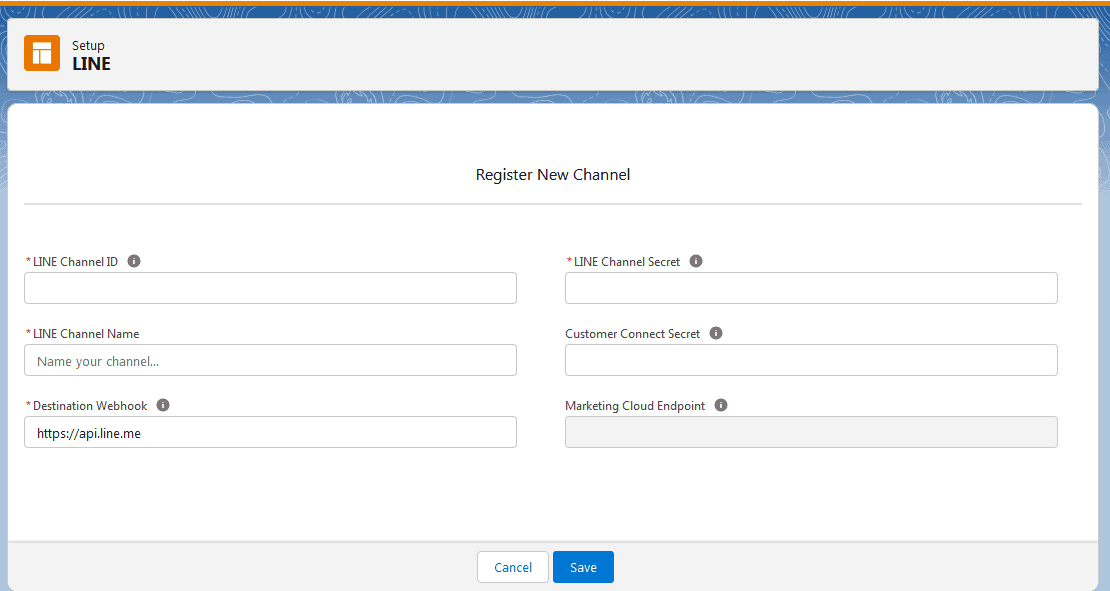
Teams that send from their own code can register and send through the GroupConnect Chat Messaging API instead. It needs an API integration package with the OTT channel scopes, a POST /ott/v1/registration call for the channel, and POST /ott/v1/send for messages.
How Do LINE Followers Become Marketing Cloud Contacts?
Every new follower is created automatically with a system-generated contact key linked to their LINE user ID. That key is not your CRM ID, so the same person can exist twice: once as the email subscriber you imported from Salesforce, and once as the LINE follower. Linking the two is the most important design decision in a GroupConnect project.
| Situation | What happens | What to do |
|---|---|---|
| Someone follows your account | A contact is created with a system-generated contact key and their LINE user ID (address ID) | Capture something you can match on, such as a member number, in the Follow message |
| You know which CRM contact a LINE ID belongs to | Contact Import, used for Update only, sets your contact key on that LINE address | Refresh audiences and journey entry data extensions that filter on contact key before the next send |
| One import holds several contact keys for the same LINE ID | One is kept; the rest become orphans in _MobileLineOrphanContactView | Deduplicate the file before import |
| A new contact key replaces an old one | The billable contact count always rises, and the old key stays behind | Delete orphaned contacts periodically, as Salesforce advises |
| A follower blocks your account | LINE sends an unfollow event and GroupConnect records the opt-out | Suppress them from LINE sends; keep other channels by their own consent |
Sources: Salesforce Help: add GroupConnect contacts and GroupConnect opt-ins and opt-outs.
Linking LINE users to customer accounts
The cleanest match is one the customer confirms. LINE's account linking flow sends the follower a one-time link, valid for 10 minutes, to log in to your website or app. Your server then receives the LINE user ID together with your own customer ID, which you import into Marketing Cloud as the contact key. Followers must be able to unlink at any time. Remember that LINE user IDs are not the display names or searchable LINE IDs people share, so they can only come from LINE itself.
Which LINE Messages Can You Send from Marketing Cloud?
Five kinds: Follow, Outbound and Response messages from GroupConnect, and multi-content and carousel messages from Journey Builder or Content Builder. GroupConnect messages cover welcomes, one-off campaigns and keyword replies. Journey messages handle anything triggered by data, such as an abandoned cart, a booking or a loyalty milestone.
| Message | Built in | Use it for | Limits to know |
|---|---|---|---|
| Follow | GroupConnect | Welcoming new followers and asking for attributes such as name or preferences | One active Follow message per account |
| Outbound | GroupConnect | One-off promotions, alerts and rich media, sent now or scheduled | Sends to GroupConnect lists |
| Response | GroupConnect | Automatic replies to keywords such as "hours" or "coupon" | Up to 50 keyword rules; the first match wins |
| Multi-content | Journey Builder, Content Builder | Up to five elements in one message: text, image, video, audio, imagemap, sticker | Text up to 2,000 characters; video and audio under 1 minute or 10 MB |
| Carousel | Journey Builder, Content Builder | Swipeable product or offer cards with buttons | Up to 10 cards; title 40 and text 60 characters; 1 to 3 buttons per card |
Sources: GroupConnect message types, multi-content LINE messages and carousel LINE messages. All cards in a carousel must have the same number of images, buttons and fields. AMPscript works in every field and doesn't count toward the character limits.
How Do You Build a LINE Journey?
Use a data extension entry source whose primary key is the contact key, make sure those contacts have a LINE address ID, then drag the LINE Message activity onto the canvas. Pick an existing message from Content Builder or create one in the activity, personalize it with AMPscript, and test it on an internal follower before you activate the journey.

Salesforce has published several known issues that shape how LINE journeys should be built. Designing around them up front is cheaper than debugging them after launch.
RaiseError in one journey can stop LINE sends in others. Avoid it, or set its second argument to true so only the current contact is skipped. (Salesforce Help)For the wider design, such as entry criteria, re-entry rules and how LINE fits beside email and SMS, our Journey Builder consulting page explains how we structure multi-channel programs so journeys don't compete for the same customer.
How Much Does It Cost to Send LINE Messages from Marketing Cloud?
Each send costs 3 Super Messages in Marketing Cloud, plus whatever your LINE plan charges. On LINE's side, push, multicast, narrowcast and broadcast messages count toward a monthly quota per recipient, while reply messages are free. Plans and prices differ by country, so confirm yours with your LINE agent before forecasting volume.
| LINE plan (Japan) | Monthly fee, excluding tax | Messages included per month | Extra messages |
|---|---|---|---|
| Communication | Free | 200 | Not available |
| Light | JPY 5,000 | 5,000 | Not available |
| Standard | JPY 15,000 | 30,000 | JPY 3 each up to 200,000 a month, then JPY 2.5 (from October 1, 2026) |
Sources: LINE Messaging API pricing, LY for Business plans (Japan) and LINE's October 2026 fee revision. Taiwan, Thailand and other regions have their own plan pages.
What is not counted. LINE counts messages per recipient, not per bubble, so a five-element multi-content message to one follower counts once. Messages to people who blocked you are not counted either.
The month-end trap. When the LINE account reaches its monthly limit, LINE rejects the sends but Marketing Cloud shows no error. Journeys look healthy while nothing is delivered. Track your quota and size the plan for peak months.
How Do You Report on LINE Engagement in Marketing Cloud?
Use the four GroupConnect reports in Analytics Builder for send volumes and errors, and two data views in Automation Studio for follower status and orphaned contacts. LINE opens cannot be tracked in GroupConnect, so engagement is measured through clicks, replies, follows and blocks rather than open rates.
| Report (Analytics Builder > Reports) | What it shows |
|---|---|
| GroupConnect LINE Outbound Message Report | Outbound messages sent to LINE followers in a date range, with delivered counts and the message and job IDs Support asks for |
| GroupConnect LINE Triggered Sends Summary Report | Follow and Response messages sent in a date range |
| Mobile Chat Messaging Journey Builder Activity Summary | LINE sends from journeys: message type and name, audience size and successful deliveries |
| Mobile Chat Messaging Summary Report | Chat Messaging API activity with last status, errors and error definitions |
Source: Salesforce Help: GroupConnect reports.
The two LINE data views
_MobileLineAddressContactSubscriptionViewlists active followers and people who blocked you, with ChannelID, ContactKey, AddressID (the LINE user ID), IsActive, CreatedDate (when they followed) and ModifiedDate. Query it with a SQL Query activity into a data extension. It needs theSYSTEM_DATA_VIEWSbusiness rule, and a user in each business unit must open GroupConnect once to create it. Salesforce suggests comparing daily snapshots to spot new blocks. (Salesforce Help)_MobileLineOrphanContactViewlists contact keys orphaned when an import held several keys for one LINE ID. It is a clean-up list for contact billing, not a list of people who unfollowed. (Salesforce Help)
Measuring clicks without open tracking
Salesforce's recommended workaround is to add %%LINE_ADDRESS_ID%% to the URLs in your messages, so your web analytics can tie each click to a follower. Marketing Cloud also has no per-contact LINE delivery log, so Salesforce shows how to write your own with AMPscript InsertData at send time. That log records processing, not delivery to the phone.
Which Tactics Boost LINE Engagement?
The tactics that work make every message useful to the follower and measurable for you: a welcome that collects data, keyword replies that answer real questions, journeys triggered by customer actions, and targeting that respects LINE's quota. Each one below uses features documented in Marketing Cloud and LINE, and each solves a problem we see in live programs.
How Does Twopir Consulting Approach a GroupConnect Rollout?
We treat LINE as part of the Marketing Cloud data model and journey design, not as a channel bolted on at the end. Most of the problems in this guide, such as duplicate contacts, silent month-end failures and journeys that stall each other, start with decisions made before the first message is sent.
- Identity first. We agree on the contact key strategy, the account-linking flow and the clean-up routine for orphaned contacts before followers start arriving.
- Journeys designed together. LINE, email, SMS and push are planned as one program, with frequency rules and fallbacks, so customers are not hit on every channel at once.
- Monitoring that catches silent failures. Daily data view snapshots and quota tracking show problems the Marketing Cloud UI does not report.
For an e-commerce client, we set up Mobile Studio and built automations and journeys for multiple customer paths, bringing email, social, web and mobile into one environment. Read the Marketing Cloud case study. Our Marketing Cloud mobile marketing services cover the wider mobile program, and a Marketing Cloud audit is the right first step when an existing LINE setup is underperforming.
The Bottom Line
SFMC GroupConnect makes LINE a full Marketing Cloud channel, with shared contacts, journeys and reports. The setup itself is quick. The decisions around it take longer: who owns the LINE provider, how followers match your customers, what each send costs on both sides, and how you will know when messages stop arriving.
- 1
Get GroupConnect provisioned and buy the LINE channel through a registered LINE agent under the Transactional package.
- 2
Create the LINE Official Account under a provider your company owns, then register its Channel ID and secret in Setup.
- 3
Plan contact matching and orphan clean-up before you import or link followers.
- 4
Build journeys around the known issues: message order, shared queues and "%" values.
- 5
Measure clicks, replies, follows and blocks, and track LINE's monthly quota.
Make LINE a Measured Marketing Cloud Channel
On a 30-minute discovery call, a Twopir Marketing Cloud consultant will review your LINE setup or plans, from provisioning and contact matching to journeys and reporting, and recommend the next steps.
Schedule a Discovery CallFrequently Asked Questions
GroupConnect is the messaging-app channel in Mobile Studio, part of Marketing Cloud Engagement. It sends LINE messages, manages LINE contact subscriptions and reports on messaging activity. LINE is integrated into Content Builder and Journey Builder, and Facebook Messenger is available only through the Chat Messaging API.
No. GroupConnect supports LINE and, through the Chat Messaging API only, Facebook Messenger. WhatsApp is sold as a separate Marketing Cloud Engagement chat messaging product with its own Journey Builder activity, so plan and license it separately from your LINE channel.
Enable the Messaging API on your LINE Official Account in LINE Official Account Manager, which creates the channel. Copy its Channel ID and Channel Secret from the LINE Developers Console. In Marketing Cloud Setup, search for LINE, click Register New, enter the ID, a channel name and the secret, and save. Sending can take up to 30 minutes to start.
Each LINE send costs 3 Super Messages in Marketing Cloud under the Transactional package. LINE also charges through your LINE Official Account plan: push, multicast, narrowcast and broadcast messages count toward a monthly quota, while reply messages are free. Plans and prices vary by country.
No. GroupConnect cannot track when a LINE message is read. Salesforce recommends adding the %%LINE_ADDRESS_ID%% personalization string to the URLs in your messages so clicks can be tied to each follower, and using the GroupConnect reports and data views for sends, follows and blocks.
The most common cause is that the LINE Official Account has reached its monthly message limit. LINE then rejects the sends, but Marketing Cloud shows no error, so journeys look normal. Test with one plain Outbound message from GroupConnect, check your quota, and upgrade the LINE plan if needed.
New followers get a system-generated contact key linked to their LINE user ID. To match them, collect an identifier in the Follow message or use LINE account linking, then use Contact Import in Update only mode to set your contact key on the LINE address. Clean up orphaned contacts afterwards, because they add to your billable contact count.
