
Salesforce Flow Beyond Process Builder: How to Migrate Process Builder and Workflow Rules to Flow
Salesforce stopped supporting Process Builder and Workflow Rules on December 31, 2025. Your old automation still runs, but nobody fixes it when it breaks. Here is what changed, what Flow does better, how to use the Migrate to Flow tool, what it cannot convert, and how to switch over without breaking production.
Key Takeaways
- Salesforce ended support for Workflow Rules and Process Builder on December 31, 2025. Active rules and processes still run, but Salesforce no longer offers customer support or bug fixes for them.
- You have not been able to create new workflow rules or processes since Winter '23. Every new automation is built in Flow Builder.
- The built-in Migrate to Flow tool converts many record-triggered processes and workflow rules, including scheduled actions, but it is a starting point, not a one-to-one guarantee.
- Treat migration as a clean-up: inventory by object, remove redundant or conflicting automation, then consolidate, rather than copying every rule into its own flow.
- Test every migrated flow in a sandbox, activate it and deactivate the old automation together, and add fault paths so failures reach a person.
What happened to Process Builder? Salesforce retired it. Process Builder and Workflow Rules reached end of support on December 31, 2025, and Flow Builder is now Salesforce's single low-code tool for automation. Existing processes and rules keep running, but they get no customer support and no bug fixes, so the safe course is to migrate Process Builder to Flow, along with every active workflow rule.
We first published this post in December 2022, when the Migrate to Flow tool was still in beta and no end date had been set. This version is rebuilt from Salesforce Help, Trailhead and the Salesforce Admins blog, checked in October 2026. It is written for Salesforce admins, RevOps teams and IT leaders at growing and mid-market companies whose orgs still carry legacy automation, and for anyone deciding how much of that automation to rebuild rather than convert.
Does Process Builder Still Work After the End of Support?
Yes, your active processes and workflow rules still run, but you are now on your own when they fail. Salesforce's end-of-support notice says the only change after December 31, 2025 is that customer support and bug fixes stopped. You can still edit, activate and deactivate existing ones, but you cannot create new ones.
That makes legacy automation a quiet risk rather than an outage. A process that breaks after a release, a new validation rule or a data change has no vendor fix coming, and the people who built it in 2016 have often moved on. Salesforce's own notice adds that a migration "may take a significant amount of time and testing" in a complex org, which is why it recommends starting now.
| When | What changed | Source |
|---|---|---|
| Spring '22 | First Migrate to Flow tool for workflow rules; Flow Trigger Explorer introduced to order record-triggered flows per object. | Salesforce Admins blog |
| Winter '23 | New workflow rules and new processes can no longer be created. Existing ones can still be edited, activated and deactivated. | Salesforce Help |
| Later releases | The Migrate to Flow tool gained Process Builder support, scheduled actions and partial migration of processes. | Salesforce Help |
| December 31, 2025 | End of support: no customer support and no bug fixes for Workflow Rules or Process Builder. Active automation keeps running. | Salesforce Help |
How to find what you still run
- Workflow rules: Setup › Process Automation › Workflow Rules, then sort the Active column.
- Processes: Setup › Process Automation › Process Builder, then sort the Status column for Active.
Export both lists before you plan anything. Inactive processes and rules matter too: they are often half-finished fixes or old versions that someone may switch back on.
What Can Salesforce Flow Do That Process Builder and Workflow Rules Could Not?
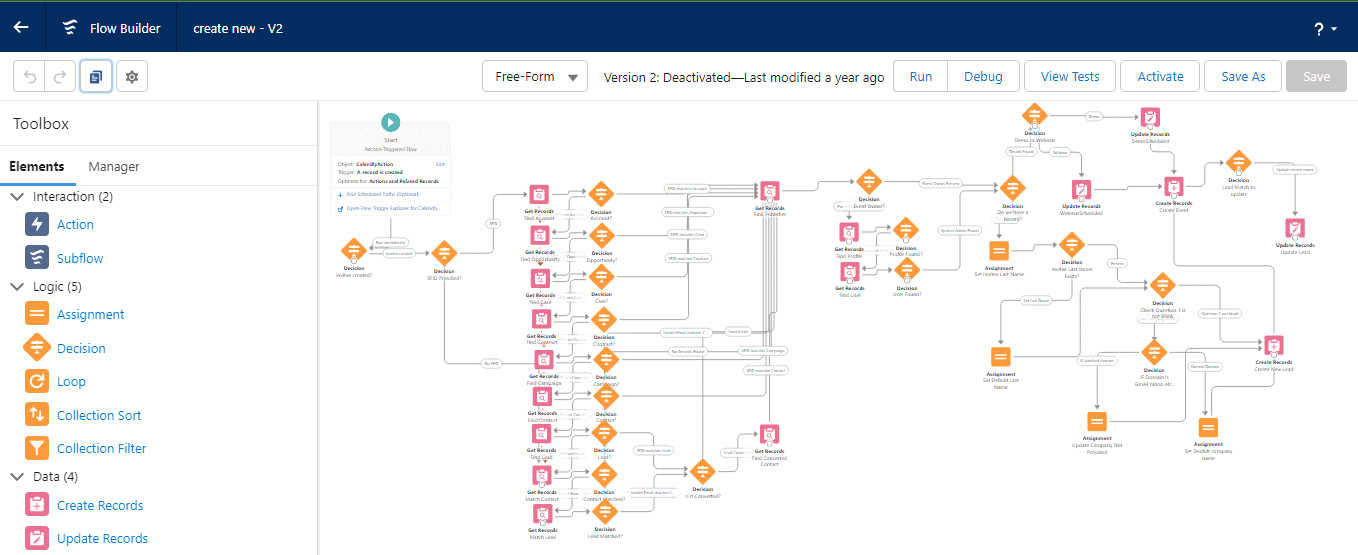
Flow combines what both legacy tools did, then adds the parts they were missing. One record-triggered flow can run when a record is created, updated or deleted, update the triggering record before it is saved, work with collections and loops, wait on a scheduled path, call Apex or another flow, and route errors down a fault path. Salesforce also continues to develop it; the legacy tools are no longer developed or supported.
| Capability | Workflow Rules | Process Builder | Salesforce Flow |
|---|---|---|---|
| Run on create and update | Yes | Yes | Yes |
| Run when a record is deleted | No | No | Yes (before delete) |
| Update the record before save | Field updates after save | Record-change updates after save | Yes Fast Field Updates |
| Collections and loops | No | No | Yes |
| Time-based actions | Time triggers | Scheduled actions | Scheduled paths, which recheck entry conditions |
| Screens and guided input | No | No | Yes screen flows |
| Scheduled batch runs | No | No | Yes schedule-triggered flows |
| Error handling | No custom handling | Error email to the admin | Fault paths you design |
| Run order per object | No ordering tool | No ordering tool | Trigger Order in Flow Trigger Explorer |
| Support status | Ended Dec 31, 2025 | Ended Dec 31, 2025 | Active |
The speed gain is real. Salesforce's help on before-save record-triggered flows states that a flow making before-save updates can update a record 10 times faster than a record-change process, because the record is not saved a second time and assignment rules, auto-response rules and workflow rules do not run again. The trade-off: a before-save flow supports only the Assignment, Decision, Get Records and Loop elements, so anything that touches other records, sends email or needs the new record ID belongs in an after-save flow.
Which Flow Feature Replaces Each Workflow Rule and Process Builder Action?
Almost every legacy action has a direct Flow equivalent; the work is choosing the right flow type and timing. Same-record field updates go in a Fast Field Updates flow. Emails, related records and Apex go in an Actions and Related Records flow. Time-based actions become scheduled paths, and slow external work moves to an asynchronous path so it does not hold up the save.
| Legacy automation | Flow equivalent | Where to configure it |
|---|---|---|
| Workflow rule or process | Record-triggered flow | Start element: object, trigger and entry conditions |
| Field update on the same record | Update the triggering record | Optimize for Fast Field Updates (before save) |
| Email alert, outbound message | Action element | Actions and Related Records flow |
| Workflow task | Create Records on the Task object | Actions and Related Records flow |
| Time trigger or scheduled action | Scheduled path | Add Scheduled Path on the Start element |
| Process "invoke flow" action | Subflow element | Runs in the same transaction as the parent flow |
| Callouts and long-running work | Run Asynchronously path | Runs after the triggering transaction completes |
| Nightly or weekly batch updates | Schedule-triggered flow | Runs at a set time and frequency for a batch of records |
| Evaluation criteria "created, and any time it's edited to subsequently meet criteria" | Created or updated, only when a record is updated to meet the condition requirements | Start element, When to Run the Flow for Updated Records |
The mapping comes from Salesforce's equivalent features in flows and workflow rules and its flow types reference. Two details catch teams out. Flows do not support field update notifications for the Owner field. And Flow offers different operators: it adds Is Changed, Is Null and Ends With, but has no includes, excludes, within or does not contain, so some criteria need rewriting. For batch work, our guide to schedule-triggered flows covers when they replace batch jobs.
Approvals are a separate decision. Classic approval processes were not part of this end of support. Salesforce now also offers Flow Approval Processes, and documents the known gaps between the two, such as no manual choice of approver. Review approvals on their own timeline rather than folding them into this migration.
How Should You Plan a Process Builder to Flow Migration?
Inventory everything by object, remove what is redundant or conflicting, then migrate one object at a time, starting with the simplest. Salesforce's guide to planning your switch to Flow Builder is explicit that migration "isn't one to one": you do not need one flow per old process, and some automation should not survive at all.
One flow per object, or several?
The old advice was a single "mega flow" per object, because there was no other way to control run order. Since Flow Trigger Explorer arrived, Salesforce recommends you "think beyond one flow per object": several focused flows per object, ordered with the Trigger Order value. Smaller flows are easier to test and to hand over. Our posts on the one-flow-per-object strategy and Flow Trigger Explorer go deeper on both models.
How Do You Use the Salesforce Migrate to Flow Tool?
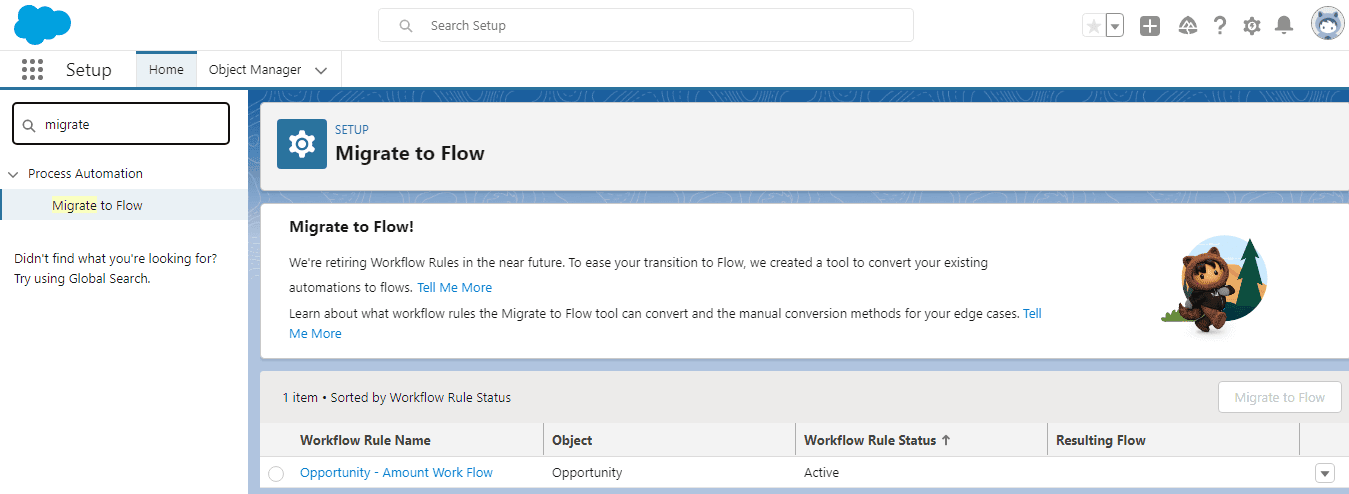
Open Migrate to Flow in Setup, pick a process or workflow rule, choose the criteria to convert, and the tool creates an inactive flow for you to test. It handles Process Builder processes and workflow rules, including scheduled actions, and can partially migrate a process, flagging the actions that need more setup. It is no longer the beta tool our 2022 post described.
Step by step
- Work in a sandbox first. Salesforce recommends migrating and testing there before production.
- From Setup, enter Migrate to Flow in Quick Find and select it.
- Select the process or workflow rule, then click Migrate to Flow.
- Select the criteria to migrate. For a process, the Migratable column shows whether it can be fully or partially migrated.
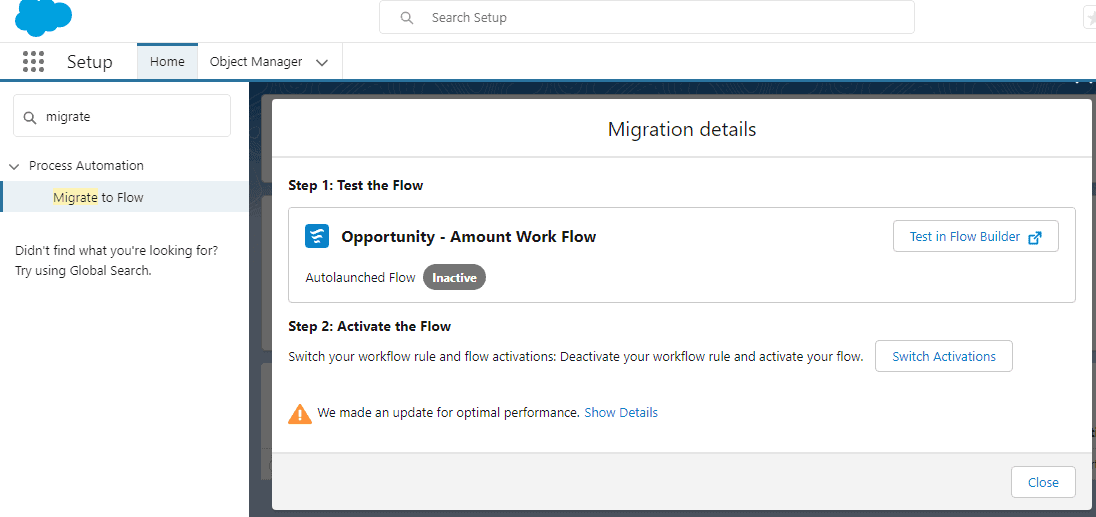
- Click Migrate to Flow. For a partial migration, open Needs Review to see which actions need more configuration.
- Test the new flow in Flow Builder with Debug.
- When it works, activate the flow and deactivate the process or rule it replaces.
Permissions you need
Manage Flow for flows; Customize Application for workflow rules; and Manage Flow plus View All Data for processes, with Customize Application as well to activate or deactivate them, per Salesforce's Migrate to Flow instructions.
How the tool converts your automation
- Processes become after-save flows. They are created as Actions and Related Records flows. If a process only updated its own record, re-optimize the flow for Fast Field Updates afterwards to get the speed benefit.
- Field-update-only workflow rules become before-save flows automatically.
- Scheduled actions become scheduled paths, named ScheduledPath__#, but only when you select the single criteria the scheduled action belongs to. Pending scheduled actions from the original process are picked up by the new flow.
- Migrate in the same org. Do not migrate in a separate org and deploy the result. A deployed flow is treated as new and cannot take over queued scheduled actions from its predecessor.
What Can the Migrate to Flow Tool Not Convert?
Anything outside simple, record-triggered logic on a single object. The tool supports only record-triggered processes, not custom event or invocable processes, and it skips criteria that reach into related records. Workflow rules with record types, tasks, relative dates or several operators also fail. These cases are rebuilt by hand, using the patterns Salesforce documents.
Manual conversion patterns
- Unsupported entry criteria: rebuild them in a Decision element inside the flow. The flow then runs on every save before it decides, so tighten the Start conditions as far as you can.
- "Does not contain": use a Contains condition with custom condition logic of
NOT 1. - Workflow tasks: a Create Records element on the Task object.
- Email alerts and outbound messages: the Action element. Salesforce has no plans to retire email alerts.
- Relative dates such as TODAY: a Decision element.
The full list is in Salesforce's Migrate to Flow tool considerations. Read it before you estimate the work, because every unsupported case is a manual rebuild with its own testing.
What Are the Best Practices for Building Record-Triggered Flows?
Do the least work in the fastest place, run only when something relevant changed, and plan for failure. Use Fast Field Updates for the triggering record, entry conditions so the flow skips irrelevant saves, no database work inside loops, and a fault path on every element that writes data. Migration is the moment to apply these, because converted automation inherits none of them.
Pick the right timing
Fast Field Updates for the triggering record. Actions and Related Records for other records, subflows and emails. Run Asynchronously for callouts and long-running work.
Tight entry conditions
Use Is Changed conditions and "only when a record is updated to meet the condition requirements" so the flow runs once per real change, not on every save.
No database work in loops
Flows run under Apex governor limits. Collect changes with Assignment elements inside the loop and write them once after it.
A fault path everywhere
Connect a fault path to every element that writes data, and send an email that includes the flow's resource values, so failures reach someone who can act.
No hard-coded IDs
Record IDs differ between orgs. Look them up with Get Records or pass them in, so the flow deploys cleanly from sandbox to production.
Document as you build
Clear labels, API names and descriptions on every element. Flow Builder's Missing Description filter lists what still needs one.
These points are drawn from Salesforce's Flow Builder best practices and its guide to customizing what happens when a flow fails. For more depth, see our posts on fault path strategies and Salesforce Flow limits.
How Do You Test Migrated Flows and Switch Over Safely?
Test in a sandbox against real scenarios, deploy the flows inactive, then activate each flow and deactivate its predecessor in the same change window. Never leave both running: the old process and the new flow would fire on the same save and can overwrite each other or send duplicate emails. Watch flow errors closely for the first weeks after cutover.
Prove behaviour, not just syntax
Run Debug for each path, and test as many variations as you can: new records, edits that should and should not trigger, bulk updates from a data load, and users with limited permissions. Record-triggered flows can behave differently from similar workflow rules because they run at a different point in the order of execution, so compare outcomes, not just field values.
Expect flows to arrive inactive
Salesforce notes that active processes and flows deploy as inactive. Plan the switch as an explicit step: activate the new versions, deactivate the old automation, and record who did it and when.
Watch, then clean up
Review flow error emails and failed interviews daily at first. Keep the deactivated processes and rules for a short rollback window, then delete them so nobody re-activates them by mistake.
Can Agentforce Build the New Flows for You?
It can draft them, but a person still has to check and test every element. Draft a Flow with Agentforce is a beta feature that creates autolaunched, record-triggered, schedule-triggered and screen flows from plain-language instructions, and it requires the Foundations or Agentforce 1 editions. Salesforce's own guidance is to review each element, then debug and test before use.
For migration, that makes it a helper for rebuilds, not a replacement for the Migrate to Flow tool or for design. Salesforce's drafting best practices ask for instructions that name the flow type, the trigger, the exact objects and fields, and the actions. That is the same detail your automation catalog already holds, so a good inventory pays off twice. If you are planning wider AI automation in Salesforce, our Agentforce automation services page covers that work.
The Bottom Line
Process Builder and Workflow Rules have no support left, and every month they stay in production they become harder to change safely. Migrating to Flow is also the best chance you will get to remove conflicting automation and leave the org simpler than you found it. Twopir Consulting helps growing and mid-market companies do exactly that, from a Salesforce health assessment that shows where your org stands, to the rebuild, testing and cutover through our Salesforce implementation and optimization services.
- 1
Export every active and inactive workflow rule and process, grouped by object.
- 2
Delete or replace what is redundant before you migrate anything.
- 3
Use the Migrate to Flow tool for simple automation and rebuild the rest deliberately.
- 4
Build with fast field updates, tight entry conditions, fault paths and a clear run order.
- 5
Test in a sandbox, switch activations together, and watch errors after go-live.
Move Your Legacy Automation to Flow, Without Surprises
Tell us how many workflow rules and processes your org still runs, and which objects they touch. We will map what converts, what needs a rebuild, and the order to migrate it in.
Schedule a Discovery CallFrequently Asked Questions
Yes. Salesforce ended support for Process Builder and Workflow Rules on December 31, 2025, but active processes and rules keep running. What stopped is customer support and bug fixes, so if one breaks after a release or a data change, Salesforce will not fix it. Migrating to Flow removes that risk.
No. Since Winter '23, Salesforce has blocked the creation of new processes and workflow rules. You can still edit, activate and deactivate existing ones. Every new automation is built in Flow Builder, which combines the capabilities of both legacy tools.
It is a free Setup tool that converts Process Builder processes and workflow rules into inactive flows, including scheduled actions, which become scheduled paths. It can partially migrate a process and lists the actions that need more configuration. You then test the flow, activate it and deactivate the original.
No. It supports only record-triggered processes, and it cannot convert criteria that use fields from related records, cross-object formula references, custom metadata types, record types, tasks or several operators in workflow rules. Those cases are rebuilt by hand with Decision, Create Records and Action elements.
A before-save flow, labelled Fast Field Updates, changes only the record that triggered it, before it is saved, and Salesforce says it can be 10 times faster than a record-change process. An after-save flow, labelled Actions and Related Records, can update other records, send emails and call subflows or Apex.
Not necessarily. Salesforce now recommends thinking beyond one flow per object: several focused flows per object, ordered with the Trigger Order value in Flow Trigger Explorer. Smaller flows are easier to test and maintain. What matters is a deliberate, documented run order for each object.
Not always. Record-triggered flows run at a different point in the order of execution than workflow rules, processes with recursion are evaluated only once, and invoked flows become subflows in the same transaction. Test every migrated flow in a sandbox with real scenarios before you activate it.
It depends on how much automation your org runs and how much of it the tool cannot convert. Salesforce warns that a complex org may need significant time and testing. Inventory every rule and process by object first; that catalog is what makes a realistic estimate possible.
