

Salesforce · Donorbox Integration

Donorbox integration: maximize fundraising

Donorbox collects donations on your website. Salesforce is where your donor relationships live. A Donorbox integration connects the two, so every donation made to a Donorbox campaign is exported to Salesforce Nonprofit Success Pack (NPSP) or Nonprofit Cloud as an Opportunity, with its Contact, Account and Campaign created alongside it. Twopir Consulting sets up the connection, the field mapping and the sync around the Salesforce org your fundraising team already uses. Connected, mapped and syncing, tested in a sandbox first.

Donation Data Flow
IN DONORBOX Donation Forms Card · ACH · PayPal Campaigns & Donors One-time · Recurring Form Questions Donorbox Events Recurring Gifts TWOPIR INTEGRATION LAYER Connect Production · Sandbox Admin sign-in Map Standard fields Custom fields Sync Automatic export Failure log NPSP OR NONPROFIT CLOUD · SANDBOX FIRST · ADMIN PERMISSIONS 2πr IN SALESFORCE Opportunity The donation itself Contact The donor, first and last name Account Household or Person Account Campaign Same name as in Donorbox SIGN UP · CONNECT · MAP · SYNC
12+
Years Salesforce delivery
500+
Clients served
250+
Deployments delivered
40+
Salesforce and HubSpot consultants

Trusted by 500+ organizations, including nonprofits that run their donor management, fundraising and programs in Salesforce with Twopir Consulting.

Root Capital
Adventure Scientists
Social Justice Collaborative
Magnus Health
LegalZoom

What We Connect

  • Salesforce Partner
  • Donorbox
  • Nonprofit Success Pack
  • Nonprofit Cloud
  • Mailchimp
  • Google Analytics
The Platform

What is Donorbox?

Donorbox logo

Donorbox is a popular online fundraising software that helps nonprofit organizations and charities collect donations on their websites. It offers customizable donation forms that are easy to embed on websites, making it simple for donors to contribute. Donorbox supports various payment methods, including credit/debit cards, ACH bank transfers, and PayPal. Additionally, it provides features such as recurring donations, donor management tools, and integrations with other platforms like Salesforce and Mailchimp. Overall, Donorbox aims to streamline the donation process for nonprofits and improve their fundraising efforts.

Three parties are involved in a Donorbox integration, and it helps to keep them apart. Donorbox runs the donation forms, payments and its own Salesforce integration add-on. Salesforce, with the Nonprofit Success Pack or Nonprofit Cloud, holds the donor, household, donation and campaign records your team works from. Twopir Consulting connects the two and designs the Salesforce side: the data model, the field and campaign mapping, the sync, and the clean-up when records do not match. For the full picture of how we build Salesforce for nonprofit organizations, see Salesforce for nonprofits.

What It Solves

Common problems Donorbox can help solve

Here are some common problems that Donorbox can help solve, from getting a donation form online to keeping donor data secure and connected to the rest of your systems.

Limited online presence

Nonprofits may struggle to establish a strong online presence for accepting donations, especially if they lack the technical expertise to set up online donation forms. Donorbox provides customizable donation forms that are easy to embed on websites, enabling nonprofits to collect donations securely and efficiently online.
Difficulty in collecting donations

Nonprofits may encounter challenges in collecting donations from supporters, mainly if the donation process is complex or cumbersome. Donorbox simplifies the donation process with its user-friendly interface and support for multiple payment methods, making it easier for donors to contribute.

Inconsistent revenue streams

Nonprofits often face the challenge of maintaining consistent revenue streams to support their programs and initiatives. Donorbox’s recurring donation feature allows nonprofits to establish a reliable stream of income by enabling donors to set up regular, ongoing contributions.

Lack of donor management tools

Nonprofits may struggle to effectively manage donor information and communication without dedicated donor management tools. Donorbox offers features for tracking donor activity, storing donor contact details, and segmenting donor lists for targeted outreach and engagement efforts.

Data security concerns

Nonprofits must prioritize the security and privacy of donor data to maintain trust and compliance with regulations. Donorbox prioritizes security and compliance with industry standards, such as PCI DSS, to protect donor information and ensure secure payment processing.

Limited insight into donor behavior

Nonprofits may lack insight into donor behavior and preferences, making it challenging to optimize fundraising strategies and campaigns. Donorbox provides reporting and analytics features that enable nonprofits to track donation performance, analyze trends, and generate insights to enhance their fundraising efforts.

Integration challenges

Nonprofits may struggle to integrate fundraising tools with other platforms and systems used for donor management, communication, and analytics. Donorbox offers integrations with third-party platforms such as Salesforce, Mailchimp, and Google Analytics, streamlining fundraising efforts and enhancing donor engagement.

Budget constraints

Nonprofits often operate with limited budgets and resources, making it essential to choose cost-effective fundraising solutions. Donorbox offers transparent and affordable pricing plans tailored to the needs of nonprofit organizations, with no setup fees and flexible pricing based on factors such as donation volume and additional features.

How To Apply It

Problem-solving techniques within Donorbox

Here are some problem-solving techniques and how they can be applied within Donorbox, in the order a fundraising team works through them.

01

Identify key challenges

The first step in problem-solving is to identify the key challenges faced by the nonprofit in its fundraising efforts. This could include issues such as low donation conversion rates, limited donor engagement, or difficulties in managing donor data.

02

Set clear objectives

Once the challenges are identified, nonprofits should set clear objectives for addressing them using Donorbox. For example, the objective could be to increase donation conversion rates, improve donor retention, or streamline donor management processes.

03

Utilize customization features

Donorbox offers various customization features that can be leveraged to address specific challenges. Nonprofits can customize donation forms to improve donor engagement, create targeted fundraising campaigns to increase donation conversion rates and personalize thank-you messages to enhance donor retention.

04

Implement best practices

Nonprofits can use Donorbox’s reporting and analytics features to identify best practices and trends in their fundraising efforts. By analyzing donation data, nonprofits can identify what strategies are working well and implement them more broadly to address challenges.

05

Leverage integration options

Donorbox integrates with third-party platforms such as Salesforce, Mailchimp, and Google Analytics, providing nonprofits with additional tools and resources to address fundraising challenges. Nonprofits can use these integrations to improve donor communication, track campaign performance, and gain insights into donor behavior.

06

Experiment and iterate

Donorbox enables nonprofits to experiment with different fundraising strategies and iterate based on feedback and results. Nonprofits can A/B test donation forms, try out different messaging and imagery, and adjust their fundraising approach based on what resonates most with donors.

07

Seek support resources

Donorbox offers customer support and resources to help nonprofits address fundraising challenges. Nonprofits can reach out to Donorbox support for assistance, access help documentation and tutorials, and participate in webinars to learn best practices and tips for using the platform effectively.

08

Measure and monitor progress

Nonprofits should regularly measure and monitor their progress in addressing fundraising challenges using Donorbox. By tracking key metrics such as donation conversion rates, donor retention rates, and campaign performance, nonprofits can assess the effectiveness of their efforts and make adjustments as needed.

Platform Features

Key features and aspects of Donorbox

Some key features and aspects of Donorbox, and what each one means for the data that reaches Salesforce.

Customizable donation forms

Donorbox provides customizable donation forms that nonprofits can easily embed on their websites. These forms can be tailored to match the branding and design of the organization’s website, creating a seamless donor experience.

Multiple payment options

Donorbox supports various payment methods, including credit/debit cards, ACH bank transfers, and PayPal. This flexibility allows donors to contribute using their preferred payment method.

Recurring donations

Nonprofits can enable recurring donation options through Donorbox, allowing donors to set up regular, ongoing contributions. This feature is beneficial for sustaining support and maintaining a predictable income stream.

Donor management tools

Donorbox offers tools for managing donor information and communication. Nonprofits can track donor activity, send thank-you messages, and segment their donor base for targeted outreach.

Security and compliance

Donorbox prioritizes security and compliance with industry standards, such as PCI DSS (Payment Card Industry Data Security Standard). This ensures that donor data is protected and transactions are secure.

Integrations

Donorbox integrates with various third-party platforms and tools commonly used by nonprofits, such as Salesforce, Mailchimp, and Google Analytics. These integrations help organizations streamline their fundraising efforts and leverage data for better insights.

Reporting and analytics

Nonprofits can access reporting and analytics features within Donorbox to track donation performance, analyze trends, and gain insights into donor behavior. This data can inform fundraising strategies and decision-making.

Affordability

Donorbox offers pricing plans tailored to the needs of nonprofit organizations, with transparent pricing and no setup fees. The platform typically operates on a subscription basis, with pricing based on factors such as donation volume and additional features.

Implementation

Steps for Donorbox integration with Salesforce

Four steps take a nonprofit from a Salesforce sign-up to donations syncing on their own: sign up for Salesforce for Nonprofits, connect Donorbox and Salesforce, map Donorbox data to Salesforce objects, and sync. Each step is below as it runs in the Donorbox dashboard.

  1. Step 01

    Sign up for Salesforce for Nonprofits

    Just follow these steps to sign up for Salesforce for Nonprofits. If you’re already using Nonprofit Success Pack or Nonprofit Cloud, skip to the next step.

    1. Choose whether your organization wishes to use NPSP or Nonprofit Cloud.
    2. If you want you can Sign up for a 30-day free trial. You can do that for Nonprofit Cloud here.
    3. Check your email for a confirmation email from support@salesforce.com. Confirm your account by setting a new password.

    Choosing between the two? Our NPSP vs Nonprofit Cloud comparison sets them side by side.

  2. Step 02

    Connect Donorbox and Salesforce

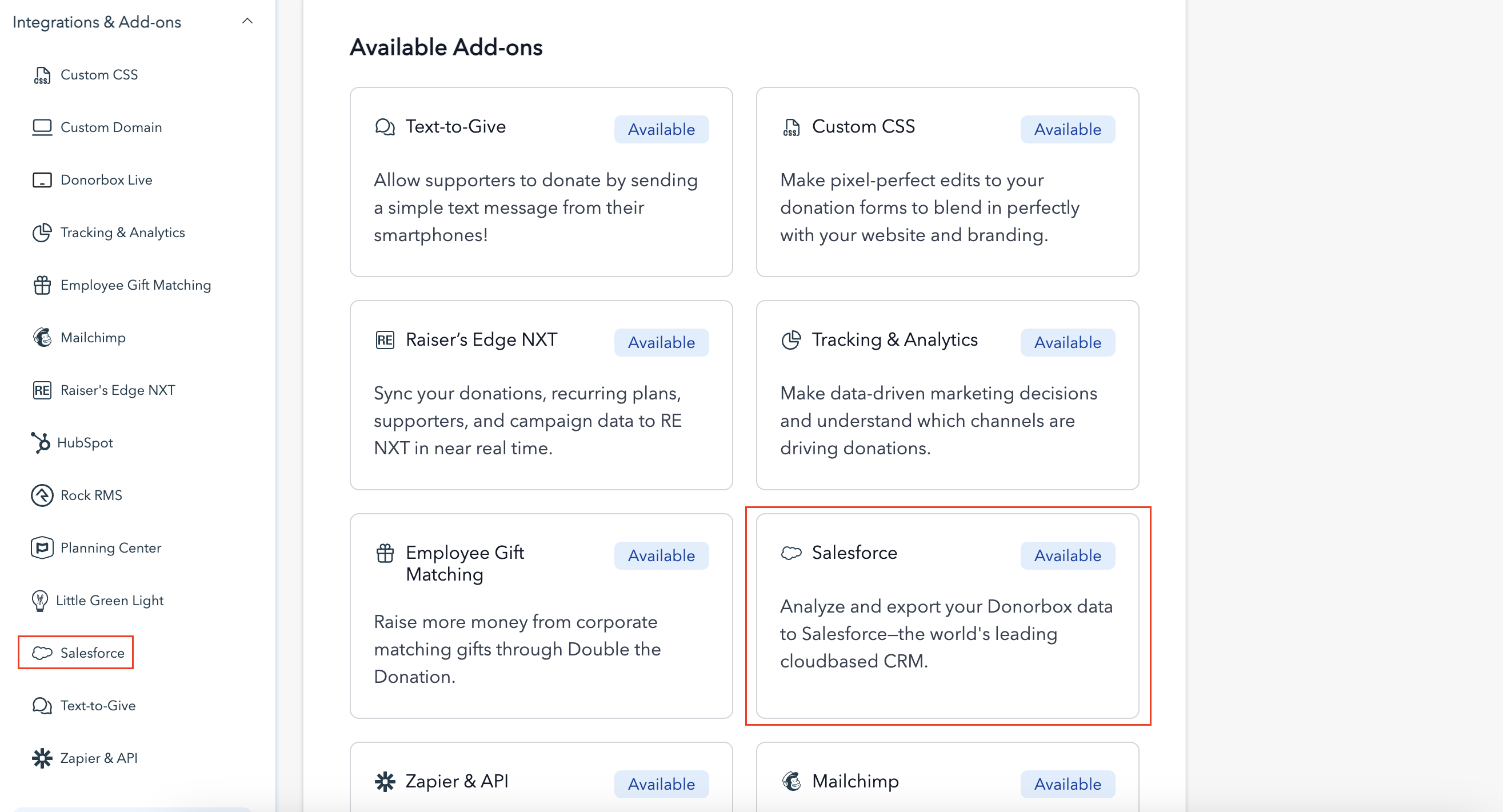
    To begin the data integration, you first need to connect Donorbox with your Salesforce account. You can access this add-on from your Donorbox dashboard in the “Available Add-Ons” section, or in the menu on the left side of your screen under “Integrations and Add-ons.” Click on either to be taken to the Salesforce Integration page.

    The Salesforce add-on in the Donorbox dashboard's Available Add-Ons section

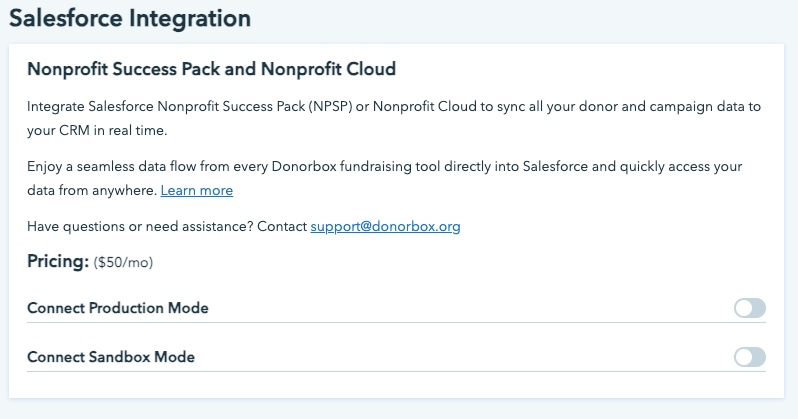
    From the integration page, you’ll see toggle options for Production Mode and Sandbox Mode.

    Production Mode is for connecting to your live Salesforce org with active users and data. Sandbox Mode allows you to connect to your Salesforce Sandbox org without disturbing your Production org.

    Choose which mode you’d like to enable and click the toggle to activate it.

    The Donorbox Salesforce Integration page with the Production Mode and Sandbox Mode toggles switched off

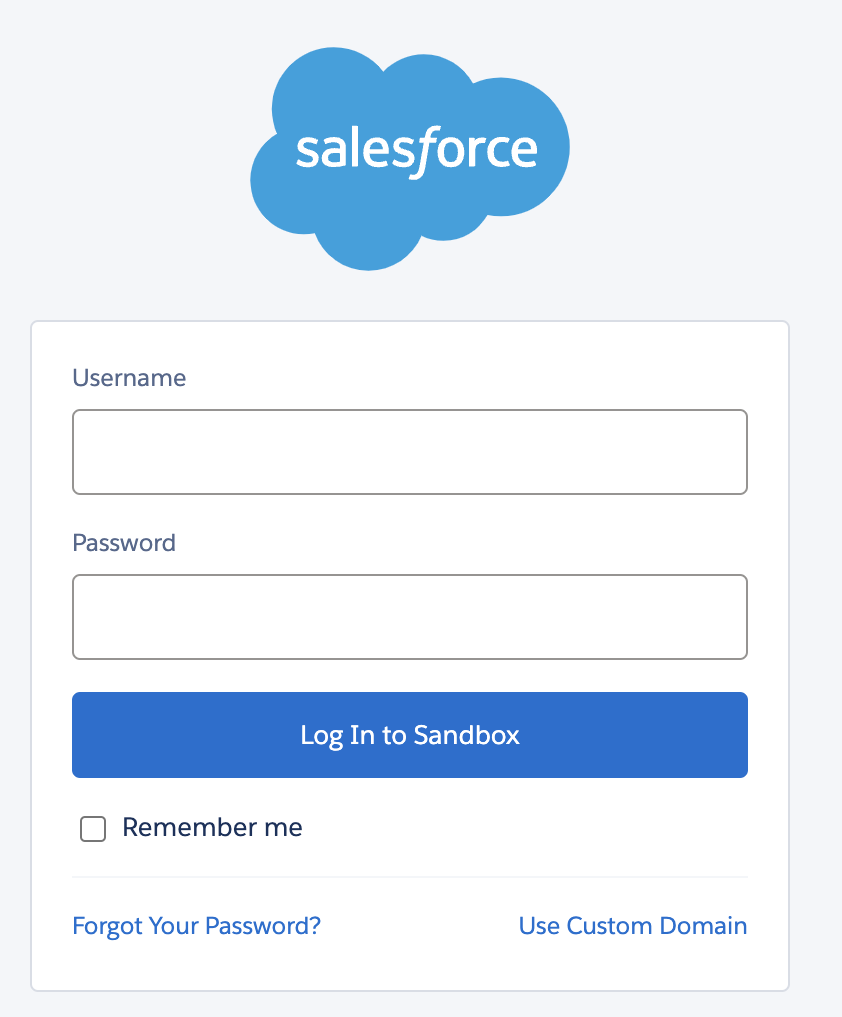
    Once you click on one of the toggles, you’ll be prompted to sign in to your Salesforce account.

    Note: be sure to log in with a user account that has sufficient permissions, like an admin account.

    You’ll be prompted to enter a verification code with multi-factor authentication. Once verified, you’ll be asked to allow access to Donorbox. Click “Allow.”

    The Salesforce sign-in screen shown when a Donorbox integration toggle is switched on

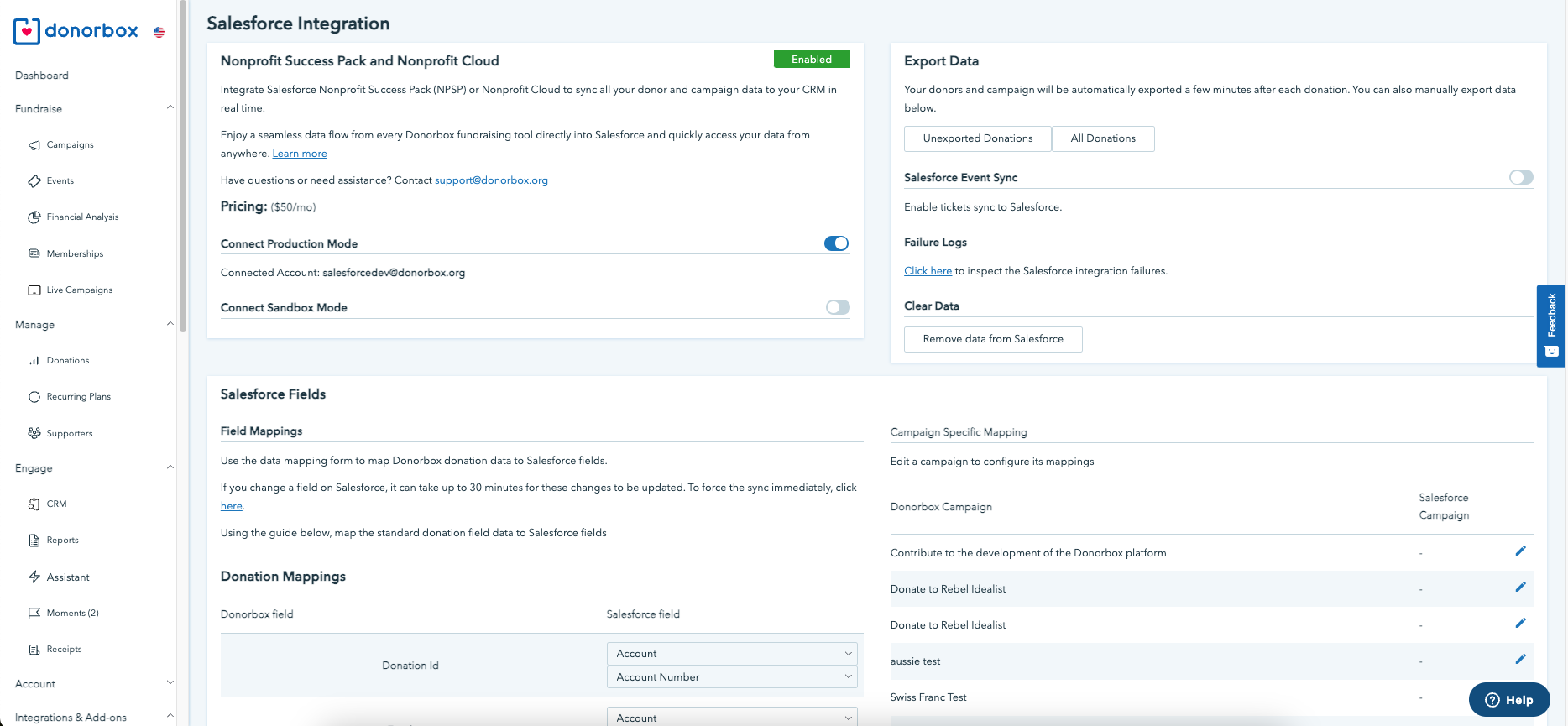
    After a successful connection, you will be redirected to the Salesforce Integration page in your Donorbox Account. It should now look like this:

    The Donorbox Salesforce Integration page after a successful connection, with the integration active
  3. Step 03

    Map Donorbox data to Salesforce objects

    After your integration is set up, your data will automatically flow to your Salesforce account. There may be some additional field mapping you wish to do to customize your integration further. Check the below steps to learn how.

    Standard fields

    For any standard fields on your Donorbox form (i.e. anything other than additional questions you add), you may customize how they map to objects in your Salesforce org.

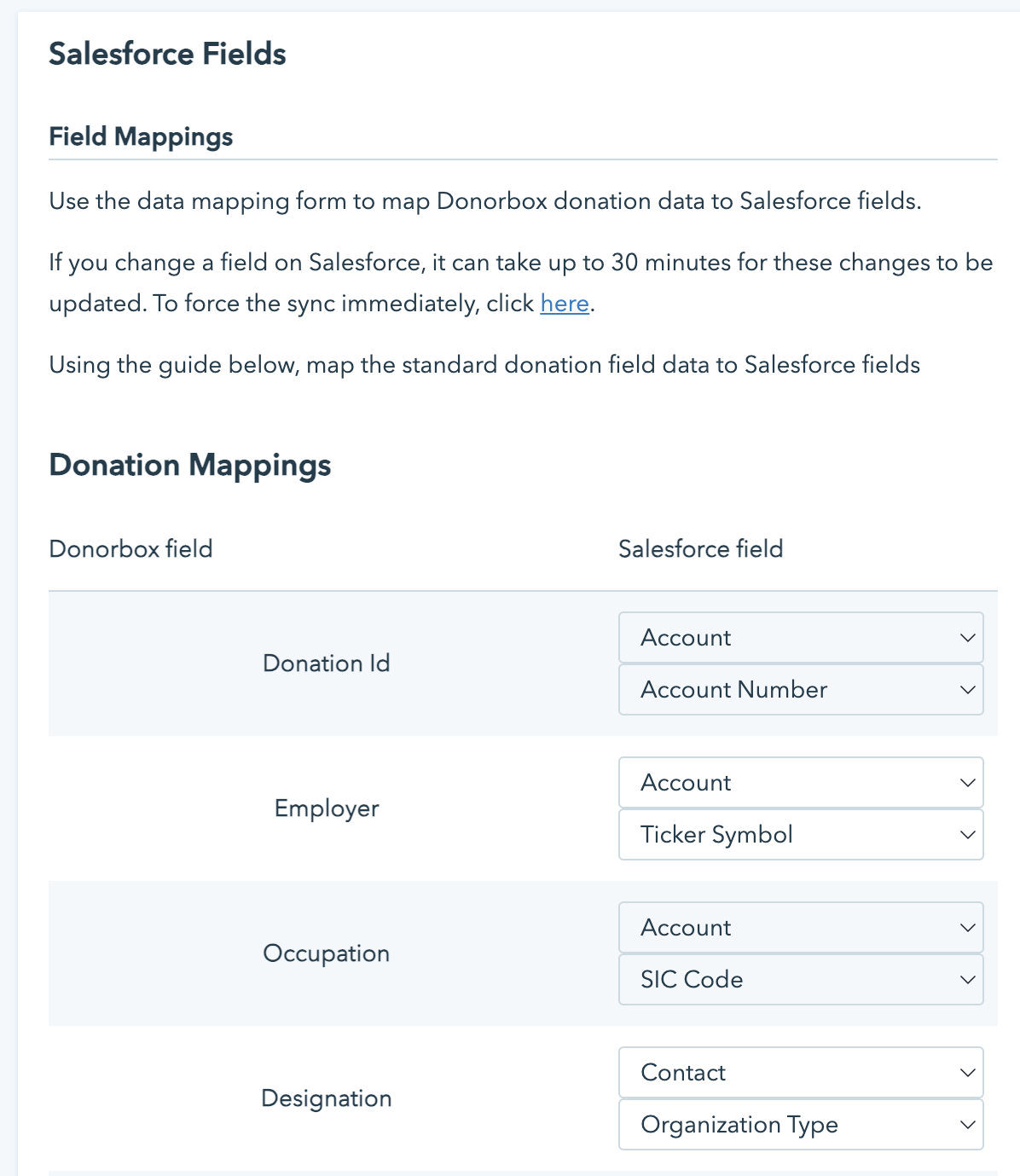
    On your Salesforce Integration page, you will find the “Salesforce Fields” section.

    You’ll see a list of all Donorbox data fields, along with dropdowns for the corresponding Salesforce fields available to you. Connect each Donorbox field to your preferred Salesforce field.

    Note: Check out our detailed Data Mapping guide for more information on field mapping between Donorbox and Salesforce.

    The Salesforce Fields section, pairing each Donorbox data field with a Salesforce field dropdown

    Custom fields

    If you ask your donors additional questions on your Donorbox donation form, you may want to record their answers in Salesforce. You can do this with Custom Fields.

    Head back to your Salesforce Integration page

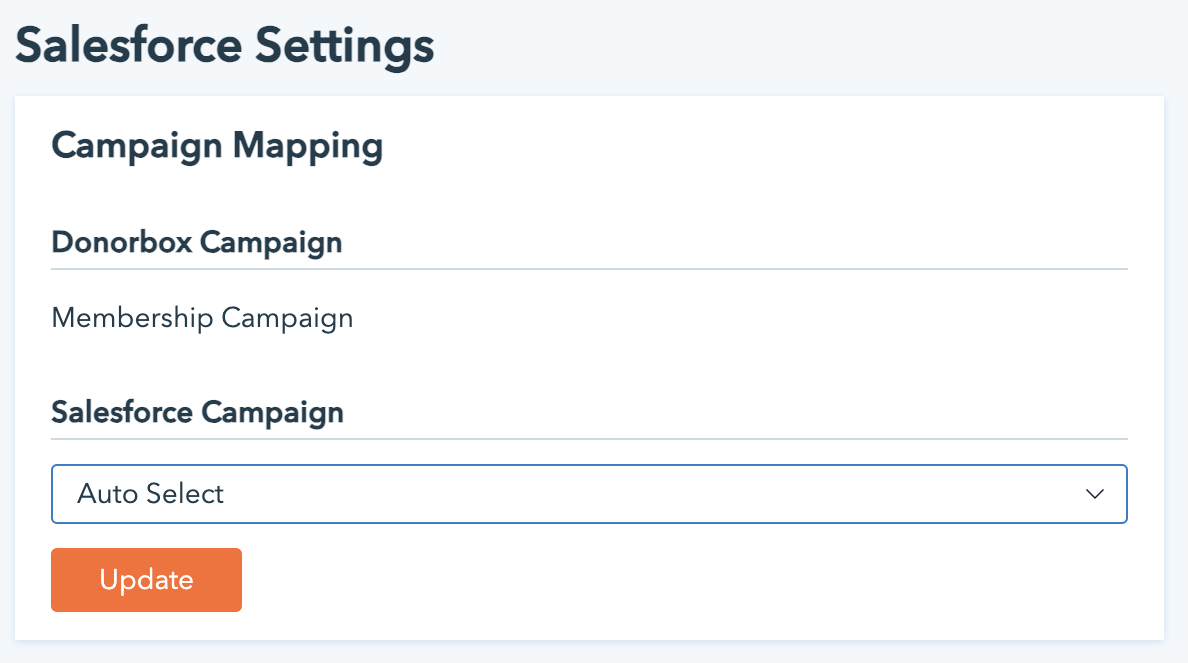
    Next to the data mapping section, you’ll see the “Campaign Specific Mappings” section. Here, you can map a Donorbox campaign to a Salesforce campaign. First, click the edit icon next to the Donorbox campaign name.

    The edit icon next to a Donorbox campaign name in Campaign Specific Mappings

    You’ll then be taken to a settings page where you can select the Salesforce campaign that corresponds to your selected Donorbox campaign.

    Just like the standard field mapping above, you can map the values of additional questions to standard or custom fields in your Salesforce objects.

    Note: this option will only appear if you have added additional questions to your donation form.

    A Donorbox campaign mapped to its corresponding Salesforce campaign
  4. Step 04

    Syncing Donorbox with Salesforce

    Export Donorbox data

    Now that you have all your fields mapped, you are ready to export your donors, campaigns, and donations data to your Salesforce org.

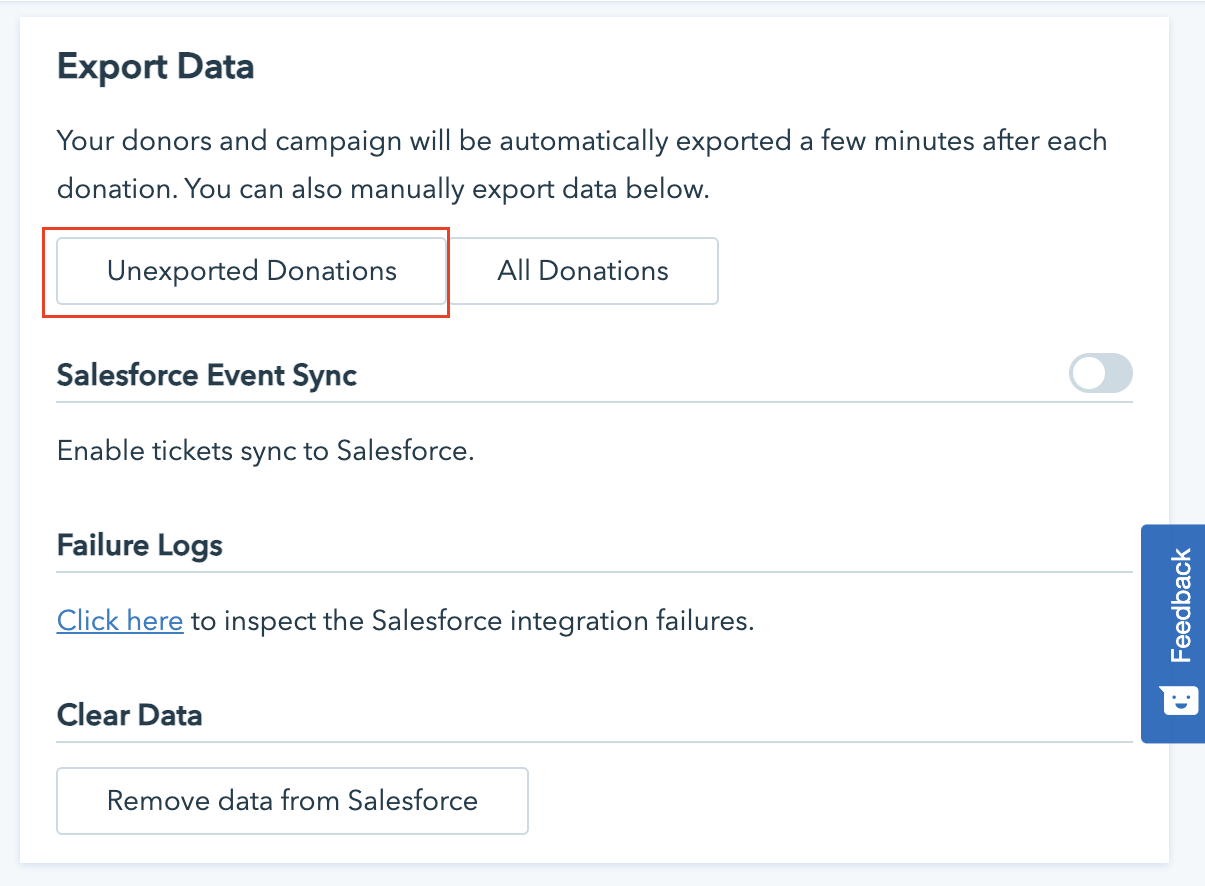
    Simply go to your Salesforce Integration page and click on the “Unexported Donations” button in the Export Data section. Note that moving forward, all donor and campaign data will be automatically exported shortly after each donation.

    Here, you can enable any events you create with Donorbox Events to sync with Salesforce as well. You can also view your Failure Log to check for any mapping or exportation failures.

    The Export Data section with the Unexported Donations button

    Re-export donations

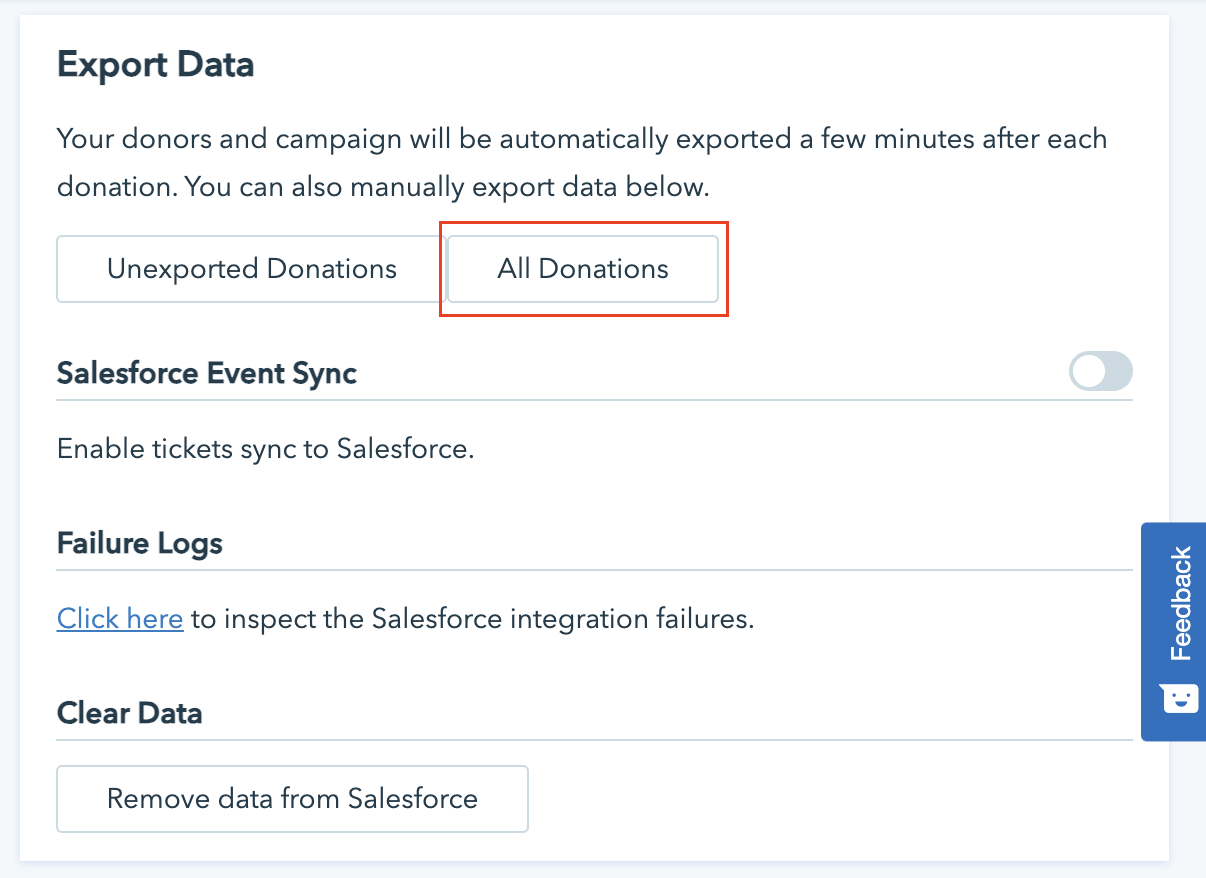
    We all need a re-do sometimes. The “All Donations” button in the Export Data section deletes the existing donations from your Salesforce org and exports them again from your Donorbox account.

    It’s important to note that this functionality does not remove and re-create the Accounts (Households) and Contacts from your Salesforce org.

    The All Donations re-export button in the Export Data section

    Remove data

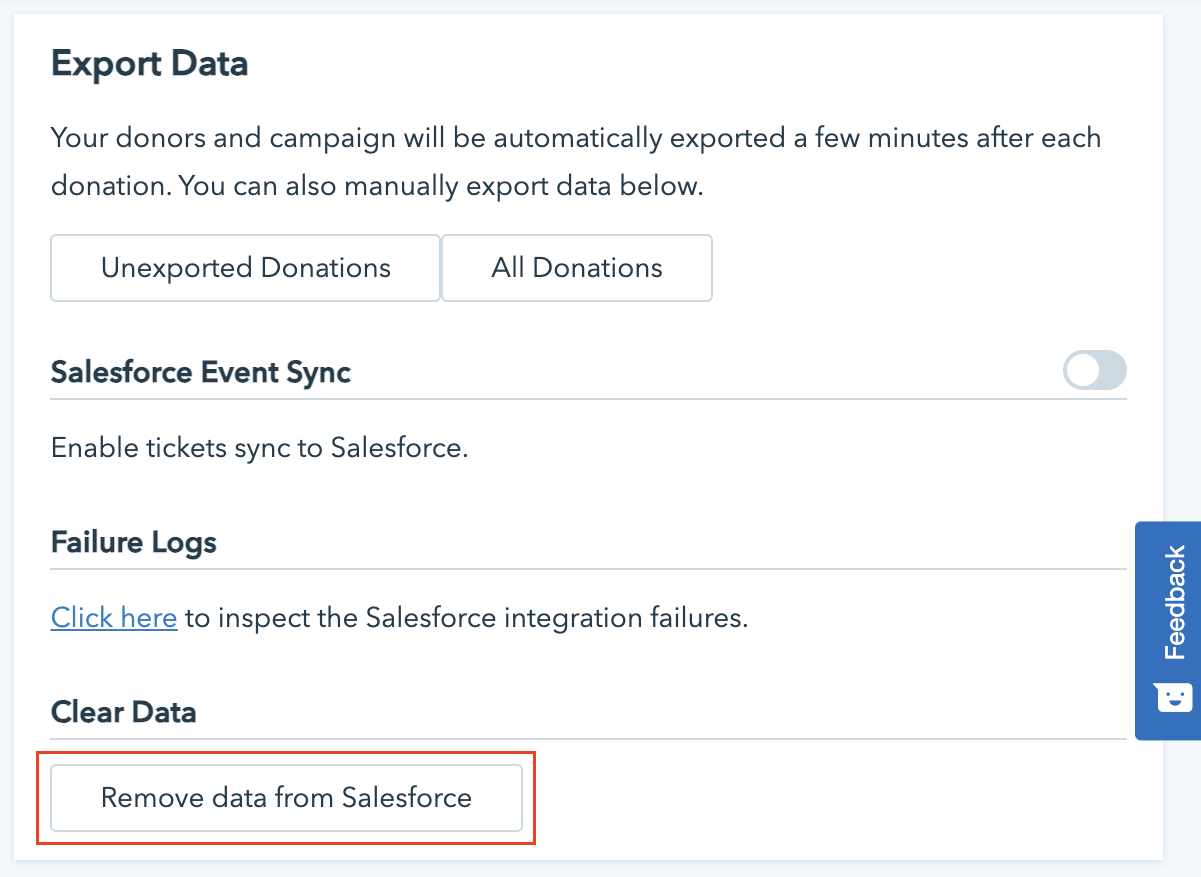
    The “Remove data from Salesforce” button removes all the donations (Opportunity records in Salesforce) that have been made by Donorbox.

    Note: It does not remove the Accounts and Contacts that were created with the donations. This is because these Accounts and Contacts may now be linked to other records in Salesforce too. You can always delete them from within Salesforce if you don’t need them.

    The Remove data from Salesforce button in the Donorbox integration settings

Screenshots: Donorbox. Field names and menu labels are Donorbox's own and can change between releases; check the current screens in your Donorbox dashboard.

Donations in Salesforce

What each donation creates in Salesforce

When a donation is made to your Donorbox campaign, it is automatically exported to your Salesforce org. It gets mapped to an Opportunity record in your Salesforce org. With the donation, the corresponding Contact, Account, and Campaign are also created in Salesforce.

How one Donorbox donation lands in Salesforce, record by record.
From DonorboxSalesforce recordHow it is named
The donationOpportunityExported automatically when the donation is made to your Donorbox campaign.
The campaignCampaignThe Campaign name is the same as your Donorbox campaign name.
The donorContactThe primary contact name is an amalgamation of the donor’s first name and last name, as given on your donation form.
The donor’s householdAccount (Household) in NPSP, Person Account in Nonprofit CloudThe Account (Household) name follows the Salesforce NPSP naming convention that you have selected in your NPSP household naming format if you are using the NPSP package. If you are using the Nonprofit Cloud then the integration will create a Person account.

Moving from NPSP to Nonprofit Cloud changes how households are modelled, and with it what a Donorbox donation creates. Read how to transition from NPSP to Nonprofit Cloud before you switch.

How Twopir Helps

The Salesforce side of a Donorbox integration

Donorbox moves the donation. Whether it lands on a donor record your development team trusts depends on the Salesforce org it lands in. That part is ours.

A donor data model before the first sync

Constituent and household design, recurring giving and pledge tracking, set up in the Nonprofit Success Pack or Nonprofit Cloud before Donorbox starts creating Contacts and Accounts in it.

Field and campaign mapping that reports cleanly

Standard fields, form questions and campaigns mapped to the Salesforce fields and campaign hierarchy your fundraising dashboards read from, so attribution works from the first donation.

Clean donor records

Data quality clean-up and deduplication, so a returning donor is matched to the person already in Salesforce instead of arriving as a second Contact.

Every giving platform in one org

Donation platforms such as Donorbox, Classy and Raisely, plus accounting and marketing tools, synced into one Salesforce org, with integration health checks and repairs when a sync starts failing.

Nonprofit Outcomes

Donation data that lands where fundraisers work

Both engagements below are nonprofit Salesforce builds rather than Donorbox deployments. They are here because the work is the same: donations arriving in Salesforce as Opportunities, matched to the right donor, on a data model that reports cleanly. Each figure is scoped to the engagement that produced it.

Before this integration, our fundraising team was spending significant time every week just getting data from Classy into Salesforce. Now everything is there automatically — our campaign dashboards are live, our donor records are clean, and we can focus on the actual work of fundraising instead of data management.
Development Operations Lead Enterprise nonprofit · Classy + Salesforce · 2024 Nonprofit
Case Study

Nonprofit — Classy to Salesforce

Every Classy donation now lands in Salesforce automatically as a new Opportunity.

100% Manual donation entry eliminated
0 Duplicate donor records post-integration
4 Donor, donation, campaign and event flows synced
Read the Classy Integration Story
Case Study

iMission — Salesforce NPSP, US Nonprofit

A structured NPSP data model and Flow automation replaced spreadsheets and failing imports.

100% Data import success rate after clean-up
0 Manual touchpoints on donor record updates
1 Unified NPSP environment replacing spreadsheets
Read the NPSP Success Story
Common Questions

Donorbox and Salesforce questions, answered plainly

Yes. Donorbox has a Salesforce integration add-on, opened from the Donorbox dashboard under “Available Add-Ons” or “Integrations and Add-ons.” Once it is connected and your fields are mapped, donor, campaign and donation data is exported to your Salesforce org automatically, shortly after each donation.

The integration is set up against Salesforce for Nonprofits, using either the Nonprofit Success Pack (NPSP) or Nonprofit Cloud. Salesforce offers a 30-day free trial of Nonprofit Cloud. The choice changes one thing in the sync: with NPSP the donor’s Account (Household) follows your NPSP household naming format, and with Nonprofit Cloud the integration creates a Person Account.

Each donation is exported as an Opportunity record. With it, the integration creates the donor’s Contact, named from the first and last name on the donation form; the Account, as a Household in NPSP or a Person Account in Nonprofit Cloud; and a Campaign with the same name as your Donorbox campaign.

Yes. The Donorbox Salesforce Integration page has a Sandbox Mode toggle that connects to your Salesforce Sandbox org without disturbing your Production org, and a Production Mode toggle for your live org. Sign in with a user that has sufficient permissions, such as an admin account.

Yes. Standard Donorbox fields are mapped in the “Salesforce Fields” section of the integration page. Answers to additional questions on your donation form are mapped per campaign in “Campaign Specific Mappings,” to standard or custom fields on your Salesforce objects. That option only appears once you have added additional questions to the form.

The “All Donations” button deletes the Donorbox donations already in Salesforce and exports them again; it does not remove or re-create Accounts (Households) and Contacts. The “Remove data from Salesforce” button removes every donation Opportunity Donorbox created, and also leaves the Accounts and Contacts in place, because they may be linked to other Salesforce records.

Twopir Consulting connects Donorbox to Salesforce and designs the Salesforce side of it: the NPSP or Nonprofit Cloud data model, the field and campaign mapping, donor clean-up and deduplication, and the other giving, accounting and marketing platforms that sync into the same org. We work with growing, mid-market, and enterprise organizations, nonprofits and charities included.

Conclusion

A powerful ally for nonprofit fundraising

In conclusion, Donorbox stands as a powerful ally for nonprofit organizations and charities seeking to enhance their fundraising efforts. With its intuitive interface, robust customization options, and emphasis on security and compliance, Donorbox offers a comprehensive solution for collecting donations online. For assistance with Salesforce and Donorbox, please contact us directly by completing the form below.

Talk to a Salesforce architect who works with nonprofits