
Apollo.io Integration with Salesforce and HubSpot: Setup, Sync Settings and Best Practices
Apollo finds and engages prospects. Your CRM holds the pipeline. The integration decides whether the two agree. Here is how to connect Apollo to Salesforce or HubSpot in 2026, including the new Salesforce managed package, what syncs in which direction, how enrichment spends credits, and the settings that prevent duplicates and sync errors.
Key Takeaways
- Apollo connects to one CRM at a time. A single Apollo team can sync with Salesforce or HubSpot, not both, so connect it to the CRM your sales team treats as the system of record.
- New Salesforce connections now need Apollo's managed package from AppExchange and a dedicated integration user. Apollo requires every existing Salesforce connection to move to the package by December 31, 2026.
- Apollo pulls all CRM contacts, leads and accounts automatically. Push settings decide which net-new records Apollo creates in your CRM, and pushing a contact always creates its account if it is missing.
- Apollo copies whatever duplicates already exist in your CRM and does not merge them for you. Clean the CRM before you connect.
- Enrichment of CRM records uses Apollo credits. Real-time, scheduled and job-change enrichment can spend them quickly, so decide which fields Apollo may fill or overwrite before you switch automation on.
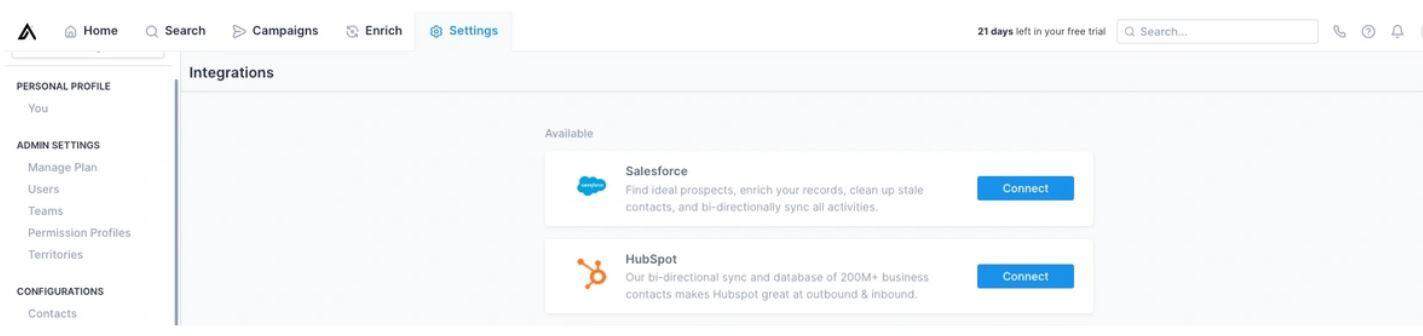
What is the Apollo Salesforce integration? It is Apollo.io's built-in CRM connection. It links an Apollo team to one Salesforce org, pulls Salesforce leads, contacts, accounts and, if enabled, opportunities into Apollo, and pushes new records, field updates and sales activity from Apollo back to Salesforce. Apollo offers an equivalent connection for HubSpot, configured in the same Settings › Integrations area.
We first published this guide in 2024. This version is rebuilt from Apollo's current knowledge base, its AppExchange listing and Salesforce's and HubSpot's own documentation, all checked in October 2026. It adds the Salesforce managed package, the one-CRM rule, push and pull behaviour, credit planning, duplicate handling and troubleshooting. It is written for sales operations, RevOps and CRM admins at growing and mid-market companies that prospect in Apollo and report from Salesforce or HubSpot. Apollo changes its interface often, so treat menu paths as accurate for October 2026.
What Does the Apollo Integration with Salesforce and HubSpot Do?
It keeps Apollo and your CRM working from the same records. Apollo pulls your CRM's people and companies so reps can see who is already a lead, customer or open opportunity before they prospect. It then writes back the contacts reps save, the data Apollo enriches and the emails, calls, tasks and meetings reps complete, so pipeline reporting stays in the CRM.
| Area | Salesforce | HubSpot |
|---|---|---|
| How it connects | Apollo managed package plus a dedicated Salesforce integration user | OAuth app approved by a HubSpot Super Admin |
| Records pulled into Apollo | Leads and contacts (both become Apollo contacts), accounts; opportunities and tasks if enabled | Contacts and companies; deals if enabled |
| Records pushed to the CRM | Contacts or leads, accounts, deals | Contacts, companies, deals |
| Activities pushed | Emails, notes, tasks, calls, meetings, meeting summaries | Emails, notes, completed tasks, calls, meeting summaries |
| Enrichment-only option | CRM enrichment on synced records | Separate HubSpot Data Enrichment connection with no record or activity push |
The record and activity lists come from Apollo's Salesforce integration overview and HubSpot integration overview. Apollo says most Salesforce pushes and pulls of contacts and companies complete within 15 to 30 minutes of a change, while large first syncs take longer.
Can Apollo Sync with Salesforce and HubSpot at the Same Time?
No. Apollo connects to one CRM at a time. Apollo's HubSpot setup guide states that if Salesforce or another CRM is already connected, you must disconnect it before you can connect HubSpot. Salesforce has a similar rule inside itself: an Apollo team connects to a production org or a sandbox, not both at once. So the real decision is which CRM Apollo should feed.
Connect Apollo to the CRM where reps own pipeline. If sales runs opportunities and forecasts in Salesforce, connect Apollo to Salesforce, even when marketing works in HubSpot. If HubSpot Sales Hub is where deals live, connect Apollo to HubSpot. Activity reporting belongs next to the pipeline it explains.
Do not use Apollo as the bridge between two CRMs. If you run both Salesforce and HubSpot, they need their own connection, usually HubSpot's Salesforce connector. Apollo then writes to one of them and that connector carries the records across, under one set of field-ownership rules.
Running both CRMs side by side is common for growing companies, and the sync between them is where most data problems start. Our Salesforce HubSpot data sync work covers direction, ownership, matching and error handling for that connection, field by field. Several Apollo workspaces can, however, connect to the same Salesforce org, which helps when separate teams or regions use separate Apollo accounts.
Which Apollo Features Write Data into Your CRM?
Prospecting, sequences, the dialer, workflows and enrichment all create or change CRM data once the integration is on. Apollo describes itself as a data intelligence and sales engagement platform, founded in 2015. Each feature below is useful on its own, but each also decides what lands in Salesforce or HubSpot, so configure them with the sync in mind.
Sequences
Multi-step outreach across email, calls, LinkedIn and tasks, with rules that pause on reply or out-of-office. Sent emails and completed steps become CRM activity.
Dialer
In-app calling with voicemail drop, recording, transcription and AI call summaries. Calls are logged to the CRM as tasks.
Workflows
Formerly called Plays: a trigger, optional conditions and actions, such as adding contacts to a sequence when they match a filter or change jobs.
CRM enrichment
Fills or refreshes emails, phones, titles and firmographics on CRM records, manually, in real time or on a schedule. Uses credits.
Job change alerts
Spots when known contacts move company and can update or create CRM records once email, title and company fields are mapped.
Chrome extension
Works on Salesforce and HubSpot record pages, Gmail and LinkedIn, and lets reps push records to the CRM from where they work.
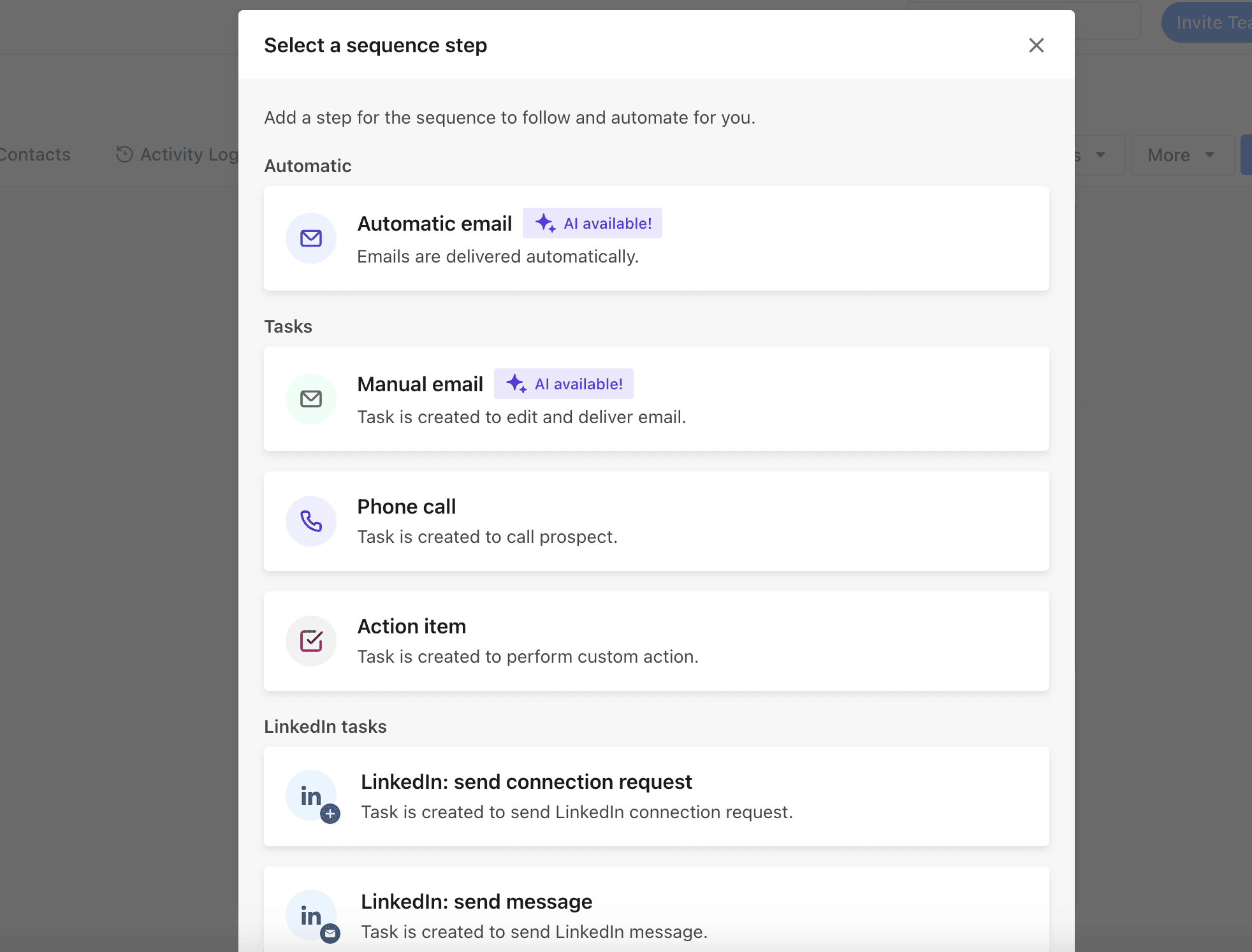
Feature details come from Apollo's sequences, dialer and workflows overviews. Workflows that create contacts can bypass your push conditions unless you tell them not to, which Section 06 covers.
What Do You Need Before You Connect Apollo to Salesforce?
A Salesforce admin to install Apollo's managed package, a dedicated integration user, an Apollo admin with permission to edit CRM integrations, and a paid Apollo plan. Apollo lists CRM integrations on its Basic, Professional and Organization plans, not on Free. Plan the integration user carefully: its permissions decide what Apollo can read and write, and its name appears on every record Apollo creates.
| Requirement | Why it matters |
|---|---|
| Apollo managed package | Installed from AppExchange during setup. It adds the Apollo Setup app, which creates the integration user and its permission set. Apollo requires every existing connection to upgrade to it by December 31, 2026. |
| Dedicated integration user | All team syncing runs on this user's Salesforce permissions, and it shows as Created By on records Apollo creates. Apollo says not to use a personal Salesforce login. |
| Default package permissions | Apollo strongly recommends keeping them. Add access to every custom field you plan to map, or those fields will fail to sync. |
| Apollo admin (team sync user) | The Apollo admin who completes the connection becomes the team sync user. Individual reps do not need to connect their own Salesforce logins for standard sync. |
| Clean Salesforce data | Apollo mirrors Salesforce duplicates into Apollo. Clean leads, contacts and accounts first (Section 11). |
Requirements come from Apollo's Salesforce setup guide, as of October 2026. Apollo's Salesforce articles do not list supported Salesforce editions, so confirm API access for your edition with Apollo. Salesforce's own integration user guidance recommends one dedicated user per integration, for least privilege and traceability. If you want Apollo users, rather than the integration user, to show as the creator of records, Salesforce's Set Audit Fields upon Record Creation permission must be enabled and granted to the sync user before you map Apollo's created-by value, or Salesforce rejects the new records.
How Do You Connect Apollo to Salesforce, Step by Step?
Start the connection in Apollo, install the managed package in Salesforce, create the integration user in the Apollo Setup app, then log in to Salesforce as that user to finish. The whole flow takes one sitting if a Salesforce admin and an Apollo admin work together. Use a private browser window so Salesforce does not authorise your own admin session by mistake.
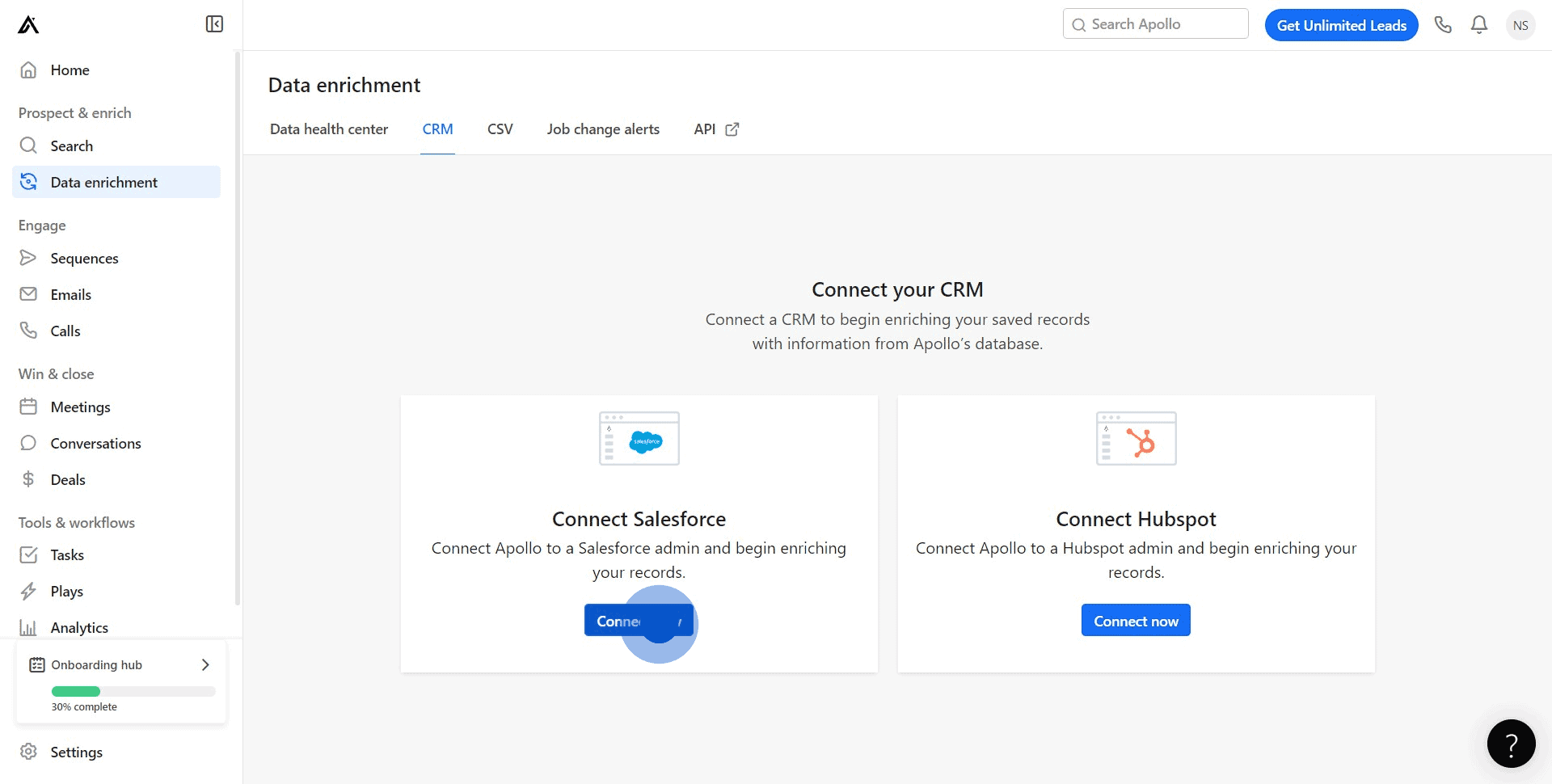
The steps follow Apollo's Salesforce setup guide and its AppExchange listing, which lists the package as a Lightning-ready managed package on a freemium basis. If you already connected Apollo the older way, look for Migrate Now under the Salesforce integration settings; Apollo says upgrading keeps your field mappings and push and pull settings. If syncing stops later, check that the package is still installed and that the integration user is active, then reset its password and reconnect.
How Do Push, Pull and Field Mapping Work Between Apollo and Salesforce?
Pull brings Salesforce records into Apollo automatically; push decides which net-new Apollo records are created in Salesforce. Updates to records that already exist in both systems push regardless of push conditions. Field mapping and data-writing rules then decide which values Apollo may fill or overwrite. Get these three settings right and most sync problems never appear.
Pull: Salesforce into Apollo
- Leads and contacts both become Apollo contacts, and accounts come across too. This automatic pull cannot be switched off; you can only hide pulled records from users or disconnect.
- Selective sync limits the pull with up to 20 AND conditions, such as owner, status or created date. Apollo says it is available on certain plans bought after July 24, 2024.
- Opportunities and tasks are pulled only if you enable them. Once deal sync is on, Salesforce is the source of truth for synced deals.
- New mappings do not backfill. After changing a mapping or condition, run Pull all to apply it to existing records. Pull all does not work with selective sync.
Push: Apollo into Salesforce
| Setting | What Apollo does | Our recommendation |
|---|---|---|
| Push contact | Creates net-new contacts in Salesforce, all of them or only those matching contact stage or email status conditions | Push only contacts that reach a working stage, so research lists stay out of Salesforce |
| Leads or contacts | New records are created as leads or as contacts. Changing this affects new records only; Apollo never converts leads | Match your lead process: most teams that qualify inbound as leads create leads here too |
| Push account | Creates accounts by account stage. A pushed contact always creates its account if missing, because Salesforce contacts need one | Expect accounts even with account push off; set account matching before go-live |
| Source value | Writes "Apollo" to the lead source field by default | Keep it, so Apollo-created records are easy to report on |
| Deals | Two-way deal sync with Salesforce as source of truth, or pull only, or push only | Keep opportunities edited in Salesforce |
Salesforce push conditions accept only contact stage and email status, not custom field values, and contacts with no stage are not pushed unless you include "No stage". Decide whether conditions also apply to contacts created by workflows and to manual pushes; if you leave those unchecked, those actions bypass the conditions. Records Apollo creates are owned by the integration user by default, so plan owner assignment in Salesforce.
Field mapping and data-writing rules
Map fields under Settings › Integrations › Salesforce, then the object and its Fields tab. Each Apollo phone type needs its own Salesforce field. Data-writing rules set, per field, whether Apollo may only fill empty values (auto-fill) or may overwrite values that differ; these rules are required for real-time and scheduled enrichment. Manual enrichment ignores them and always pushes, so restrict who can run it. Apollo does not publish a fixed default field list for Salesforce, but its recommended field mapping covers names, titles, emails, phones, LinkedIn URLs, industry, employee count and funding fields.
Sources: Apollo's pull settings, push settings and field mapping articles. Watch picklists: restricted picklists such as industry, country, state, lead source and lead status are a common cause of rejected pushes.
How Does Apollo Log Emails, Calls and Meetings in Salesforce?
Apollo writes emails, calls and tasks to Salesforce as Tasks and meetings as Events, on the matching contact or lead. Each activity type is switched on separately. Turn on contact, account or deal push first, because an activity fails when the record it belongs to does not exist in Salesforce. Activities reach opportunities only in specific cases, which affects pipeline reporting.
| Activity | Logged in Salesforce as | Watch for |
|---|---|---|
| Emails | Tasks on the contact or lead, sometimes the account | On an opportunity only when Apollo has its ID, for example when logged from the Chrome extension with a deal selected; never while the person is still a lead |
| Calls and tasks | Tasks on the contact or account | Not linked to opportunities |
| Meetings | One Event per attendee who exists as a contact or lead | Three matched attendees create three Events, which inflates meeting counts in reports |
| Meeting summaries | Logged on the opportunity when a deal is associated, otherwise on the person or account | Needs deals enabled in Apollo |
For email, choose which types to log: emails sent from Apollo, emails sent outside Apollo, replies to Apollo emails, all other incoming emails and internal emails. Leave "Push emails even if sender or recipient doesn't exist in Salesforce" off unless you want Apollo to create contacts from every email thread. An exclusion filter can block domains, addresses or subject keywords, such as personal or legal correspondence. All of this is set in Apollo's push settings.
How Do You Connect Apollo to HubSpot and Map Fields?
A HubSpot Super Admin approves the Apollo app, and an Apollo admin chooses between the HubSpot CRM connection and the enrichment-only HubSpot Data Enrichment connection. Only one can be active per Apollo team. HubSpot CRM syncs contacts, companies and deals both ways and pushes activities. Data Enrichment only enriches HubSpot records and pushes no records or activities.
- In Apollo, open Integrations and choose Connect beside HubSpot CRM or HubSpot Data Enrichment.
- Sign in to HubSpot, choose the account and approve the app. The connecting HubSpot user needs read and write access to every object and property you sync.
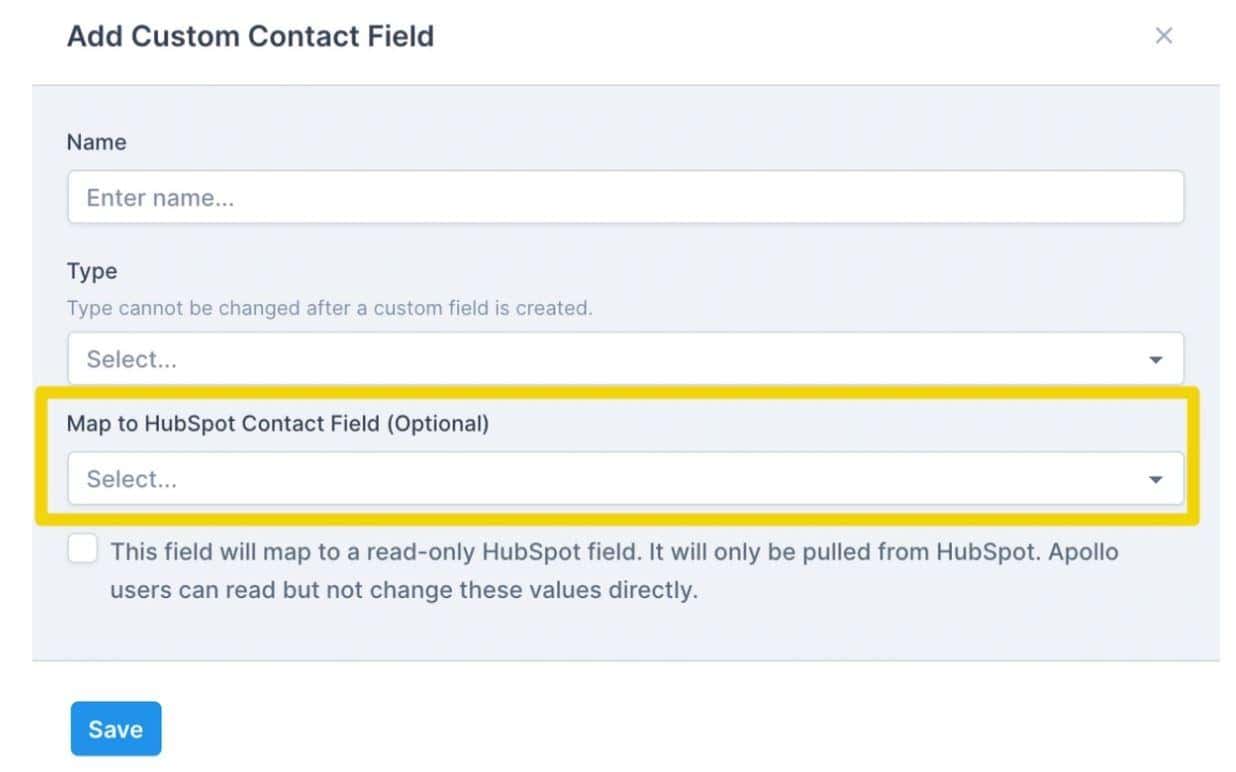
- Map fields and stages first, then set sync options under Settings › Integrations › All integrations › HubSpot, object by object.
Fields Apollo syncs by default
| Direction | Default fields |
|---|---|
| Contact push (Apollo to HubSpot) and contact pull | Company, owner, first name, last name, email, title, phone, address |
| Account push (Apollo to HubSpot) | Owner, name, address, phone, domain, founded year |
| Account pull (HubSpot to Apollo) | Owner, name, address, phone, website or domain |
HubSpot rules that differ from Salesforce
- Push conditions can use a custom field, as well as contact stage and email status.
- Tasks push only once they are marked completed in Apollo, and an activity's contact, company or deal must already exist in HubSpot.
- Dropdown values must match exactly, including case and spacing, and multi-checkbox properties are not supported. Mapping to a read-only property, such as a HubSpot score, fails with a read-only error until you remove the mapping.
- HubSpot allows one contact per email, so Apollo updates the existing contact instead of creating a duplicate, and it skips creating a company when another company already has that domain.
- Deal sync keeps HubSpot as the source of truth, may take up to 24 hours to appear, and lets you choose which pipelines sync.
Sources: Apollo's HubSpot setup guide, HubSpot sync settings and HubSpot data mapping, plus HubSpot's guide to installing marketplace apps. Apollo recommends the integration for HubSpot Sales Hub; if your Sales Hub setup itself needs work first, see our HubSpot Sales Hub implementation services.
How Do Apollo Stages Map to Salesforce Lead Status and HubSpot Lifecycle Stage?
Map each Apollo contact and account stage one to one with a single CRM field value, such as Salesforce lead status or HubSpot lead status and lifecycle stage. Stage sync tells reps in Apollo that a person is already a customer or an open opportunity, so they do not prospect them by mistake. Mapping two Apollo stages to one CRM value breaks the sync.
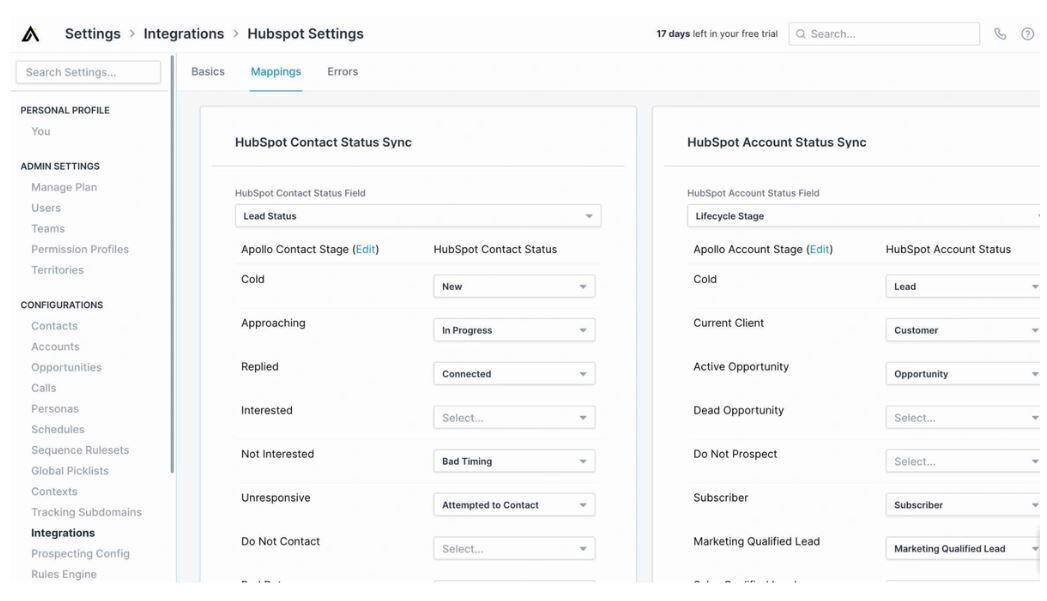
| Apollo default stages | Values |
|---|---|
| Contact stages | Cold, Approaching, Replied, Interested, Not Interested, Unresponsive, Do Not Contact, Bad Data, Changed Job |
| Account stages | Cold, Current Client, Active Opportunity, Dead Opportunity, Do Not Prospect |
In Salesforce, open Settings › Integrations › Salesforce, then Contacts, Leads or Accounts, then Stages, pick the Salesforce field and use Auto-map all stages. Apollo pairs matching names and creates Apollo stages for unmatched values, without overwriting mappings you already made (stage mapping guide). Opportunity stages work differently: Apollo builds its deal pipeline from your Salesforce opportunity stages and stops you creating new deal stages in Apollo, because opportunity stages cannot be created through the Salesforce API, so change them in Salesforce (deal mapping guide).
How Does Apollo Enrich CRM Records, and What Does It Cost in Credits?
Apollo can fill missing or outdated fields on Salesforce and HubSpot records manually, in real time or on a weekly or monthly schedule, and each enriched record spends credits. CRM enrichment is built for paid plans; Free plans can enrich up to 100 CRM records every 30 days. Decide the fields, the write rules and a credit budget before you automate anything.
| Mode | How it runs | Credit risk |
|---|---|---|
| Manual | Data enrichment › CRM; up to 1,000 records at a time, with the credit cost shown before you confirm. Overrides write rules. | Controlled |
| Real-time | Enriches contacts, leads (Salesforce) and accounts as they are created or changed | Ongoing |
| Scheduled | Weekly or monthly runs with a maximum number of records per run | Capped |
| Job changes | Updates or creates records when contacts change jobs; paid plans only | Ongoing |
Apollo's pricing page listed these credit costs in October 2026: 1 credit for an email, 8 for a phone number, 1 to 8 for record enrichment, and 1 credit per 30 seconds of a connected US dialer call. Waterfall enrichment, on by default for job changes, can use several credits per record. Track spend under Settings › Credits & activity › Credit usage, and see what was enriched under Settings › System activity › Data requests. The Data Health Center summarises how current your CRM records are, how many can be enriched, job changes and duplicates. Details: Apollo's CRM enrichment, job change enrichment and credit usage articles.
Our rule of thumb: let enrichment auto-fill empty fields freely, but allow overwrites only on fields no one maintains by hand, and never on fields your reps or another system own. If you also run ZoomInfo or another data provider, give each field one source; our ZoomInfo integration guide covers the same decision from the other side.
How Do You Prevent Duplicates and Fix Apollo Sync Errors?
Clean the CRM before you connect, then work from Apollo's error log. Apollo mirrors the CRM: duplicates in Salesforce appear in Apollo, and duplicates created in Apollo are pushed to Salesforce. It does not merge or delete duplicates for you. The one exception is a person who exists as both a lead and a contact, where Apollo pulls the contact.

The Salesforce error log sits under Settings › Integrations › Salesforce › Error Logs, with a description, the full error and a suggested fix for each rejection. Apollo retries a failed push up to five times on its own, then waits for you to fix it and retry (error log guide). HubSpot has its own error log under the HubSpot integration settings. To keep the two systems aligned after merges and deletions, turn on merge sync and deletion sync; note that merges made in Apollo do not reach Salesforce (avoiding duplicates).
What Does a Good Apollo CRM Rollout Look Like?
Decide the rules before you connect, because the first sync starts within hours. Choose the CRM, which records Apollo may create, which fields it may fill or overwrite, and how activity should appear in reports. A connection made in ten minutes is easy; one that still produces clean data and sensible credit spend six months later needs design, a test and an owner.
| Phase | Decisions and work | Done when |
|---|---|---|
| 1. Design | Which CRM Apollo feeds; push conditions; leads or contacts; field ownership and write rules; stage map; activity types; credit budget | A signed-off mapping document |
| 2. Prepare the CRM | Duplicate cleanup; picklist values aligned; validation rules reviewed; integration user and permission set; audit-field permission if needed | Sandbox connects and test pushes succeed |
| 3. Connect and configure | Managed package; mappings and sync settings set inside the six-hour window; selective pull if your plan allows | Test records and activities match on both sides |
| 4. Go live | Reps enabled; sequences and workflows switched on; enrichment started manually, then scheduled | Error log stays near zero for a full week |
| 5. Run | Weekly error-log and credit reviews; stage map kept current; new fields added in a sandbox first | Managers report from the CRM without spreadsheets |
We followed this order for a fast-growing FinTech sales team in a published Salesforce CPQ and multi-tool integration case study. Salesforce Sales Cloud was the system of record, and we set Apollo.io enrichment to run automatically on new leads entering Salesforce, with deduplication rules, alongside an Outreach sync and Zapier automation. The case study reports that Apollo.io enrichment let reps identify high-value leads 30% faster, as part of that wider engagement.
If your reps run sequences in a dedicated engagement tool instead, our guide to the Outreach Salesforce integration covers that path, and our revenue operations services cover the process design around either tool.
The Bottom Line
The Apollo integration works best when one CRM stays the system of record, Apollo creates only the records worth working, and enrichment fills gaps without overwriting what your team owns. Twopir Consulting implements and supports Apollo with Salesforce and HubSpot, from integration design and field mapping to training and ongoing support.
- 1
Connect Apollo to the one CRM where your reps own pipeline.
- 2
For Salesforce, install the managed package and connect with a dedicated integration user.
- 3
Clean duplicates and align picklists before the first sync.
- 4
Push only working contacts, map stages one to one, and log only the activity your reports need.
- 5
Budget enrichment credits, then review the error log and credit usage every week.
Get Apollo and Your CRM Working From the Same Records
Tell us how your reps use Apollo today and what your managers need to see in Salesforce or HubSpot. We will map the sync, the enrichment rules and the credit budget your team needs.
Schedule a Discovery CallFrequently Asked Questions
Yes. Apollo has a built-in Salesforce integration that pulls leads, contacts, accounts and, if enabled, opportunities into Apollo, and pushes new records, field updates, emails, calls, tasks and meetings back to Salesforce. New connections use Apollo's managed package from AppExchange and a dedicated Salesforce integration user.
No. Apollo connects to one CRM at a time, and you must disconnect Salesforce or any other CRM before connecting HubSpot. If your company runs both, connect Apollo to the CRM where sales owns pipeline and let a separate Salesforce HubSpot connector move records between the two.
Yes, for new connections, and Apollo requires all existing Salesforce connections to upgrade to it by December 31, 2026. The package installs the Apollo Setup app, which creates the integration user and its permissions. Apollo says upgrading keeps your existing field mappings and push and pull settings.
Apollo pushes changes to Salesforce in real time once push sync is on. Apollo says most pushes and pulls of contacts and companies complete within 15 to 30 minutes of a change, while the first sync and large bulk syncs can take several hours depending on record count.
You choose. Apollo's push settings create new records as either leads or contacts. The choice affects only new records, and Apollo never converts leads to contacts. When Apollo pushes a contact, it also creates the matching account if one is missing, because Salesforce contacts need an account.
No. Apollo mirrors the duplicates already in your CRM and does not merge or delete them for you. Clean the CRM before connecting, then turn on merge sync and deletion sync so merges and deletions made in the CRM carry into Apollo. HubSpot itself allows only one contact per email address.
Yes. Manual, real-time, scheduled and job-change enrichment all use Apollo credits, and waterfall enrichment can use several credits per record. In October 2026 Apollo's pricing page listed 1 credit per email and 8 per phone number. Free plans can enrich up to 100 CRM records every 30 days.
Apollo's pricing page lists CRM integrations on the Basic, Professional and Organization plans, not on Free, as of October 2026. Some options, such as selective pull conditions, depend on the plan and when it was bought, so check Apollo's current plan details before you design the sync.
