
Propertybase Reports in Salesforce: Turning Data into Actionable Insights
Propertybase reporting is Salesforce reporting pointed at real estate records. This guide shows how to pick report types and formats, which reports and dashboards a brokerage should build, how to keep history, and how to make the numbers trigger action instead of waiting to be opened.
Key Takeaways
- Propertybase reports are standard Salesforce reports and dashboards running on Propertybase's real estate records, so every Salesforce reporting feature applies.
- The report type decides what a report can see. Questions that span contacts, inquiries, listings and closings need a custom report type, which can join up to four objects.
- Build a short library per audience (agent, team lead, broker, finance and compliance), each report answering one question someone acts on.
- History has to be switched on before you need it: historical trending, reporting snapshots and field history only record from the day they start.
- Make reports push: subscriptions with conditions, report charts on record pages and threshold alerts beat a dashboard nobody remembers to open.
Propertybase reports turn the records a brokerage already keeps (contacts, inquiries, listings, offers and closings) into answers: which sources produce closings, which agents respond fastest, which listings are going stale and what commission is due this month. Because Propertybase runs inside Salesforce, those reports use Salesforce's own report builder and dashboards.
This guide is for broker-owners, operations leaders and Salesforce admins at growing and mid-market companies in real estate, and at enterprise brokerages too. It replaces our 2025 version of this article: product details now link to Salesforce's and Propertybase's own documentation, platform limits are quoted as Salesforce states them, and figures we could not source have been removed.
What Are Propertybase Reports in Salesforce?
Propertybase reports are Salesforce reports built on Propertybase's real estate objects. Propertybase adds records such as inquiries, listings, properties, offers and closings to a Salesforce org, and Salesforce's report builder, dashboards, subscriptions and history tools work on them like any other object. Reporting quality therefore depends on report types, data quality and design, not on a separate tool.
Propertybase's own help describes a report simply as "a list of records that meet the criteria you define", stored in a folder, and dashboards as a way to display multiple reports at once. Everything else in this guide builds on those two ideas.
| Building block | What it does | Real estate example |
|---|---|---|
| Report type | Sets which records and fields a report can see | Contacts with inquiries; listings with offers |
| Report | Filters, groups and summarises those records | Open inquiries by lead source and owner |
| Dashboard | Shows several reports as charts, gauges, metrics and tables | A managing broker's weekly pipeline view |
| Subscription | Emails results on a schedule, optionally only when a condition is met | Alert a team lead when untouched leads pass a threshold |
| History tools | Keep past values so you can see change, not just the current state | Pipeline this week compared with four weeks ago |
How Does Propertybase Reporting Work in Salesforce?
A report runs a query against Salesforce records, groups and summarises the results, and shows them as a table or chart. Dashboards display several reports at once, and subscriptions or automation turn a result into an action. Reports respect record sharing, so two people running the same report can correctly see different totals.
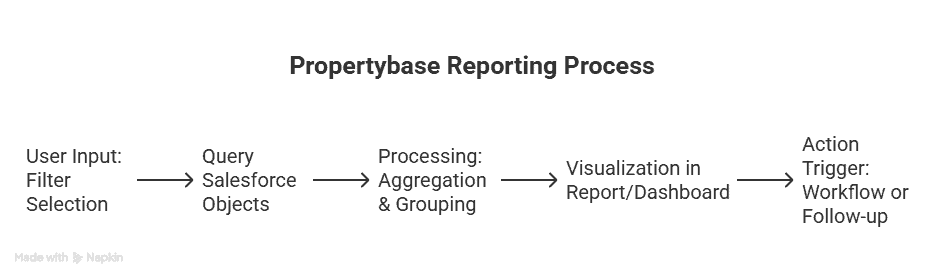
Propertybase's 12-part Getting Started series ends with reporting basics and dashboards as the last steps of the lead-to-close process, which is the right order: reporting reads what the earlier steps recorded.
Which Report Types Do You Need for Propertybase Reporting?
Use standard report types for single-object questions and custom report types for anything that spans the deal. In Salesforce, a report type defines the records and fields a report can use, based on a primary object and its related objects. If a field or object is missing from the report builder, the report type is usually why.
As Propertybase puts it, "when you pick a report type, you're picking the records and fields you'll be able to see". The questions leadership asks usually cross several records, so the report types are the first thing to design.
| Question | Primary object | Related objects | Relationship |
|---|---|---|---|
| Which buyers have no active search? | Contacts | Inquiries | May or may not have |
| What are active buyers looking for, by area and budget? | Contacts | Inquiries | Must have |
| Which listings have no offers yet? | Listings | Offers | May or may not have |
| Which lead sources produce closed deals? | Contacts | Offers, Closings | Must have |
| Which website visitors viewed listings this week? | Contacts | Website Listing views | Must have |
How to build a custom report type
SetupIn Setup, open Report Types and create a new custom report type, as Propertybase's help walks through. Pick the primary object, add related objects, then edit the field layout, including fields reached through lookups. Related objects form a chain, each one a child of the object before it, so check how the lookups run in your org before you design the type. Leave it In Development while you test, then set it to Deployed.
For each related object, Salesforce asks whether each record must have at least one related record, or may or may not. "Must have" answers "contacts with closings"; "may or may not" lets you find contacts without them. Once you choose "may or may not", every later relationship in that report type uses it too.
Limits to design around: a report type joins at most four objects (the primary plus three related), the primary object can't be changed after saving, and new fields must be added to the report type's layout before report builders can see them. See Salesforce's report type guidelines.
Two Propertybase-specific details. Website activity (views, favourites, shares, showing requests) becomes records only for customers with a Propertybase Website integration, and you must turn on "Allow Reports" on each Website Listing object before building a report type such as Contacts with Website Views. And Salesforce notes that custom objects deployed through change sets, Metadata API or Salesforce DX don't automatically get a standard report type, so your own custom objects may need a custom report type to appear at all.
Which Salesforce Report Format Should You Use?
Use summary reports for most brokerage questions, matrix reports to compare two dimensions, tabular reports for working lists, and joined reports when one view needs several report types. Salesforce offers four report formats, and the format decides whether you can group, chart and use the report on a dashboard.
| Format | What it does | Use it for | Watch out for |
|---|---|---|---|
| Tabular | A simple list of rows, like a spreadsheet | Call lists, "who should I call today?", data clean-up lists | Can't be grouped or charted, and can't feed a dashboard unless rows are limited |
| Summary | Groups rows with subtotals and a chart | Open inquiries by source, closings by month, listings by status | Group by fields that are filled in consistently |
| Matrix | Groups by rows and columns | Closings by agent and property type; leads by source and month | Too many groupings get hard to read |
| Joined | Up to five report blocks, each like a sub-report, on different report types | Listing activity next to offer activity for the same listings | Enterprise, Performance, Unlimited and Developer only; no bucket fields or cross filters; no subscriptions |
The old version of this article used a matrix report for "sales by agent versus property type", and that is still a good example. For joined reports, Salesforce lists the block and grouping rules; most brokerages reach for one only after a custom report type can't answer the question.
How Do Cross Filters, Bucket Fields and Formulas Help Real Estate Reports?
They let you answer sharper questions without changing the data model. Cross filters find records with or without related records, bucket fields group values into categories, row-level formulas calculate per record, summary formulas calculate rates across groups, and conditional formatting highlights what needs attention. Each has limits worth knowing before you design around it.
Cross filters
Include or exclude records by related records: contacts without activities, listings with showings but without offers. Up to three per report, each with up to five subfilters.
Bucket fields
Group values without a new field: price bands such as luxury, mid-market and entry level, or response time in bands. Up to five per report; they exist only in that report and can't drive a dashboard filter.
Row-level formulas
Calculate a value for each record, such as days from listing date to today or from offer to closing. Good for exploring; move a formula you keep using into a formula field.
Summary formulas
Calculate across groups: conversion rate by source, average sale price by office. PARENTGROUPVAL and PREVGROUPVAL give share of total and month-on-month change.
Conditional formatting
Colour summary values against thresholds in summary and matrix reports, up to five rules in Lightning. It doesn't appear in subscription emails.
Field filters
Up to 20 field filters per report in the report builder. Narrow "Show Me" and the date range first: it is also Salesforce's first tip for faster reports.
Pitfall: bucket fields and row-level formulas are easy to multiply. Use them to explore; once a category or calculation becomes a standard metric, make it a field on the object so every report and dashboard uses the same definition. Cross filters and buckets are available in Enterprise, Performance, Unlimited and Developer editions.
Which Propertybase Reports Should a Brokerage Build?
Start from the decisions each audience makes, and build one report per decision. Agents need today's work, team leads need workload and risk, broker-owners need sources, offices and trend, and finance and compliance need closings and checklists. A short library everyone trusts beats a long one nobody opens.
Propertybase recommends writing the question first, then its follow-up questions, then the criteria. Its worked example, "How many contacts do I have per stage?", becomes the Contacts and Companies report type, grouped by stage, showing all contacts, for all time.
| Audience | Question | Built on | Format and technique |
|---|---|---|---|
| Agent | Who should I call today? | My contacts with next activity or last activity date | Tabular, "My contacts", date filter |
| Agent | Which of my buyers have gone quiet? | My contacts with open inquiries | Cross filter: without activities in the last 14 days |
| Team lead | How fast do we reach new leads? | Contact stage time stamps | Matrix by owner, bucket on minutes to first stage change |
| Team lead | Is workload balanced? | Open inquiries and pending deals by owner | Summary by owner and team |
| Team lead | Which listings are going stale? | Active listings with showings and offers | Row-level formula for days listed; cross filter without offers |
| Broker-owner | Which sources produce closings? | Contacts with offers and closings | Custom report type; summary by lead source; share of total |
| Broker-owner | How are offices trending? | Closings by office and month | Matrix; PREVGROUPVAL for month-on-month change |
| Broker-owner | What does our inventory look like? | Listings by status and price band | Summary with a price-band bucket |
| Finance | What closes this month, and what do we owe? | Pending and closed closings with commission fields | Summary by expected close month and agent |
| Compliance | Which deals are missing documents? | Closings with open checklist items | Tabular exception list, subscribed weekly |
Lead response and conversion time
Propertybase patternPropertybase documents a conversion-time pattern: a date-and-time stamp for each contact stage (New Lead, Working, Active, Nurture, Disqualified), set by automation, plus formula fields such as "Conversion: New Lead to Working". It then reports them in a matrix grouped by contact owner, with a bucket field for conversion time.
Update the method: the original instructions set the stamps with Workflow Rules, which Salesforce no longer supports. Build the same stamps with a record-triggered Flow, test it in a sandbox, and the reports work unchanged.
Start from Propertybase's own package
FreeThe Propertybase Reports and Dashboards Package adds an Agent Performance dashboard, a Company Performance dashboard and transaction reports such as All Closed Transactions YTD and My Pending Transactions, plus website and back-office audit reports. Newer orgs also include a Leads by Source report by default.
Pitfall: installing a package update removes your changes to its reports, so clone them into your own folder before editing.
How Do You Build Propertybase Dashboards People Actually Use?
Build one dashboard per audience, show each viewer their own data, and keep it to the components someone acts on. In Propertybase, each dashboard component maps one-to-one to a report, so a good dashboard is a short list of good reports. Use dynamic dashboards so one agent dashboard serves every agent, and filters so one office dashboard serves every office.
| Feature | What Salesforce allows | How to use it |
|---|---|---|
| Components | Up to 25 widgets per dashboard, including at most 20 charts and tables (limits) | Aim far lower. Lead with the metric or gauge that answers the main question |
| Component types | Chart, gauge, metric and table | Gauge for a target (closings this quarter), metric for one number, table for "top 10 at-risk deals" |
| Filters | Up to 5 filters per dashboard, each with up to 50 values (filters) | Office, team, transaction side, property type. Not on bucket fields |
| Dynamic dashboards | Each user sees only data they can access; up to 5 in Enterprise and 10 in Unlimited and Performance editions (dynamic dashboards) | One "My Pipeline" dashboard for every agent. Note: no scheduled refresh or subscriptions |
| Placement | Embed on the Home tab and app pages; record pages don't support embedded dashboards | Put each audience's dashboard on its home page so nobody has to look for it |
Propertybase shows the Company Performance dashboard on the home page by default, and admins can add dashboard and report chart components through Edit Page. Share dashboard and report folders with View, Edit or Manage access by role or group, and keep a separate folder for the sanctioned, governed versions.
How Can Propertybase Reports Show Trends Over Time?
Switch on Salesforce's history tools before you need them, because none of them can be backdated. A standard report shows the current state of records. To see how pipeline, stages or prices changed, use historical trend reporting for recent changes, reporting snapshots for long-run trends, and field history tracking for an audit of individual field changes.
| Tool | What it keeps | Limits | Best for |
|---|---|---|---|
| Historical trend reporting | Values of up to 8 chosen fields on Opportunities, Cases, Forecasting Items and up to 3 custom objects | The previous three months plus the current month; compare up to five dates; no export or subscription | Week-on-week change in closings pipeline |
| Reporting snapshots | A tabular or summary report's results saved into a custom object daily, weekly or monthly | Up to 2,000 rows per run and 100 mapped columns | Month-end inventory, pipeline by office over a year or more |
| Field history tracking | Old and new values of up to 20 fields per object | Up to 18 months without Field Audit Trail (a paid add-on) | When a listing's price or status changed; stage-change audit |
The old version of this article promised that dashboards "forecast deal closures" from trendlines. Native reports don't predict; they show what happened. What they can do well is compare: this month against last month, this office against that one, this quarter's pipeline against the snapshot taken at the start of it. That is enough for most brokerage decisions, and it depends entirely on the history having been switched on early.
How Do You Turn Propertybase Reports into Action?
Push results to people instead of waiting for them to open a dashboard. Subscribe the right people to reports with conditions, put report charts where agents already work, schedule dashboard emails for managers, and use Flow for alerts that must fire on a single record. A report that only sends when something is wrong gets read.
Conditional report subscriptions
EmailReport subscriptions email refreshed results to users, groups or roles on a schedule. Add up to five conditions, such as "record count greater than 10", and the email is sent only when all of them are met.
Example: a daily report of new inquiries with no activity after two hours, sent to each team lead only when the count is above zero.
Report charts on record and home pages
In contextThe Report Chart component in Lightning App Builder puts a chart on a page and can be filtered to the record being viewed, for example showings and feedback on a listing page. Charts refresh when their data is more than a day old, and reports in a personal folder can't be used.
Dashboard subscriptions and mobile
ManagersDashboard subscriptions send a scheduled snapshot; recipients see the data as the person running it, and dynamic dashboards can't be subscribed to. Dashboards are on Propertybase mobile by default in newer versions, but in the Salesforce mobile app they are view-only, and joined and historical trend reports aren't available.
Use Flow, not reports, when the trigger is a single record crossing a line, such as a closing passing its target date with checklist items open. Our guide to advanced Salesforce workflows for Propertybase covers those automations.
Why Do Propertybase Reports Show the Wrong Numbers?
Usually because the records underneath are incomplete or inconsistent, not because the report is built wrong. A dashboard shows whatever the data says, instantly and confidently. Before building more reports, check the six problems below; each one quietly distorts a common brokerage metric.
Salesforce also lists practical report performance tips: narrow "Show Me" and date filters, prefer "equals" over "contains", remove unused columns, and move repeated formulas into formula fields. Remember that reports display at most 2,000 rows on screen; export when you need the full list.
When Do You Need CRM Analytics or Tableau for Propertybase Data?
Only when native reports run out: many years of history, data from outside Salesforce, or analysis that needs more than four related objects. Standard reports and dashboards are included, and an in-house admin can maintain them. CRM Analytics and Tableau Next are separate products with extra licence cost, so the trigger should be a question you can't answer today.
Salesforce describes its own options this way: reports and dashboards are built into Salesforce; CRM Analytics connects data from several sources into interactive views; and Tableau Next is an API-first analytics experience built on Salesforce with Data 360 as its data layer, designed to work with Agentforce. Its Reports Metadata Bridge can build a semantic model from your most-used report types, which is one more reason to design those report types well.
Native reports are enough when your questions are about Propertybase records, a few months to a couple of years of history covers them, and an admin needs to maintain the reports after go-live.
Look further when you blend in accounting, portal or marketing data held elsewhere, compare many offices over several years, or need predictions, which in Salesforce's reports require the extra-cost CRM Analytics Plus licence.
We cover the trade-offs in more detail on our Salesforce CRM Analytics and data analytics services pages.
What Does Better Propertybase Reporting Look Like in Practice?
A multi-office residential brokerage with more than 120 agents shows the shift from weekly spreadsheets to live dashboards. Reports were assembled by hand in Excel once a week, so by the time leadership saw a region underperforming, weeks of pipeline had gone unaddressed. Twopir Consulting implemented Propertybase on Salesforce with reporting designed in from the start.
According to the published case study:
- Live Salesforce dashboards replaced the weekly Excel reports, tracking lead velocity, agent activity, pipeline by region and listing conversion.
- Alerts fire when conversion rates dip below a threshold, so leadership responds to pipeline issues the same day instead of seven days later.
- With every transaction step timestamped in Salesforce, compliance audit preparation dropped from two days to under two hours.
These are one brokerage's results against its own starting point. The pattern is the useful part: model the data for reporting from day one, build per audience, and alert on thresholds.
What Is the Best Way to Roll Out Propertybase Reporting?
Define the decisions first, fix the data, build report types, then dashboards per audience, then alerts, and review after a month. Do the work in a sandbox, start history tracking on day one, and keep the governed reports in shared folders. The sequence below is the checklist from the original article, expanded.
If you'd rather not do this alone, our Propertybase reporting services follow the same order, and Propertybase optimization covers the wider org. For the rest of the platform, see how to best use Propertybase and Salesforce.
The Bottom Line
Propertybase reports are as good as the decisions they serve and the data they read. Use Salesforce's native tools well, design report types around real questions, keep history from day one, and let reports come to people when something needs attention.
- 1
Write the question before you build the report.
- 2
Design custom report types for the questions that span the deal.
- 3
Build dashboards per audience, with dynamic views for agents.
- 4
Turn on history tools before you need the trend.
- 5
Fix the data first, then alert on thresholds.
Bring Us the Number You Don't Trust
On a 30-minute discovery call, a Twopir Salesforce architect will look at your Propertybase reports with you and tell you whether the fix is the report, the report type or the data underneath.
Schedule a Discovery CallFrequently Asked Questions
They are standard Salesforce reports and dashboards built on Propertybase's real estate records, such as contacts, inquiries, listings, offers and closings. Because Propertybase runs inside Salesforce, report types, formats, filters, dashboards, subscriptions and history tools all work on its data without a separate reporting product.
Yes, with a custom report type. It joins a primary object with up to three related objects, and you choose whether each record must have related records or may not. For questions that need more objects or different report types side by side, use a joined report or move to CRM Analytics.
Usually because of the running user. Propertybase licences are of the Salesforce Platform type, and those users can view a dashboard only if its running user has the same licence. Set the running user to someone with a Propertybase profile, and check that the dashboard folder is shared with the agents.
Stamp the date and time each contact enters a stage, calculate the gap with formula fields, and report it in a matrix by contact owner with a bucket for time bands. Propertybase documents this pattern; build the stamps with a record-triggered Flow rather than the Workflow Rules its older instructions use.
Yes, if history is switched on first. Historical trend reporting keeps about three months of field values, reporting snapshots save report results on a daily, weekly or monthly schedule for long-run trends, and field history tracks individual field changes. None of them can be backdated.
Subscribe to the report and choose the schedule and recipients. Add up to five conditions so the email is sent only when they are all met, such as untouched leads above zero. Dashboards can be subscribed to as well, except dynamic dashboards.
Most brokerages don't. Native reports and dashboards cover pipeline, sources, agents, inventory, closings and compliance. Consider CRM Analytics or Tableau Next when you need data from outside Salesforce, several years of multi-office history, or predictive insights, all of which carry extra licence cost.
